If you just plugged in a Xerox WorkCentre 3210 and Windows will not print, the fix almost always comes down to installing the correct PCL6 driver package and setting up the USB or network port properly. This guide walks through downloading, installing, and troubleshooting the driver so the printer, scanner, and fax functions all work correctly.
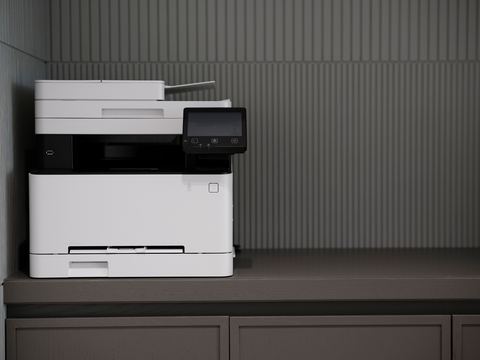
The WorkCentre 3210 is an older monochrome laser multifunction printer that Xerox aimed at small offices and home users. It handles printing, copying, scanning, and faxing from one compact unit. Because it predates modern plug-and-play driver stores, most current versions of Windows will not find a matching driver automatically, so a manual install is usually required.
Applies To: Xerox WorkCentre 3210 / 3220 monochrome laser MFP
Author / Publisher: Xerox Corporation
Driver / Software Date: Last major update cycle, PCL6 v5.x driver line
Version: 5.483.9.0 (PCL6 print driver)
File Name: WC3210_3220_PCL6_x86_x64.exe
File Size: approximately 45 MB
OS Compatibility: Windows 11, Windows 10, Windows 8.1, Windows 7 (32-bit and 64-bit)
Downloading the Correct Driver
Xerox keeps legacy drivers on its official support site. Search for “WorkCentre 3210” in the product field, then filter by your Windows version. There are usually two packages listed: a full driver and utilities bundle, and a print-driver-only package. For most home users, the print-driver-only package is enough unless you also need the scan utility.
- Go to the Xerox support page and search WorkCentre 3210.
- Select your exact Windows edition (11, 10, 8.1, or 7) and bit version (x86 or x64).
- Download the PCL6 print driver package, not the PostScript one, unless your workflow specifically needs PostScript.
- Save the .exe file somewhere you can find it, like your Downloads folder.
I have set up this exact model twice for relatives who still run it as a home office backup printer. Both times, the driver that Windows Update offered was outdated and caused garbled printouts on longer documents, so downloading the current package directly from Xerox fixed it in a few minutes.
Installing the Driver
USB Connection
- Do not plug in the USB cable yet if this is a fresh install.
- Run the downloaded .exe file as administrator.
- Follow the setup wizard and choose USB when prompted for connection type.
- Connect the USB cable only when the installer tells you to.
- Windows will detect the new hardware and finish binding the driver automatically.
Network Connection
If the WorkCentre 3210 is on your local network instead of connected by USB, the installer can search for it automatically, or you can enter the printer’s IP address directly. Check the IP by printing a configuration page from the printer’s control panel (usually Menu > Information > Configuration Report). During setup, select “Network” as the connection type, then either let the wizard discover the device or type the IP manually.
Manual Install via Device Manager
If the automatic installer fails, or you only have an INF file extracted from the package, you can add the printer manually:
- Open Device Manager (right-click the Start button and choose it, or press Windows key + X).
- Connect the printer and look for it under “Other devices” or “Print queues,” often marked with a yellow warning icon.
- Right-click the unrecognized device and select “Update driver.”
- Choose “Browse my computer for drivers,” then point to the folder where you extracted the Xerox driver package.
- Let Windows install the matching INF file, then restart the print spooler service or reboot the PC.
An alternative path is through “Add a printer or scanner” in Windows Settings, then “The printer that I want isn’t listed,” followed by “Add a local printer or network printer with manual settings.” This lets you pick the Xerox WorkCentre 3210 from the built-in list if the driver has already been extracted to disk, or use the “Have Disk” option to browse to the INF file.
Windows 10 and Windows 11 Differences
Windows 11’s printer stack is stricter about signed drivers than Windows 10. If the installer throws a warning about an unsigned or unrecognized publisher, right-click the .exe, open Properties, and check the “Unblock” box near the bottom of the General tab before running it again. On Windows 10, this step is rarely necessary, but running the installer as administrator is still recommended on both versions to avoid permission errors partway through setup.
Print spooler crashes are also more common on Windows 11 with legacy PCL6 drivers. If print jobs get stuck in the queue, open Services, find “Print Spooler,” restart it, then try printing again. You can find more background on this behavior from Microsoft’s official printing support page.
Troubleshooting Failed Installs
- Installer stalls at “Searching for printer”: Cancel, unplug the USB cable, restart the PC, then rerun the installer and connect the cable only when prompted.
- Printer shows as “Unspecified” in Devices and Printers: The driver bound to the wrong generic class. Remove the device, uninstall the driver from Print Management, and reinstall using the full package rather than Windows’ built-in driver.
- Print jobs stuck in the queue: Clear the spooler folder (C:\Windows\System32\spool\PRINTERS), restart the Print Spooler service, and resend the job.
- Scanner not detected after printer install works fine: Install the separate scan driver/utility package, since the print-only package does not include TWAIN or WIA scan support.
- “Access denied” during install: Right-click the installer and choose “Run as administrator.”
Per Daniel Wong, who is an IT support technician at a small accounting firm in Kuala Lumpur, “We kept an old WorkCentre 3210 running for years after Xerox stopped actively updating it, and the only real trick was always grabbing the driver straight from Xerox instead of trusting Windows Update to pick the right one.”
Keeping the Printer Running Long Term
Since this is an older model, expect Xerox to eventually stop releasing new driver builds for it. If you upgrade to a newer Windows version down the road and the existing driver stops working, check whether Xerox has published a compatibility note, or try installing the driver in compatibility mode (right-click the .exe, Properties, Compatibility tab, select an older Windows version). This trick has kept several older MFPs alive well past their official support window.

Frequently Asked Questions
Why won’t Windows find my WorkCentre 3210 automatically?
Windows Update’s built-in driver database does not always carry current builds for older Xerox multifunction printers. Downloading the driver directly from Xerox’s support site is more reliable than waiting for Windows to detect it.
Do I need the full driver package or just the print driver?
If you only need to print, the print-driver-only package is smaller and installs faster. If you also want to scan or fax from the PC, use the full driver and utilities bundle instead.
Can I use this printer over Wi-Fi?
The WorkCentre 3210 does not have built-in Wi-Fi. It connects by USB or wired Ethernet. You can share it wirelessly by connecting it to a PC or router that already has network access and sharing the printer over your local network.
The printer prints blank pages after installing the driver. What now?
This is usually a toner cartridge seated incorrectly, or the sealing strip on a new cartridge was not fully removed. Reseat the cartridge and check the strip. If that does not fix it, run the printer’s self-test/configuration page from the control panel to confirm the print engine itself is working.
Is the PCL6 or PostScript driver better for everyday use?
PCL6 is faster for typical office documents and is what most home and small-office users should install. PostScript is mainly useful if you work with design or publishing software that specifically expects PostScript output.
Conclusion
Getting the Xerox WorkCentre 3210 working on a current version of Windows mainly comes down to skipping Windows’ automatic driver search and installing the official PCL6 package directly from Xerox. Once the driver is bound correctly, this printer is dependable for basic office use, and the manual Device Manager path is there as a backup whenever the installer itself misbehaves.
Written by Ryan, a computer science graduate with over 20 years of hands-on experience fixing printers, drivers, and PC hardware issues. For more driver guides and troubleshooting walkthroughs, visit softwaredriverdownload.com.