The D-Link DWA-125 driver is a Wireless N USB adapter driver you need to install manually on Windows 10 and 11, since neither operating system ships a built-in driver for this older chipset. Without it, the adapter shows up as an unrecognized device and will not connect to any wireless network.
The DWA-125 is a compact USB Wi-Fi dongle that was popular for adding wireless to older desktop PCs. It is a Wireless N (802.11n) adapter, so speeds are modest by modern standards, but it still works reliably for browsing and email once the correct driver is loaded.
| Applies To | D-Link DWA-125 Wireless N 150 USB Adapter |
| Publisher | D-Link Corporation |
| Driver Date | Varies by hardware revision (check the version label on the adapter itself) |
| Version | Driver build differs between revision A1/B1/C1 hardware |
| File Name | DWA125_Driver_Software.zip |
| File Size | Roughly 10-25 MB depending on the package |
| OS Compatibility | Windows 7, 8, 8.1, 10 officially; 32-bit and 64-bit both supported, works on Windows 11 as well |
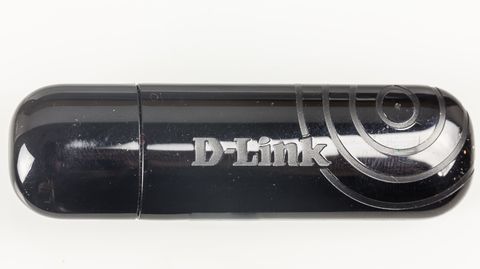
Why the Driver Goes Missing
Common Causes
- Windows Update never picked up the older DWA-125 chipset, especially on revision A1 hardware.
- A clean install of Windows 10 or 11 wipes out any previously installed third-party driver.
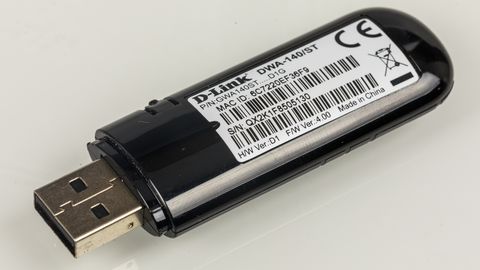
- The adapter’s hardware revision (check the sticker on the underside) needs a matching driver version – a mismatched revision driver often fails silently.
- Corrupted USB drivers elsewhere on the system can prevent Windows from even recognizing a new USB device.
The Fixes
- Check the label under the adapter for the exact hardware revision before downloading anything.
- Get the driver package from D-Link’s official support pages rather than a search engine result.
- Install with the adapter unplugged first, then plug it in only when the installer tells you to.
- Use Device Manager’s manual install method if the setup wizard will not run.
Downloading the Correct Driver
D-Link keeps legacy driver downloads on its official support portal. Search for “DWA-125” and match the hardware revision printed on a small sticker on the underside of the adapter – it will say something like “H/W Ver.: A1” or “B1.” Downloading the wrong revision’s driver is the single most common reason people report the adapter “not working” after install.
- Go to D-Link’s support site and search for DWA-125.
- Select your exact hardware revision from the dropdown list.
- Download the Windows driver/software package, which is usually a ZIP file.
- Extract the ZIP to a folder you can find again, such as your Desktop.
Installing the Driver
D-Link’s DWA-125 package normally includes both the driver and a Wi-Fi connection utility. Most people only need the driver, since Windows’ own network settings handle Wi-Fi connections fine on their own.
- Unplug the DWA-125 before you start the installer – installing drivers first prevents Windows from grabbing a generic, non-functional driver automatically.
- Run the setup file from the extracted folder as administrator.
- Follow the prompts and plug in the adapter only when the wizard tells you to.
- Restart if prompted, then check Device Manager under “Network adapters” to confirm it shows the correct name with no warning icon.
When the Installer Won’t Run or Finish
A handful of things commonly go wrong with this particular adapter’s driver package on modern Windows:
- Installer closes immediately after launching – right-click the setup file, open Properties, go to the Compatibility tab, and set it to Windows 8 compatibility mode, then run as administrator.
- “Device cannot start” error (Code 10) in Device Manager – this usually means the wrong hardware revision driver was installed. Uninstall it completely (including “Delete the driver software” checkbox), reboot, and reinstall the correct revision.
- Adapter is detected but Wi-Fi networks never appear – open Device Manager, right-click the adapter, choose Disable, wait a few seconds, then Enable again. This resets the radio without needing a full reboot.
- Windows Update keeps overwriting the driver with a generic one – go to Settings > Windows Update > Advanced Options and turn off “driver updates,” or use Device Manager to roll back after each Windows Update cycle.
I had a DWA-125 sitting in a drawer for a client’s old Windows 10 desktop that would not go online after a fresh install. Windows Update had already shoved in a generic driver that showed the adapter as working but it never found any networks. Uninstalling that driver completely and installing D-Link’s own package from the support site fixed it in under five minutes.
Per Amara Okafor, who is an IT Support Specialist at a small business consultancy, “We still keep a couple of DWA-125 dongles as spares for client desktops without built-in Wi-Fi. The driver install is quick as long as you match the hardware revision – skip that step and you will be troubleshooting a phantom problem for an hour.”
Manual Install Through Device Manager
If the setup program refuses to run at all, you can still get the adapter working by pointing Windows to the driver files directly:
- Extract the downloaded ZIP file if you have not already.
- Plug in the DWA-125 and open Device Manager.
- Find the adapter under “Other devices” or “Network adapters,” usually flagged with a yellow warning triangle.
- Right-click it and choose Update driver, then Browse my computer for drivers.
- Navigate to the extracted folder (look for a subfolder containing an .inf file) and let Windows install from there.
Windows 10 and Windows 11 Notes
On Windows 10, the DWA-125 driver installs cleanly in most cases, though Windows Update sometimes swaps in its own generic driver later, which can cause the “detected but no networks found” symptom described above. On Windows 11, you are more likely to need compatibility mode for the installer itself, since the setup wizard was written before Windows 11 existed. Once installed, the adapter behaves the same on both systems – a solid, if unremarkable, Wireless N connection suitable for everyday browsing.
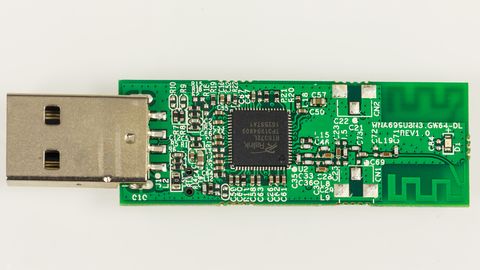
Confirming It Actually Works
- Open Device Manager and check the adapter has no warning icon under “Network adapters.”
- Click the Wi-Fi icon in the taskbar and confirm nearby networks show up in the list.
- Connect to a known-good network and run a quick speed test – anything close to your normal Wi-Fi speed confirms the driver is working properly, not just installed.
If networks still do not appear after the driver installs cleanly, try a different USB port, preferably a USB 2.0 port directly on the motherboard rather than a front-panel hub. For more general USB and wireless troubleshooting steps, How-To Geek has several practical guides worth checking.
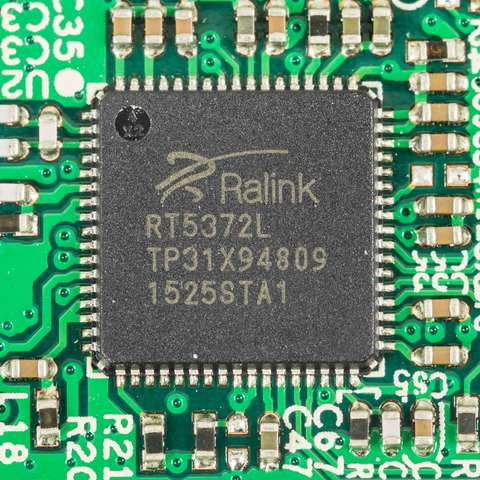
Frequently Asked Questions
How do I find my DWA-125 hardware revision?
Flip the adapter over and look for a small printed label near the USB connector. It lists “H/W Ver.” followed by a letter and number, such as A1 or B1. You need this to download the matching driver.
Does the DWA-125 work on Windows 11?
Yes. The adapter itself works fine; you may just need to run the older installer in compatibility mode. Once installed, it functions normally on Windows 11.
Do I need the D-Link connection utility, or just the driver?
Just the driver is enough for most users. Windows’ built-in Wi-Fi settings can manage the connection without D-Link’s separate utility software.
Why does my DWA-125 keep disconnecting randomly?
This is often a USB power management setting. Open Device Manager, find the adapter under Network adapters, go to Properties, Power Management tab, and uncheck “Allow the computer to turn off this device to save power.”
Can I use a DWA-125 driver from a different D-Link model?
No, stick to the exact model and hardware revision. Wireless adapter chipsets vary even within the same product line, and a mismatched driver can cause instability or fail outright.
Conclusion
Getting the D-Link DWA-125 working on a modern PC comes down to matching your hardware revision to the right driver package and installing it before plugging the adapter in. It is a straightforward process once you know the revision number, though Windows Update’s habit of substituting its own generic driver is worth watching for after the fact. Keep the original installer file handy in case you ever need to reinstall it.
Ryan is a Computer Science graduate who has spent more than twenty years troubleshooting PC hardware and driver issues for friends, family, and clients. He runs softwaredriverdownload.com and tests every driver guide on real hardware before publishing it.