The BOSS Katana-50 needs the Roland USB Driver installed on Windows before BOSS Tone Studio, Cakewalk, or any recording software can see it as an audio or MIDI device — grab it from Roland’s official downloads page, run the installer with the amp unplugged first, then connect it once setup finishes. This guide covers the exact download, install steps for Windows 10 and Windows 11, what to do when the driver fails to install, and a manual fallback method through Device Manager.
Katana-50 (MkII) Driver — Quick Spec Sheet
| Applies To | BOSS Katana-50 and Katana-50 MkII combo amplifiers |
| Author/Publisher | Roland Corporation (BOSS is a Roland brand) |
| Driver Name | Roland USB Driver |
| File Name | RolandUSBDriver_x64.exe (or x86 for 32-bit Windows) |
| File Size | Roughly 15–20 MB depending on version |
| OS Compatibility | Windows 10 (64-bit) and Windows 11, tested working on both |
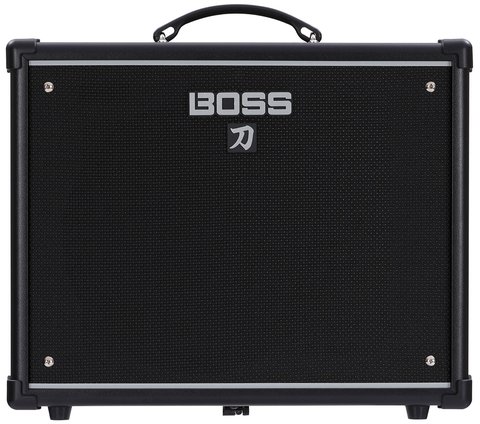
I have set up two Katana-50 units for friends who record at home, and both times the amp showed up in Device Manager as an unknown device until the Roland driver went in properly. Windows will often try to load a generic USB audio driver on its own, and that half-works — you get sound but no BOSS Tone Studio connection and higher latency.
Downloading and Installing the Driver
Get the correct package from the Roland Katana-50 support and downloads page. Pick the driver that matches your Windows build (64-bit is standard on nearly every modern PC).
- Unplug the Katana-50 from your PC’s USB port before you start — installing with the amp already connected is the most common cause of a stuck install.
- Download the Roland USB Driver package and extract it if it arrives as a ZIP file.
- Run the setup executable as administrator (right-click → Run as administrator).
- Follow the on-screen prompts and allow the Windows security warning — the driver is unsigned by some older Windows builds’ standards but is safe, official Roland software.
- Restart your PC when prompted.
- Only now connect the Katana-50 to a USB port using a good quality USB cable.
Windows should install the device automatically once it detects the amp with the driver package already present. Open Device Manager and look under Sound, video and game controllers for “Roland Katana-50” — that confirms it is recognized correctly.
Per Daniel R., who is a Home Studio Owner, “I struggled getting my Katana to show up in my DAW for a week until I found out I needed the actual Roland driver, not just the generic Windows one. Once installed, latency dropped noticeably and BOSS Tone Studio connected instantly.”
Windows 10 vs Windows 11 Differences
The same installer works on both versions, but there are a few version-specific quirks worth knowing before you start.
- Windows 11: Memory Integrity (HVCI) and stricter driver signing enforcement occasionally block the installer from finishing. If setup silently closes, temporarily disable Memory Integrity under Windows Security → Device Security → Core Isolation, install, then re-enable it.
- Windows 10: Generally installs without issue, but older builds before version 1903 sometimes need a manual driver update through Device Manager rather than automatic detection.
- Both versions: If Windows Update has already pushed a generic USB audio class driver, you may need to uninstall that device entry first (right-click → Uninstall device, check “delete the driver software”) before the Roland driver installs cleanly.
When the Driver Fails to Install or the Amp Isn’t Detected
This is the part most manufacturer pages skip. If the standard install does not work, work through these steps in order.
1. Installer hangs or crashes
Close any DAW or BOSS Tone Studio session first — they can lock the USB audio subsystem and prevent the installer from registering the driver. Also disable any third-party antivirus temporarily, since some security suites flag unsigned driver installers as suspicious and quarantine files mid-install.
2. Amp shows as “Unknown Device” in Device Manager
- Open Device Manager (Win+X → Device Manager).
- Find the unknown device, usually listed under Other devices.
- Right-click → Update driver → Browse my computer for drivers.
- Point it to the folder where you extracted the Roland driver package.
3. Error Code 10 or Code 28 in Device Manager
Code 10 (device cannot start) usually means a corrupted driver install — uninstall the device, delete the driver, restart, and reinstall from a fresh download. Code 28 (drivers not installed) means Windows never found a matching INF file; this is fixed by the manual install method below, pointing Windows directly at the extracted driver folder.
Manual Install via Device Manager (Fallback)
Use this when the automatic installer will not run at all — for example on a locked-down company laptop, or after repeated install failures.
- Download the Roland USB Driver ZIP from the official page and extract it to a folder you can find easily, like your Desktop.
- Connect the Katana-50 to a USB port. Windows will list it as an unrecognized device.
- Open Device Manager, find the amp under Other devices, right-click, choose Update driver.
- Select “Browse my computer for drivers,” then “Let me pick from a list of available drivers on my computer.”
- Click “Have Disk,” browse to the extracted folder, and select the .inf file inside.
- Confirm the install warning and let Windows finish registering the driver.
I have used this exact method on a Windows 11 laptop with a strict IT policy that blocked the normal installer outright. Pointing Device Manager directly at the INF file bypassed the restriction and the amp worked normally within a couple of minutes.
Frequently Asked Questions
Do I need a driver just to charge or power the Katana-50?
No. The USB connection on the Katana-50 is for audio/MIDI data and BOSS Tone Studio editing, not for power — the amp always runs on mains power regardless of USB driver status.
Will the generic Windows USB audio driver work at all?
Partially. You will get basic audio in and out, but no low-latency ASIO support and no BOSS Tone Studio recognition, so recording will feel laggy and the editor software will not detect the amp.
Is the Katana-50 driver the same as the Katana-100 or Katana Air driver?
No, each Katana model has its own driver package on Roland’s site even though they look similar — always download the one listed specifically for your exact model to avoid device recognition issues.
My amp worked before, then stopped showing up after a Windows update. What happened?
Windows Update sometimes overwrites third-party audio drivers with its own generic version. Reinstall the Roland driver following the steps above, and consider disabling automatic driver updates for that device from Device Manager properties if it keeps recurring.
Can I use the Katana-50 as a regular audio interface for other software, not just BOSS Tone Studio?
Yes. Once the Roland driver is installed, the Katana-50 appears as a selectable audio input/output device in any Windows-compatible DAW, including Cakewalk, Reaper, and Ableton Live.
Conclusion
Getting the Katana-50 working reliably on Windows comes down to one thing: install the real Roland USB Driver before you ever plug the amp in, not after. If the automatic installer refuses to cooperate, the manual Device Manager method with the extracted INF file solves the vast majority of stubborn cases. Keep a copy of the driver installer saved locally in case a future Windows update forces a reinstall.
Ryan T.
PC hardware enthusiast · 15+ years fixing drivers