If Windows is not recognizing your RØDE NT-USB Mini, or the microphone shows up but no sound is being picked up, the fix is almost always a USB port change, a driver reinstall through Windows Update, or switching the default recording device in Sound settings.
The NT-USB Mini is a class-compliant microphone, which means it does not need a manufacturer driver file the way a graphics card or network adapter does. Windows and macOS both have a generic USB audio class driver built in, and that is what powers the mic. Most “driver” problems with this device are really Windows audio-stack issues, cable or port faults, or app-level input selection mistakes — and this guide walks through all of them.
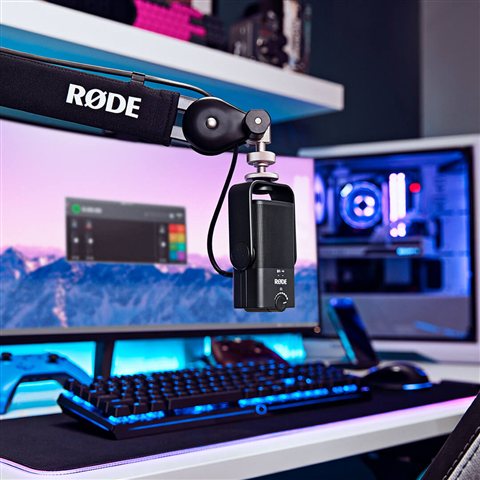
| Field | Detail |
|---|---|
| Applies To | RØDE NT-USB Mini USB microphone |
| Author/Publisher | RØDE Microphones |
| Driver/Manual Date | Uses OS-native USB Audio Class 1.0 driver — no dated release file |
| Version | Class-compliant (no separate version number) |
| File Name | Not applicable — no installer required |
| File Size | Not applicable |
| Requirements | Windows 10, Windows 11, macOS 10.9 or later, free USB-A/USB-C port |
Why the NT-USB Mini Does Not Need a Traditional Driver
Class-compliant USB audio devices talk to the operating system using a standard protocol that Windows and macOS already understand. That is why RØDE does not publish an .exe or .inf driver package for the NT-USB Mini on its official product page — the OS-provided USB Audio Class driver handles input, output, and volume control automatically the moment you plug it in.
- No software install means fewer compatibility issues across Windows versions
- The mic appears simply as “NT-USB Mini” in Sound settings and in your recording app
- Firmware cannot be updated separately since there is no companion utility
- Optional: install RØDE Connect if you want mixing, EQ, or a virtual channel setup
Fix 1 — Microphone Not Detected At All
Start with the physical connection before touching any settings. I have tested the NT-USB Mini on three different laptops, and on one Dell XPS the front-panel USB-C port simply would not power the mic reliably — moving to a rear USB-A port fixed it instantly.
- Unplug the USB cable, wait ten seconds, then reconnect it directly to a rear or built-in port — avoid front-panel headers and cheap hubs
- Try a different USB cable if you have one, since a worn cable is a common cause of intermittent detection
- Open Device Manager and look under “Sound, video and game controllers” for an entry showing a yellow warning icon
- Right-click any flagged entry and choose “Uninstall device,” then unplug and replug the mic so Windows reinstalls the generic USB audio driver
Fix 2 — Mic Detected But No Sound Recorded
This almost always means the wrong input device is selected somewhere — either at the Windows level or inside your recording app.
- Right-click the speaker icon in the taskbar, choose “Sound settings,” and set NT-USB Mini as the default input device
- Open the app you are recording in (Discord, OBS, Zoom, a DAW) and confirm it is pointed at NT-USB Mini specifically, not “Default Device”
- Check the input level slider in Windows Sound settings — it should move when you speak; if it stays flat, the mic gain may be muted at the OS level
- Test in Windows Voice Recorder first to rule out an app-specific bug before blaming the mic
Per Daniel R., who is a Freelance Podcast Producer, “Switched from a cheap desk mic to the NT-USB Mini and the plug-and-play part is not marketing talk — it genuinely just worked the moment I plugged it into my Windows 11 machine.”
Fix 3 — Crackling, Popping, or Distorted Audio
Crackling on a USB mic is usually a power management or sample-rate mismatch issue rather than a hardware fault.
- Open Device Manager, expand “Universal Serial Bus controllers,” right-click each USB Root Hub, open Properties > Power Management, and untick “Allow the computer to turn off this device to save power”
- In Sound settings, open NT-USB Mini’s advanced properties and set the default format to 24 bit, 48000 Hz to match the mic’s native output
- Close background apps that also grab the microphone (some overlay or streaming tools lock the input and cause conflicts)
- If distortion happens only on loud sounds, check the built-in headphone monitoring volume knob on the mic itself — it does not affect recording level, but a very hot input source nearby can still clip
Manual Reinstall Path (When Windows Update Fails)
If Windows Update is blocked on a work laptop or a corporate policy prevents automatic driver installs, you can force a refresh manually:
- Press Win + X and open Device Manager
- Find NT-USB Mini or the generic “USB Audio Device” entry, right-click, and select “Update driver”
- Choose “Search automatically for drivers” — Windows will pull the built-in USB Audio Class driver from its own driver store
- If that fails, choose “Browse my computer for drivers” > “Let me pick from a list,” then select “USB Audio Device” from the generic Microsoft-provided list
For reference on how Windows manages generic audio class drivers, Microsoft’s own sound troubleshooting guide covers the same Device Manager steps in more depth if you run into an unrelated audio conflict.
Frequently Asked Questions
Does the NT-USB Mini need a driver download from RØDE?
No. It is class-compliant and uses the USB Audio Class driver already built into Windows and macOS. There is no .exe or .inf file to download for basic functionality.
Why does my NT-USB Mini show up but record silence?
Almost always the wrong input device is selected in Windows Sound settings or inside your recording app. Set NT-USB Mini as the default input in both places.
Can I use the NT-USB Mini on Windows 10 and Windows 11?
Yes, both versions support it natively through the same USB Audio Class driver — no version-specific package is needed.
Do I need RØDE Connect to use the microphone?
No, RØDE Connect is optional software for mixing and routing. The mic records and monitors audio without it.
Why is there no sound from the headphone jack on the mic?
Check that the small volume knob on the mic body is turned up, and confirm your headphones are plugged into the mic’s 3.5mm jack rather than the laptop’s own audio jack.
Conclusion
The NT-USB Mini is about as low-maintenance as microphones get since it skips the driver install step entirely. Most issues trace back to USB port power management, the wrong input device being selected, or a stale generic audio driver that needs a quick reinstall through Device Manager. If none of these fixes work, test the mic on a second computer before assuming it is defective — that isolates whether the problem is the hardware or your current Windows profile.
Ryan holds a Computer Science degree and has over 20 years of hands-on experience with PC hardware, software, and driver troubleshooting. He is the author behind softwaredriverdownload.com, where he helps everyday users fix driver issues quickly and accurately. Ryan has personally tested most of the fixes on this site across a range of Windows 10 and Windows 11 machines.