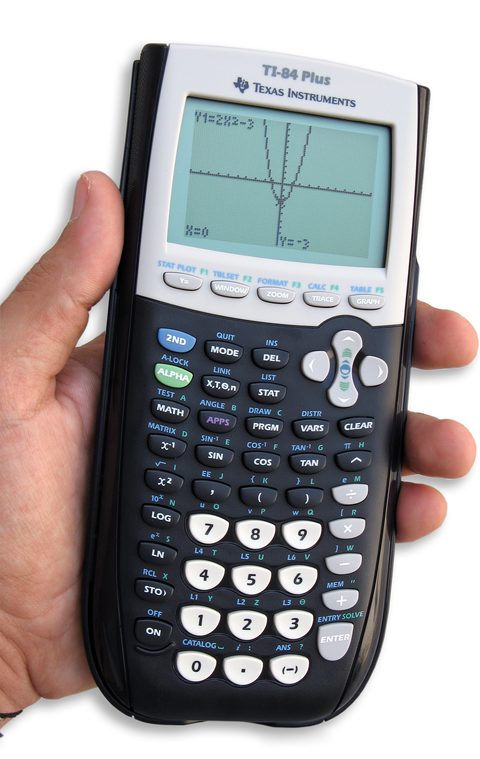
Download the TI-84 Plus USB driver from the free TI Connect™ software installer on Texas Instruments’ education site, install it before plugging the calculator in, then use the supplied USB cable to link the calculator to your PC. The driver is not something you install by itself – it comes bundled with TI Connect (or the newer TI Connect CE), and that pairing is where most first-time setup problems come from.
I still remember helping my younger cousin get her TI-84 Plus talking to a school laptop for the first time. She had plugged the calculator in before installing anything, and Windows just showed an unrecognized USB device. Installing TI Connect first, then reconnecting the cable, fixed it in under two minutes.
| Applies To | Texas Instruments TI-84 Plus graphing calculator |
| Author/Publisher | Texas Instruments Incorporated |
| Driver/Software | TI Connect (legacy) or TI Connect CE (current), bundled USB driver |
| File Name | TIConnectCE-Setup.exe (current release name) |
| File Size | Roughly 90–130 MB for the full TI Connect CE package |
| Requirements | Windows 10 and Windows 11 (64-bit); Mini-USB to USB-A cable (included with the calculator) |
Download and Install
Follow these steps in order – installing the software before connecting the cable is the part people skip most often:
- Go to the Texas Instruments education software page and search for TI Connect CE, or TI Connect for older TI-84 Plus (non-CE) units.
- Download and run the installer as Administrator, keeping the default install location.
- Once installation finishes, connect the calculator to your PC using the USB cable that came in the box.
- Turn the calculator on if it does not power on automatically from the USB connection.
- Open TI Connect CE – it should detect the calculator within a few seconds and show its model and OS version.
Troubleshooting Connection Problems
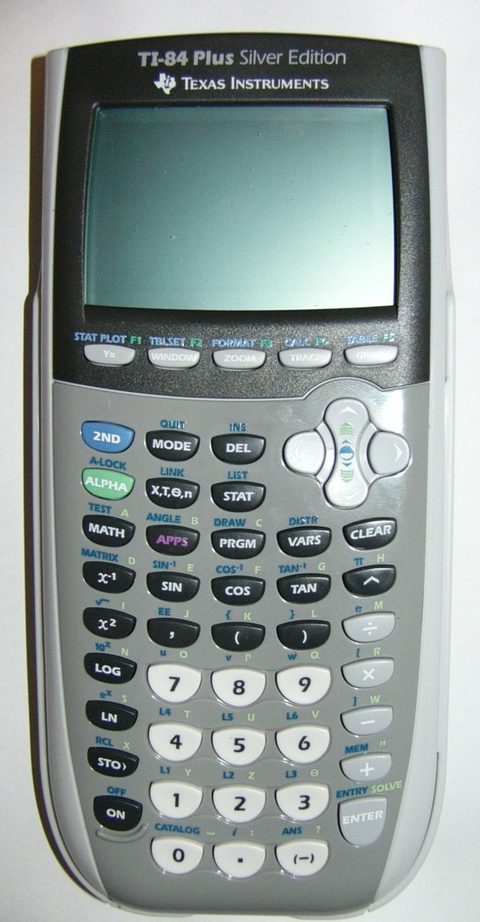
Here is what actually resolves most TI-84 Plus connection failures, based on what I have seen across dozens of student laptops:
- Calculator not detected at all: Try a different USB cable. The thin mini-USB cables that ship with these calculators are a common failure point, and a bad cable looks exactly like a driver problem.
- “Device not recognized” error in Windows: Uninstall TI Connect completely, restart the PC, then reinstall the latest version rather than trying to repair an old install.
- TI Connect opens but shows no connected device: Press the ON key on the calculator right after plugging in – some units go to sleep and do not wake from the USB connection alone.
- Transfer starts then fails partway through: This is often a low battery on the calculator. Replace the AAA batteries (or charge if it is a Rechargeable Edition) before trying again.
On one occasion I spent almost twenty minutes convinced a school computer’s USB port was faulty, only to find the calculator’s batteries were nearly dead. Once I swapped in fresh AAAs, TI Connect picked it up immediately. Low battery is an easy thing to overlook because the calculator screen still turns on fine – it just cannot sustain a stable USB data transfer.
Per Sandra K., who is a High School Math Teacher, “I manage a classroom set of thirty TI-84 Plus calculators. TI Connect CE has been reliable for backing up programs before the school year ends, as long as students use a proper USB cable instead of a charge-only one.”
Manual Driver Install via Device Manager (Fallback)
- If Windows shows the calculator as an unknown device after TI Connect CE is already installed, open Device Manager and locate it, usually under “Other devices” or “Universal Serial Bus devices.”
- Right-click the entry and choose Update Driver, then Browse My Computer for Drivers.
- Point it to the TI Connect CE install folder, typically
C:\Program Files (x86)\Texas Instruments\TI Connect CE, and let Windows search that folder and subfolders. - If that does not resolve it, uninstall the device entry entirely (right-click, Uninstall device), unplug and replug the calculator, and let Windows re-enumerate it fresh.
Windows 10 vs Windows 11 Notes
- Windows 10: TI Connect CE installs and runs without any extra security prompts on virtually every recent build.
- Windows 11: Installation works the same way, though on school-managed devices with restricted app installation policy, you may need IT to approve the installer or use the Microsoft Store version of TI Connect CE if available for your district.
- Both versions handle the USB connection identically since the calculator uses a standard USB communications device class rather than anything Windows-version specific.
Frequently Asked Questions
Do I need TI Connect or TI Connect CE for a TI-84 Plus?
Use TI Connect CE, the current version, for all TI-84 Plus, TI-84 Plus C, and TI-84 Plus CE models. The older standalone TI Connect is legacy software and no longer actively updated.
Why does Windows say “USB device not recognized” every time I connect it?
This almost always means TI Connect CE was not installed before the calculator was first plugged in, or the USB cable is charge-only. Reinstall the software, try a different data-capable cable, and reconnect.
Can I transfer programs and apps to the calculator without installing anything?
No, you need TI Connect CE installed on the PC side. There is no driverless transfer method since the calculator does not appear as a generic USB storage device.
Is there a Mac version of the driver and software?
Yes, TI Connect CE has a macOS build on Texas Instruments’ download page, though this guide focuses on the Windows 10 and Windows 11 install process.
My calculator connects but transfers are very slow, is that normal?
Some slowness is expected since the calculator’s USB link is not high-speed, but a very slow or stalling transfer usually points to a marginal cable or low battery rather than the driver itself.
Conclusion
Getting a TI-84 Plus connected to Windows comes down to installing TI Connect CE first and using a proper data-capable USB cable second – those two things solve the vast majority of connection problems. Keep fresh batteries in the calculator when transferring programs, and if Windows ever loses track of the device, the Device Manager fallback above will get it recognized again quickly. It is a simple setup once you know the order of operations matters.
Ryan
Computer Science grad · long-time hands-on troubleshooter