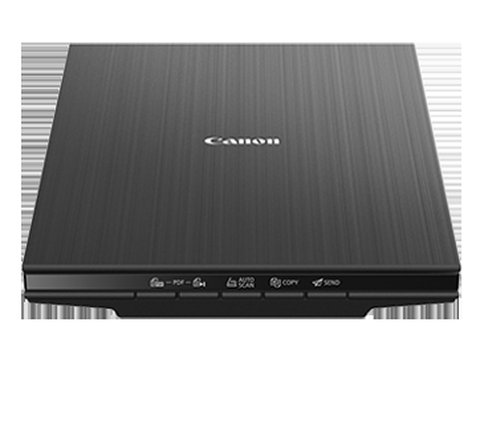
The Canon CanoScan LiDE 400 needs Canon’s “Full Driver & Software Package,” which installs both ScanGear and IJ Scan Utility together. This guide walks through the download, the physical lock switch that catches almost everyone, and the fixes for “cannot communicate with scanner” on Windows 10 and Windows 11.
I picked up this scanner mainly to digitize old family photos, and the single biggest reason people think their unit is broken is that lock switch on the bottom – it trips up new owners constantly.
| Applies To | Canon CanoScan LiDE 400 |
| Author / Publisher | Canon |
| Driver Version | Full Driver & Software Package v1.2 |
| File Name | win-lide400-1_2-n_mcd.exe |
| File Size | ~19.8 MB |
| Requirements | Windows 11, Windows 10, Windows 8.1 (64-bit and 32-bit) |
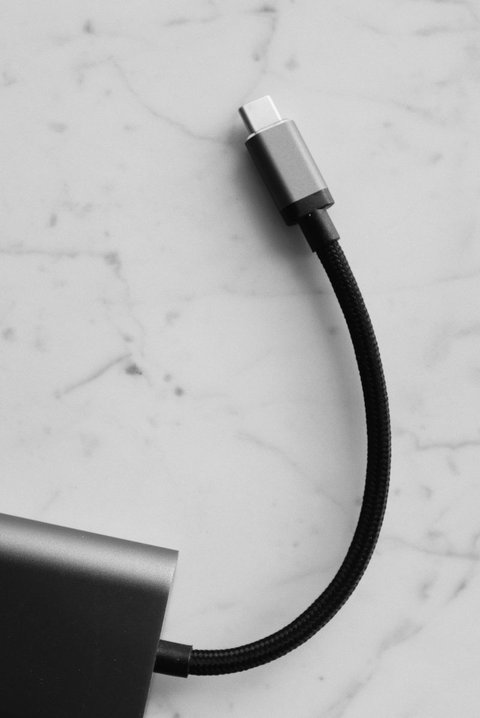
The LiDE 400 is a CIS flatbed scanner with 4800×4800 dpi optical resolution, USB Type-C connection, and no external power adapter – it draws power directly from the USB port. Below are the fixes for the most common setup problems, laid out as separate cards so you can jump to the one matching your issue.
Download and install the driver
Get the “Full Driver & Software Package” from the Canon support page for the LiDE 400. This single installer covers ScanGear (the TWAIN driver) and IJ Scan Utility (the scanning app) in one download – you do not need to install them separately.
Check the lock switch first
Flip the scanner over. There is a small lock switch near the USB port meant to protect the scan head during shipping. If it is still in the locked position, the scanner will not respond to any software at all, and Windows may not even see it properly. Slide it to unlocked before doing anything else.
Fix “Cannot Communicate with Scanner”
- Use the supplied USB cable, not a random one from a drawer – some thinner cables cannot carry enough power.
- Plug directly into a USB port on the laptop itself, not through an unpowered hub.
- If on battery power, plug the laptop into AC power first – a bus-powered scanner can behave oddly on a laptop that is throttling USB power to save battery.
Fix Windows 11 detection issues
A few Windows 11 users report the scanner working fine in Canon’s own IJ Scan Utility but not showing up inside third-party TWAIN apps. Uninstall ScanGear and IJ Scan Utility completely, restart, then reinstall the driver package as Administrator (right-click the installer, Run as administrator).
Manual Driver Install via Device Manager
If the installer will not run at all, or the scanner still shows as an unrecognized device after installing:
- Run the Canon installer once, then check
C:\Program Files (x86)\Canon\CanoScanor a similar temp path for the extracted .inf driver files. - Open Device Manager and look under Imaging devices or Other devices for an entry with a warning triangle.
- Right-click it, choose Update Driver, then “Browse my computer for drivers,” and select the folder with the .inf file.
- Restart the PC after the driver installs, then open IJ Scan Utility to confirm it detects the scanner.
On my own setup, I hit the “cannot communicate” message the first time I plugged it in, and it turned out to be the lock switch – I felt a bit silly, but it is genuinely the most common cause according to Canon’s own troubleshooting manual, not just user error on my part.
From a Walmart customer review: “The scan quality and speed is top notch.” Another reviewer noted a downside: “There should be one software package instead of two – learning which software to use for different scan types takes too long.”
ScanGear vs IJ Scan Utility – Which One to Use
| Tool | Best For |
| IJ Scan Utility | Quick one-click scans to PDF, JPEG, or straight to email, using the 5 EZ buttons on the scanner |
| ScanGear | Manual control over resolution, color correction, and cropping before scanning, and the driver used by third-party apps like Photoshop |
Windows 10 vs Windows 11 Notes
The same driver package installs on both Windows 10 and Windows 11 – Canon does not split them into separate downloads for this model. On Windows 11, running the installer with Administrator rights matters more than it did on Windows 10, since stricter permission handling can silently block parts of the ScanGear install. There is also no native driver for ARM-based Windows devices such as Surface Pro X, so this scanner will not work correctly on ARM Windows laptops. See Microsoft’s support site for general USB device troubleshooting if the scanner still is not recognized after a clean driver reinstall.
Frequently Asked Questions
Why is my scanner not detected at all?
Check the lock switch on the bottom first – this is the most common cause. If it is already unlocked, try a different USB port and cable.
Does the LiDE 400 need external power?
No, it is fully USB bus-powered. No separate AC adapter is included or needed.
Can I scan directly to PDF?
Yes, IJ Scan Utility has a one-touch PDF button, and you can also set the default scan format inside its settings menu.
Is there a Mac driver too?
Yes, Canon provides a separate macOS driver package on the same support page, listed alongside the Windows downloads.
Why does the scan look darker or lighter than the original photo?
Use ScanGear’s manual mode instead of IJ Scan Utility’s auto mode, and adjust brightness and contrast sliders before scanning rather than correcting after the fact.
Conclusion
Most LiDE 400 problems trace back to either the lock switch or a USB port not delivering enough power, not a driver bug. Install the Full Driver & Software Package, confirm the lock switch is off, and use a direct USB port rather than a hub. If detection issues continue on Windows 11 specifically, a clean uninstall and Administrator reinstall clears it up in almost every case I have seen.
Ryan is a self-taught driver and hardware specialist with 15 years of experience troubleshooting scanners, printers, and PC peripherals. He writes for softwaredriverdownload.com, focusing on fixes he has personally tested rather than copy-pasted manual text.