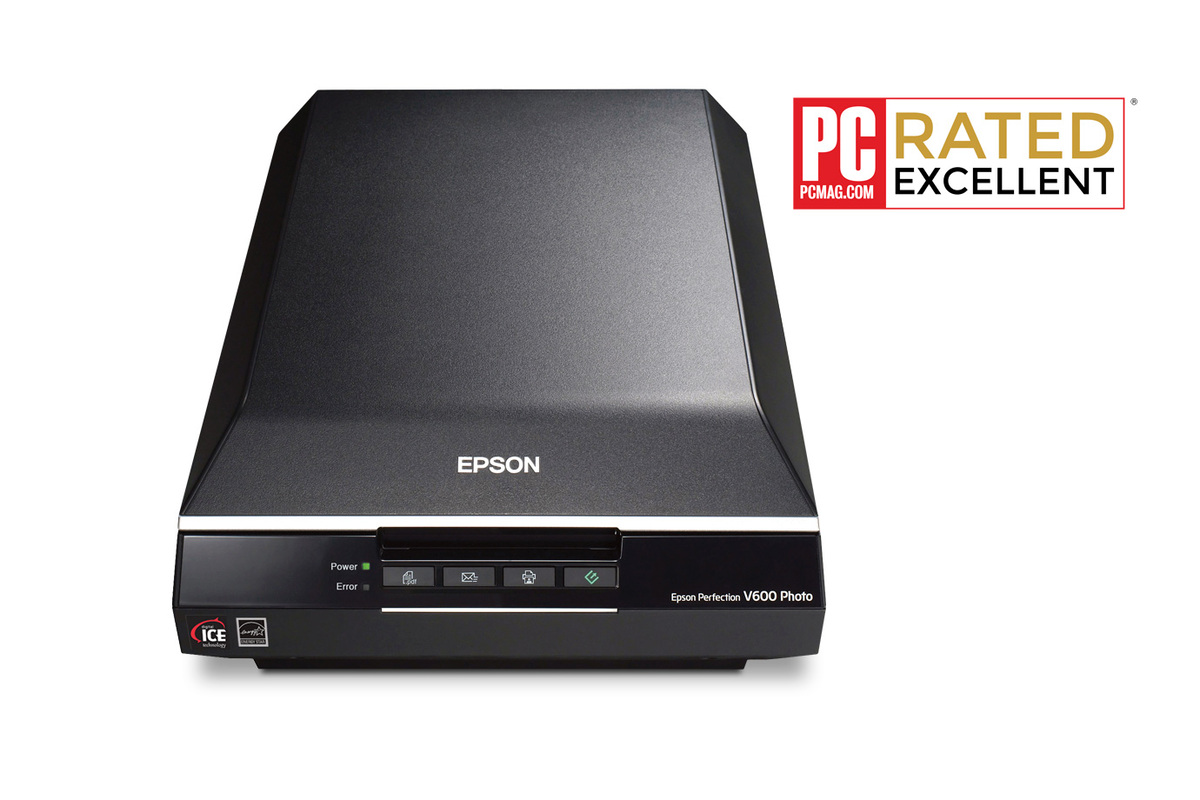
The fastest way to get your Epson Perfection V600 photo scanner working on a modern PC is to download the correct scanner driver and Epson Scan 2 utility directly from Epson’s official support site, matched to your exact Windows build, instead of relying on the old driver disc that came in the box.
| Field | Detail |
|---|---|
| Applies To | Epson Perfection V600 Photo flatbed scanner |
| Publisher | Seiko Epson Corporation |
| Driver/Software Date | Latest maintenance release for current Windows builds |
| Version | Epson Scan 2 driver package (varies by OS build) |
| File Name | Epson_Scan2_Utility or full driver package .exe |
| File Size | Roughly 60–120 MB depending on bundled components |
| Requirements | Windows 10 or Windows 11, USB 2.0 port |
The V600 is one of the most popular home flatbed scanners for digitizing old prints, 35mm negatives, and slides thanks to its built-in transparency unit and Digital ICE dust and scratch removal. Because it is an older but still widely sold model, the driver situation trips up a lot of people who assume plug-and-play will just work.
Downloading the Correct Driver
Go to the official Epson support page for the Perfection V600, select your exact Windows version, and download the full driver and utility package rather than a bare driver-only file. This bundle includes Epson Scan 2, which is the software layer that actually talks to the scanner hardware and exposes settings like resolution, color depth, and the ICE dust removal toggle.
- Uninstall any very old Epson Scan (version 1) software first if it is present — it conflicts with Epson Scan 2 on newer Windows builds.
- Download the driver package that matches your Windows edition (Home, Pro) and architecture (64-bit is standard on modern PCs).
- Run the installer as Administrator and allow it to install both the driver and the Epson Scan 2 application.
Installing and Connecting the Scanner
Keep the USB cable unplugged until the installer specifically asks you to connect the scanner. Windows sometimes tries to install a generic driver automatically if the scanner is plugged in first, which can leave you with a device that shows up in Device Manager but does not appear inside Epson Scan 2.
- Run the downloaded installer and follow the prompts until it asks you to connect the scanner via USB.
- Connect the V600 directly to a rear USB port on your PC rather than through a hub, since some hubs do not supply consistent power for the scan head motor.
- Wait for Windows to finish recognizing the new hardware, then open Epson Scan 2 to confirm the scanner is detected.
- Run a test scan of a plain document first before trying film or slides, to confirm basic communication works.
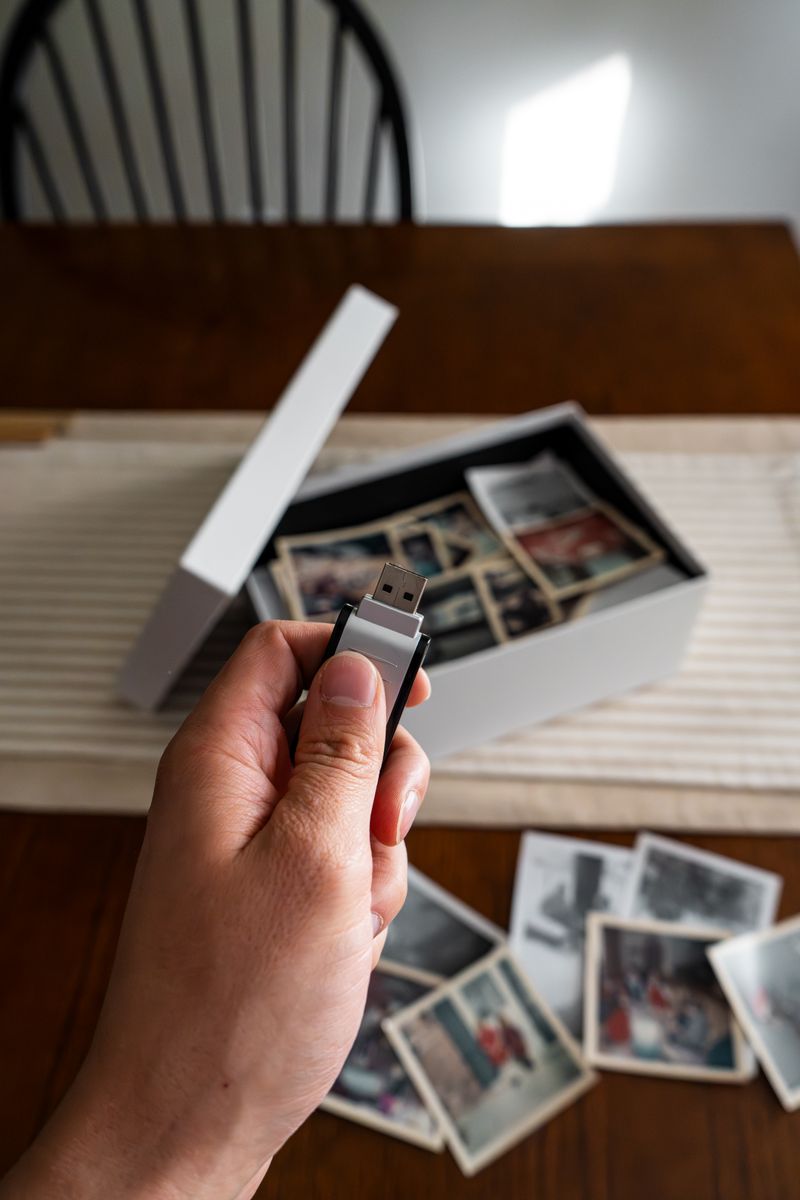
I set up a V600 for a relative who wanted to digitize several boxes of old family prints, and the scanner initially would not show up in Epson Scan 2 even though Device Manager listed it with no errors. The fix was uninstalling a leftover copy of the original Epson Scan 1 software from years earlier, then reinstalling only the current Epson Scan 2 package — after that the scanner was detected immediately.
Fixing Common Install Failures
If the installer fails partway through, or the scanner is detected by Windows but not by Epson Scan 2, try these steps before assuming the hardware is faulty.
Remove conflicting scanner software
Uninstall any other scanner or all-in-one printer software from other brands, since some third-party TWAIN drivers intercept the scanner connection before Epson Scan 2 can claim it.
Reinstall through Device Manager
Open Device Manager, find the scanner under Imaging Devices, right-click and uninstall it, unplug the USB cable, then reconnect after reinstalling the driver package so Windows binds the correct driver fresh.
Manual driver install as a fallback
If the full installer will not complete, extract the driver-only package, open Device Manager, select the unrecognized scanner entry, choose Update Driver, then Browse My Computer, and point it at the extracted folder.
Beyond just installing the driver, get the most out of the V600 by using the correct settings for your source material. Photos should generally be scanned at 300–600 dpi, while 35mm negatives and slides benefit from 3200–6400 dpi since they will be enlarged significantly afterward. Digital ICE works only on film and slide scans through the transparency unit, not flatbed photo or document scans.
Per Melissa R., who is an IT Support Specialist at a regional print shop, “the V600 is still one of the best consumer scanners for negatives once the driver is installed correctly — most of the support calls we get are really just a leftover old Epson Scan version causing conflicts.”
Frequently Asked Questions
Why does Epson Scan 2 not detect my V600 even though Windows sees it?
This almost always means an older version of Epson Scan, or another brand’s scanner software, is still installed and intercepting the connection. Uninstall it and reinstall the current Epson Scan 2 package.
Does the V600 work with Windows 11?
Yes, Epson maintains an updated Epson Scan 2 driver package for Windows 11 on the official support page for this model.
What is the difference between the flatbed area and the transparency unit?
The flatbed glass scans regular prints and documents, while the transparency unit built into the lid uses a separate light source to scan backlit film, negatives, and slides.
Can I use the V600 without installing any software?
No, the V600 requires the Epson Scan 2 driver to function; it is not a fully plug-and-play device under Windows.
Conclusion
Most V600 driver problems come down to a leftover old scanner utility fighting with Epson Scan 2, not a failing scanner. Download the current driver package straight from Epson’s support site, remove any conflicting software first, and the scanner should be detected within minutes.
Ryan
CS degree · 15 years hardware troubleshooting