Like other Reolink battery-powered cameras, the Altas PT Ultra receives firmware updates that improve AI detection accuracy, fix charging quirks, and occasionally add new features to the app. Because it’s a battery camera rather than a wired one, the update process has a few extra considerations around battery level and connectivity that are worth knowing before you start.
| Spec | Detail |
| Camera Type | Battery-powered pan and tilt, solar compatible |
| Update Methods | Reolink app (OTA) or Reolink Client (manual) |
| Minimum Battery for Update | Above 50% recommended |
| Connectivity Requirement | Stable Wi-Fi for the full update duration |
| Auto-Upgrade Option | Available in Device Settings |
| Update Effect on Footage | None, stored recordings are unaffected |
Checking Your Current Firmware Version
Open the Reolink app, select the Altas PT Ultra from your device list, and go to Device Settings, then Device Information. The current firmware version is listed there alongside the hardware version, which is worth noting if you ever need to contact support.
- Compare the listed version against the latest release on Reolink’s official download center for your exact model
- Note the hardware version too, since firmware files are matched to specific hardware revisions
- If the app shows an available update banner, that’s usually the simplest way to confirm one exists
Updating Through the App
The Reolink app can usually detect and apply updates directly, which is the easiest path for most users and avoids manually downloading and matching firmware files.
- Go to Device Settings, then Device Information, and tap Check for Firmware Updates
- If an update is available, tap to download and install it, keeping the app open during the process
- Wait for the camera to reboot and reappear online before making any other changes
- Optionally enable auto-upgrade in the same menu so future updates install without manual checking
Updating Manually via the Download Center
If the app doesn’t detect an update, or you want a specific firmware version, Reolink’s Download Center lists firmware files by exact model and hardware version for manual installation through the Reolink Client desktop software.
- Download only the firmware file matched to your exact hardware version, listed in Device Information
- Install and use the Reolink Client on a computer on the same local network as the camera
- Never interrupt the upload or power off the camera once a manual update has started
A firmware update that seems to hang for more than 10 to 15 minutes on a battery camera is worth waiting out rather than power-cycling, since the update circuitry on these units is designed to survive a longer install than a typical wired camera.
Why Firmware Matters More on a Battery Camera
On a wired camera, a firmware update that goes sideways is usually just a matter of power-cycling and trying again. A battery camera like the Altas PT Ultra adds a real constraint: if the battery drops too low mid-update, the camera can be left in a partially updated state that’s harder to recover from than a simple reboot. That’s why Reolink and most reviewers recommend charging to at least half before starting, rather than assuming the update will finish quickly enough not to matter.
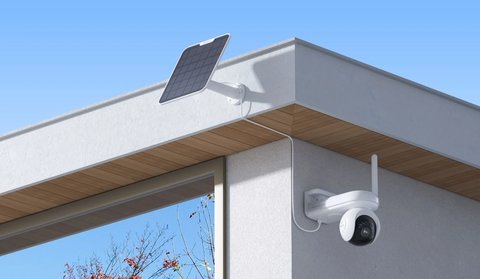
Solar panel owners sometimes assume the panel keeps the camera powered during an update the same way it does during normal operation, but a firmware install briefly takes the camera offline in a way that solar trickle-charging does not meaningfully offset. The battery level at the moment you start the update is what actually matters, not whether the panel is connected or currently receiving sunlight.
What Recent Firmware Updates Typically Change
Reolink’s update notes for the Altas PT Ultra and similar pan-and-tilt battery models tend to fall into a few recurring categories rather than being a mystery each time. Knowing the pattern helps you decide whether an update is worth installing right away or safe to defer.
- AI detection tuning: fewer false alerts from moving shadows, pets, or vehicles passing at a distance
- Battery reporting accuracy: more precise percentage readouts and improved low-battery warnings in the app
- Pan-and-tilt tracking smoothness: reduced lag when the camera follows a detected person or vehicle
- Security patches: general hardening that doesn’t change visible behavior but is still worth installing promptly
Common Firmware Update Problems
- Update fails partway through: confirm battery is above 50% and Wi-Fi signal is strong, then retry from Device Settings
- Camera goes offline after updating: give it several minutes to fully reboot before assuming something went wrong
- App shows no update available but one exists on the download center: try manually checking again after a few hours, since rollouts are often staged
- Settings reset after an update: this is expected on some larger updates; re-check detection zones and notification preferences afterward
- Camera won’t complete the auto-reboot after an update: manually power cycle it once using the physical reset, but only after waiting a full ten minutes first
- Update available in Reolink Client but not the mobile app: this can happen when staged rollouts differ between the desktop and mobile release channels; either works once available
For the latest firmware releases and hardware version details, see Reolink’s official Download Center. Reolink’s Altas PT Ultra support hub covers update troubleshooting specific to this model.
Frequently Asked Questions
Will updating firmware erase my recordings?
No, firmware updates affect the camera’s software, not footage already stored on a microSD card or in the cloud.
How often does Reolink release updates for this model?
There’s no fixed schedule; updates arrive periodically to improve AI detection, fix bugs, or add features, sometimes several times a year.
Can I skip a firmware update?
Yes, updates aren’t mandatory, though staying current is worth it for security fixes and detection accuracy improvements.
Do I need the solar panel connected during an update?
No, what matters is the battery percentage at the time of the update, not whether the panel is actively charging.
Conclusion
Updating the Altas PT Ultra’s firmware is mostly a matter of checking battery level and Wi-Fi signal first, then letting the app handle the rest. Turning on auto-upgrade once is the easiest way to stop thinking about it going forward.
Ryan writes hands-on setup and troubleshooting guides for softwaredriverdownload.com, drawing on years of personally testing the drivers and devices he covers.