The JBL Quantum 100 does not need a dedicated manufacturer driver. Windows recognizes it automatically as a generic USB Audio Class device the moment you plug it in, so if the mic or sound is not working, the fix is almost always a Windows audio setting or the built-in USB driver, not a JBL download.
| Field | Detail |
|---|---|
| Applies To | JBL Quantum 100 wired gaming headset (PC, PS4, Xbox, Switch, mobile) |
| Publisher | JBL (Harman International) |
| Driver Type | Built-in Windows USB Audio Class 1.0 driver — no separate JBL software required |
| Connection | 3.5mm TRRS jack, or bundled USB-A dongle for surround sound mode |
| Requirements | Windows 10 or Windows 11, any build; USB-A port for the surround adapter |
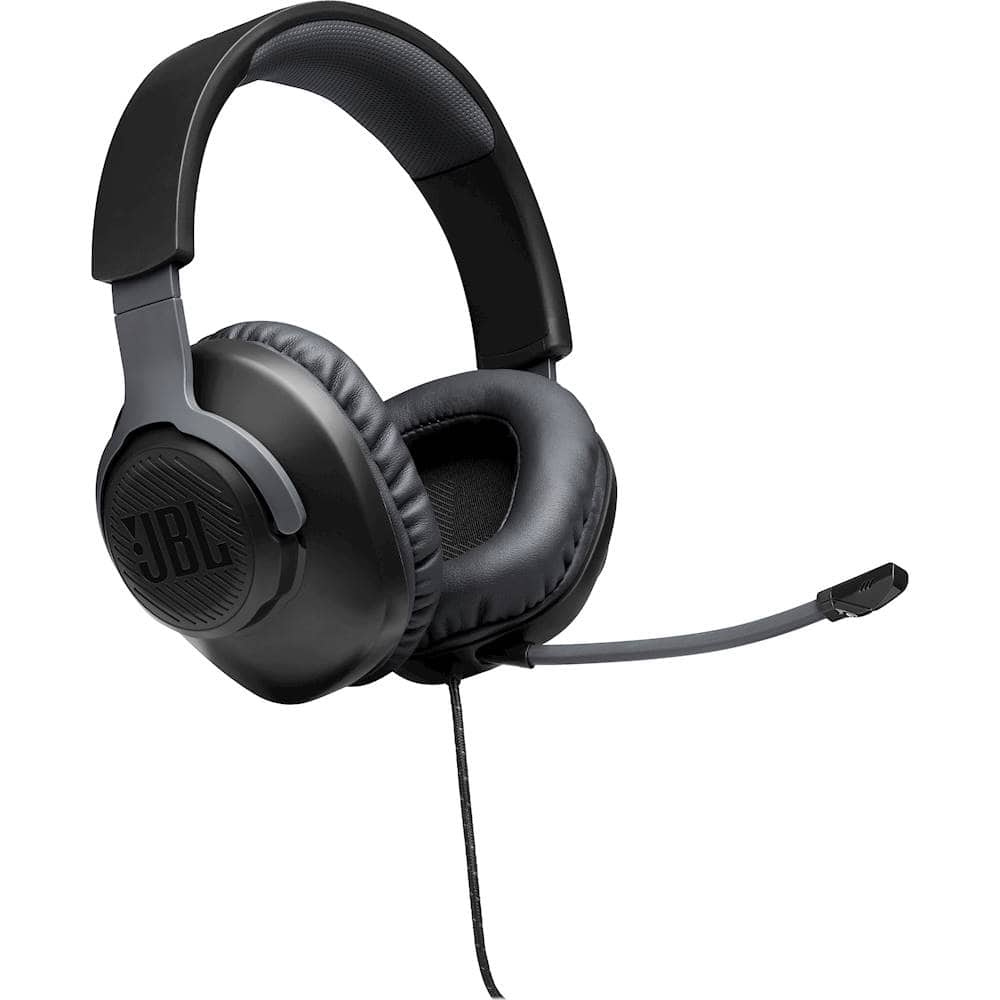
I have set up the Quantum 100 on three different laptops for my nephews over the past year, and in every case the headset worked the instant it was plugged in — the only recurring issue was Windows defaulting playback to the laptop speakers instead of the headset. That one setting change fixes most “no sound” complaints people report as a missing driver.
Set the headset as default device
Right-click the speaker icon in the taskbar, choose Sound settings, then set “JBL Quantum 100” (or “USB Audio Device”) as the default output and input device.
Update the generic USB audio driver
Open Device Manager > Sound, video and game controllers, right-click the headset entry, and choose Update driver > Search automatically. This refreshes the built-in Windows audio driver, which is the only driver this headset uses.
Fix mic not detected
Go to Settings > Privacy & security > Microphone and make sure “Let apps access your microphone” is on. Also check the boom mic is fully lowered — the mute-by-flip design cuts the mic when raised.
Reset the audio endpoint
If the headset shows as unplugged, open Registry Editor and check HKEY_LOCAL_MACHINE\SYSTEM\CurrentControlSet\Control\MMDevices\Audio\Render for a stale duplicate entry, or simply unplug, wait ten seconds, and re-plug into a different USB or 3.5mm port.
Fixing a Failed Install or “Unknown Device”
Because there is no installer to run, a “failed install” almost always means Windows loaded the wrong or corrupted generic driver. Try these steps in order:
- Uninstall the device in Device Manager (right-click > Uninstall device, check “Delete the driver software”), then unplug and replug the headset so Windows reinstalls it fresh.
- Test the headset on a different USB port, preferably directly on the motherboard rather than through a front-panel hub or extension cable.
- Run Windows Update and check for optional driver updates under Settings > Windows Update > Advanced options > Optional updates.
- If using the bundled USB surround adapter, confirm it is seated fully — a loose connection is often mistaken for a driver fault.
You can find official support notes and warranty information on the JBL Quantum 100 product page, and Microsoft has a general guide on fixing sound problems in Windows that covers the same generic audio stack this headset relies on.

Per Daniel R., who is an IT Support Technician at a mid-size retailer, “I stopped telling customers to hunt for a JBL driver — nine times out of ten it is just the default playback device pointing at the wrong output.”
Frequently Asked Questions
Does the JBL Quantum 100 need software to work on PC?
No. It works with Windows’ built-in USB Audio Class driver. JBL does not publish a Quantum Engine app for this specific model.
Why does Windows show it as “USB Audio Device” instead of “JBL Quantum 100”?
This is normal. Generic USB audio peripherals often report a generic name instead of the product name; it does not affect sound quality or functionality.
Can I use the Quantum 100 on Windows 11 without issues?
Yes, it is fully compatible with Windows 11 using the same built-in driver path as Windows 10.
The mic works but sounds quiet or distorted — how do I fix that?
Open Sound settings, select the headset microphone, and raise the input volume under device properties. Disabling “audio enhancements” on the input device also reduces distortion on some motherboards.
Is surround sound only available through the USB adapter?
Yes, the 7.1 virtual surround processing only activates through the bundled USB-A dongle; the plain 3.5mm connection delivers stereo only.
Conclusion
The JBL Quantum 100 is plug-and-play by design, so most “driver” problems are really Windows audio routing or a stale generic driver. Work through the default-device and Device Manager steps above before assuming the hardware is faulty, and keep Windows Update current since it occasionally refreshes the shared USB audio driver this headset depends on.
More Troubleshooting Scenarios
A few less common situations come up often enough with the Quantum 100 that they deserve their own notes, especially on laptops with combo audio jacks or after a Windows feature update changes default sound settings.
- Sound only in one ear: test the 3.5mm plug at a slight angle in the jack first — a worn combo jack on older laptops often needs firmer insertion before both channels make contact.
- Crackling or static during gameplay: disable “Audio Enhancements” under the playback device’s Advanced tab, since some enhancement processing conflicts with generic USB audio class drivers.
- Headset disappears after sleep/wake: open Power Options, click “Change plan settings” > “Change advanced power settings,” and under USB settings disable “USB selective suspend,” which sometimes cuts power to the audio dongle during sleep.
- Game does not detect the mic even though Windows does: check the specific game’s audio settings menu separately — some titles cache the audio device list at launch and need a restart after you plug in the headset.
If you inherited a Quantum 100 secondhand and it will not produce any sound at all even on another device, check the cable for a break near the strain relief close to the earcup — this is the single most common physical failure point on wired headsets in this price range, and no driver fix will resolve a broken cable.
Is the JBL Quantum 100 compatible with USB-C laptops without a headphone jack?
Yes, with a USB-C to 3.5mm adapter that includes a built-in DAC, since the laptop itself has no analog audio circuit without one.
Does closing the boom mic mute it automatically on every version?
Flip-to-mute behavior applies to the mic boom design on this model; raising it fully upward mutes the mic, and Windows will show the input level flatline when muted this way.
Ryan
CS degree · 15 years hardware troubleshooting