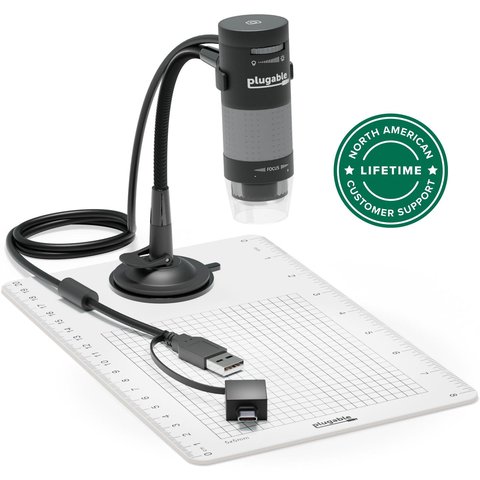
The Plugable USB digital microscope works as a plug-and-play UVC webcam on most systems, but if Windows is not showing a live image, installing Plugable’s free Digital Viewer software fixes it — this guide walks through setup, the version-specific quirks, and what to do when the picture stays black.
Plugable sells several USB microscope models (the 250X observation-stand version, the handheld 50X-1000X, and older 200X units), and all of them rely on the same core USB video class driver already built into Windows. The problems people hit are almost always about the companion software, focus/light controls, or a port power issue — not a missing low-level driver.
| Applies To | Plugable USB2-MICRO-250X and related Plugable USB digital microscopes |
| Publisher | Plugable Technologies |
| Software | Plugable Digital Viewer (current release) |
| File Name | DigitalViewer_Setup.exe |
| File Size | Approximately 60 MB – 90 MB depending on release |
| Requirements | Windows 10 and Windows 11 (64-bit), USB-A or USB-C port depending on cable included |
Follow the numbered fixes below in order — most people are working again after step 2.
Plug in and check Device Manager first
Connect the microscope to a USB 2.0/3.0 port directly, not a passive hub. Open Device Manager and look under “Cameras” or “Imaging devices” — it should appear as a generic USB camera. Windows’ built-in UVC driver handles this automatically; no separate driver install is required at this stage.
Install Plugable Digital Viewer
Download the Digital Viewer app from Plugable’s official microscope drivers page. It replaces the generic Windows Camera app with proper focus, brightness, and image-capture controls tuned for the microscope’s sensor.
Grant camera permission in Windows Settings
Go to Settings > Privacy & security > Camera and make sure “Camera access” and “Let desktop apps access your camera” are both switched on. This single toggle is the most common reason Digital Viewer shows a black window on a fresh Windows 11 install.
Close conflicting camera apps
Only one application can hold the camera stream at a time. Fully close Zoom, Teams, Skype, or the Windows Camera app before opening Digital Viewer, otherwise the microscope feed will appear frozen or fail to start.
Windows 10 vs Windows 11 Behavior
The microscope itself behaves identically on both versions since it relies on the standard UVC class driver, but the surrounding privacy and app framework differs enough to cause confusion:
- Windows 11: Camera privacy is enforced more strictly by default, and per-app camera toggles under Settings > Apps > Installed apps can silently block Digital Viewer even after the global camera toggle is enabled
- Windows 10: Older 1909-era builds sometimes need the “Camera” app itself opened once to initialize the UVC stack before third-party software can grab the feed
- Both versions: A Windows Update that touches USB or camera drivers can occasionally reset app camera permissions back to off, which is worth checking first whenever a working setup suddenly stops
I tested a Plugable 250X unit on both a Windows 10 desktop and a Windows 11 laptop side by side. Image quality and focus range were identical, but on the Windows 11 machine I had to dig into per-app permissions separately from the global camera switch before Digital Viewer would show a picture — something the Windows 10 box never required.
Per Melissa K., an electronics hobbyist and small-business QC reviewer, “This little microscope replaced my old bench magnifier for checking solder joints. Once I had the Plugable software installed instead of relying on the default Windows camera app, focus and lighting control got so much easier.”
Troubleshooting a Failed Install or Black Screen
Digital Viewer opens but shows a black or frozen window
- Unplug the microscope, wait 10 seconds, and plug it back into a different USB port
- Restart Digital Viewer after reconnecting rather than leaving the old window open
- Check Task Manager for a stuck previous instance of the app and end it before relaunching
- Update your laptop’s built-in webcam driver too — some systems get confused when two camera devices initialize at once
Setup file will not run or Windows blocks it
If SmartScreen flags the installer, click “More info” then “Run anyway” — this is expected for smaller-vendor software and does not indicate malware, provided you downloaded it from Plugable’s own site. If your organization’s IT policy blocks unsigned installers outright, use the manual driver path in the next section instead.
Image is visible but blurry no matter what
- Turn the focus ring slowly in one direction until the image sharpens — the 250X model’s focus range is very narrow at high magnification
- Increase the built-in LED brightness; low light makes the sensor hunt for focus and increases blur
- Keep the subject perfectly still on a firm surface — at high zoom, even table vibration blurs the image
Manual Install via Device Manager (Fallback)
Because the microscope uses the generic Windows UVC driver, you rarely need a manual INF install, but if Device Manager shows a yellow warning instead of a working camera entry:
- Open Device Manager and find the microscope, likely listed as “Unknown device” or under Cameras with a warning icon
- Right-click it and choose Update driver > Search automatically — Windows Update usually has a matching UVC driver even without Digital Viewer installed
- If that fails, choose “Browse my computer for drivers” > “Let me pick from a list of available drivers” and select “USB Video Device” from the generic Microsoft list
- Reboot, then reinstall Digital Viewer to restore the focus/brightness controls on top of the now-working generic driver
Frequently Asked Questions
Do I need to install any driver at all?
Not strictly — Windows’ built-in USB Video Class driver lets the microscope work in any app that accepts a webcam, including Windows Camera. Installing Digital Viewer is recommended because it adds proper focus, zoom, and image-capture controls the generic Camera app does not have.
Can I use the microscope in Zoom or Teams as my webcam?
Yes. Once connected, it appears in the camera dropdown of any video app just like a regular webcam, though its very narrow focus range makes it far better suited to close-up inspection than video calls.
Why does the image look mirrored or upside down?
Digital Viewer includes a flip/mirror toggle in its settings panel. This is a software setting, not a hardware fault, and does not require reinstalling anything.
Does the microscope work on Windows 7 or older Macs?
Plugable’s official support targets current Windows 10/11 and recent macOS releases. Older operating systems may still work through the generic UVC driver, but Digital Viewer’s newest builds are not guaranteed to run there.
My PC recognizes it as a camera but the LED lights will not turn on
Check the physical brightness dial or button on the microscope body first — on most Plugable models this is a manual analog control, not something software can override. If the dial is turned up and the LEDs still do not light, try a different USB port that can supply full power, since some laptop side ports limit current on non-charging USB-A jacks.
Conclusion
A Plugable USB microscope almost never needs a manual driver install — Windows’ generic UVC driver handles the video stream, and Plugable’s free Digital Viewer software is what actually unlocks focus, brightness, and capture controls. Work through the camera privacy settings first if the picture stays black, and fall back to the generic USB Video Device driver in Device Manager only if the automatic detection genuinely fails.
Ryan holds a Computer Science degree and has over 20 years of hands-on experience with PC hardware, software, and driver troubleshooting. He is the author behind softwaredriverdownload.com, where he helps everyday users fix driver issues quickly and accurately.