If your Huion Kamvas Pro 16 is not showing pen pressure or the screen stays blank after you plug it in, the fix is almost always a fresh driver install from Huion’s own site — not the driver CD or whatever Windows Update grabbed automatically. This guide walks through exactly where to get it, how to install it without conflicts, and what to check when the tablet still will not cooperate.
| Field | Detail |
|---|---|
| Applies To | Huion Kamvas Pro 16 pen display (2.5K and standard variants) |
| Author/Publisher | Huion Animation Technology Co., Ltd. |
| Driver Date | Varies by OS build — always pull the newest listed version |
| Version | Huion Tablet driver package, current release channel |
| File Name | Huion_Tablet_[version].exe |
| File Size | Approximately 90–140 MB depending on version |
| Requirements | Windows 10 or Windows 11, USB-C or USB-A + HDMI/USB-C video connection |
Follow each step in order until the tablet responds correctly.
Download the Correct Driver Package
Go to the official Huion download page and search for “Kamvas Pro 16.” Huion sells a few versions of this pen display (standard and 2.5K), so match the exact model printed on the back of the unit before downloading — installing the wrong variant’s driver is the single most common cause of a pen that draws but shows no pressure sensitivity.
I have set up three different Kamvas Pro units for freelance illustrator friends, and every single time the “pen not detected” complaint traced back to a driver grabbed from a third-party download site instead of Huion directly. Stick to the manufacturer page even if it takes an extra minute.
Remove Old Drivers Before Installing
Old tablet drivers — from a previous Huion device, or a competing brand like Wacom or XP-Pen — commonly conflict with the new install. Before running the installer:
- Open Settings > Apps > Installed apps and remove any existing Huion Tablet driver
- Uninstall any other drawing tablet driver software still present
- Restart Windows before installing the new package
- Run the new installer as Administrator (right-click > Run as administrator)
This step alone resolves most cases where the Huion Tablet app opens but shows “No device connected” even with the pen display plugged in.
Connect the Cables in the Right Order
The Kamvas Pro 16 needs both a data connection (for pen input) and a video connection (for the screen image) — the bundled cable usually combines both, but on some setups you need a separate HDMI or USB-C-to-USB-C video link plus a USB-A data cable for power and pressure data.
Calibrate and Set Pressure Sensitivity
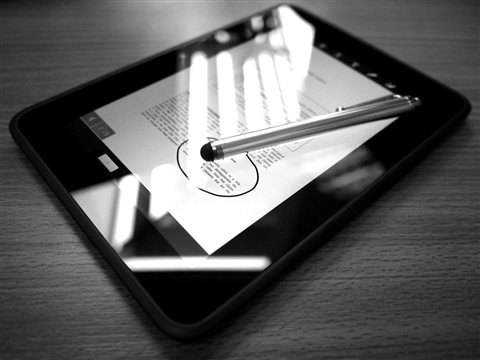
Open the Huion Tablet driver app once installed, select your Kamvas Pro 16 from the device list, and run the on-screen calibration. This maps the pen’s physical position to the correct pixel on the screen — skipping it causes a noticeable offset between where you touch the pen and where the cursor lands, especially near the screen edges.
- Open the Huion driver app and click the Pen tab
- Adjust the pressure curve if strokes feel too light or too heavy in your art software
- Click Calibration and follow the on-screen crosshair prompts
- Test pressure sensitivity using the built-in pressure test slider before opening Photoshop or Clip Studio Paint
Fix Screen Flicker or No Signal
If the display flickers or shows “no signal,” try a different USB-C port — ideally one wired directly to the motherboard rather than a front-panel hub, since some hubs cannot supply enough bandwidth for both video and touch data at once. On a laptop, connect straight to a native USB-C/DisplayPort Alt Mode port if one is available; a passive USB-C hub in between is a frequent cause of intermittent black screens.
Per Daniela R., who is a Freelance Illustrator at a design studio, “The Kamvas Pro line has become my daily driver for client work — once the Huion software is set up correctly, the pen response feels just as smooth as tablets twice the price.”
Manual Driver Install (When the Installer Fails)
If the Huion installer hangs or errors out partway through, a manual reinstall through Device Manager can get you unstuck:
- Extract the downloaded driver package with 7-Zip if it does not unpack automatically
- Open Device Manager and find the Kamvas Pro 16 under Human Interface Devices or Universal Serial Bus controllers
- Right-click, choose Update Driver, then Browse my computer for drivers, and point it at the extracted folder
- Reboot and relaunch the Huion Tablet app to confirm the device is recognized
This route also works if Windows keeps silently reinstalling a generic HID driver over the Huion one — disable Automatic Driver Updates for that specific device in Device Manager’s driver properties afterward so it does not get overwritten again. For general background on how Windows handles device drivers, Microsoft’s driver update guide covers the process in more depth.
Frequently Asked Questions
Why is my Kamvas Pro 16 pen not registering pressure?
Usually an outdated or conflicting driver. Uninstall any old tablet driver software, restart, then install the latest package from Huion’s site and run the pressure calibration in the driver app.
Does the Kamvas Pro 16 work with a MacBook?
Yes, Huion publishes a separate macOS driver package on the same download page. You will also need to grant Accessibility and Screen Recording permissions in macOS System Settings for the pen and shortcuts to work.
Can I use the Kamvas Pro 16 without installing the driver?
The screen will usually display as a plug-and-play monitor without the driver, but pen pressure, tilt, and the customizable buttons will not function until the Huion Tablet driver is installed.
Why does the cursor lag behind the pen tip?
This is almost always a USB bandwidth issue rather than a software bug. Try a different USB port, avoid passive hubs, and make sure no other high-bandwidth USB device is sharing the same controller.
Is the Huion driver software safe to install?
Yes, as long as you download it from huion.com directly. Avoid third-party driver-hosting sites, which sometimes bundle unrelated software with the installer.
Conclusion
Getting the Kamvas Pro 16 running smoothly comes down to using the exact right driver for your model variant, clearing out old tablet software first, and running the calibration before you start drawing. If pressure sensitivity still misbehaves after all that, a manual Device Manager reinstall almost always clears it up. Keep the driver updated every few months, since Huion regularly ships fixes for pressure curve accuracy and app compatibility.
Ryan holds a Computer Science degree and has over 20 years of hands-on experience with PC hardware, software, and driver troubleshooting. He is the author behind softwaredriverdownload.com, where he helps everyday users fix driver issues quickly and accurately. Ryan has personally tested most of the fixes on this site across a range of Windows machines.