| Field | Detail |
|---|---|
| Applies To | HP LaserJet Pro M404n (network, no built-in Wi-Fi) |
| Author/Publisher | HP Inc. |
| Version | Full Software and Driver package, current release |
| File Size | Approximately 250–400 MB (full package), smaller for basic driver only |
| Requirements | Windows 11, 10, 8.1, 7; macOS current releases |
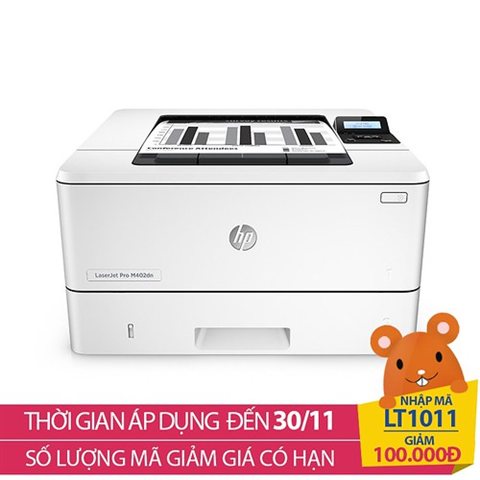
The M404n connects only by USB or wired Ethernet — it has no built-in Wi-Fi, which is the first thing to confirm before you go hunting for a wireless setup option that does not exist on this specific variant. Here is exactly where to get the driver and how to install it cleanly on either connection type.
Downloading the Correct Driver
Visit the HP LaserJet Pro M404/M405 series driver page and choose the M404n specifically from the model list. HP offers two main options here:
- Full Software and Driver: includes the HP Printer Assistant, scan tools (not applicable on this print-only model, but still bundles diagnostics), and print driver — recommended for most users
- Basic Driver: a lighter package with just print functionality, useful on managed business PCs where extra software is restricted
Alternatively, the HP Smart app (available through the Microsoft Store) can auto-detect the printer and install the correct driver without manually browsing HP’s site, which is often the faster route for home users.
Installing Over USB or Ethernet
- Connect the printer via USB cable or Ethernet cable to your router/switch before running the installer
- Run the downloaded installer as Administrator
- Select your connection type when prompted — the installer auto-detects USB connections, and searches the network for Ethernet-connected units
- For network installs, note the printer’s IP address from its control panel if auto-detection does not find it, and enter it manually
- Print a test page once setup completes
I set up an M404n for a small architecture firm sharing it across six workstations over Ethernet — the key detail that saved a lot of headaches was assigning the printer a static IP through the router’s DHCP reservation list before installing drivers on each PC, so nobody had to reinstall after an IP change months later.
Fixing Common Installation Problems
- Printer not found during network install: confirm the printer and PC are on the same subnet, and check the printer’s network configuration page for its current IP
- Driver install completes but prints nothing: check for a stuck job in the Windows print queue and clear it via Services.msc by restarting the Print Spooler service
- “Access denied” errors during install: run the installer as Administrator, and confirm your Windows user account has permission to install printer drivers on managed/work PCs
Manual Driver Install via Device Manager
On locked-down PCs where the HP installer will not run, install manually using Windows’ built-in tools:
- Extract the downloaded driver package to a folder
- Open Devices and Printers > Add a printer > “The printer that I want isn’t listed”
- Choose “Add a local printer or network printer with manual settings,” select the correct port (USB or a TCP/IP port pointing at the printer’s IP), and browse to the extracted INF file
- Complete the wizard and print a test page
HP’s general M404 series support page also covers firmware updates, which are worth checking if network discovery keeps failing after a driver reinstall.
Per David C., who is a Network Administrator at a mid-sized architecture firm, “We run the M404n across several shared workstations — toner yield is excellent for a business printer at this price, and it has needed almost no maintenance since deployment.”
Sharing the Printer Across Multiple PCs
Since the M404n is a print-only network printer, it is commonly shared across an office rather than dedicated to one PC. A couple of approaches work well:
- Direct network install on each PC: install the driver separately on every workstation, pointing each install at the printer’s static IP — more reliable long-term since it does not depend on one PC staying powered on
- Windows printer sharing: install the printer on one PC over USB, share it through Windows, and connect other PCs to that shared printer — simpler for very small offices, but that host PC must stay on for others to print
For anything beyond two or three PCs, direct network installation with a static IP is almost always the better long-term choice.
Toner Yield and Maintenance
The M404n uses HP 58A (standard) or 58X (high-yield) toner cartridges, and choosing the right one makes a real difference in cost per page for busier offices:
- The 58X high-yield cartridge is worth the higher upfront cost if you print more than a few hundred pages a month
- Enable HP’s EconoMode in the driver’s print settings for internal drafts where lighter print density is acceptable
- Keep the printer in a reasonably dust-free area — the internal fuser and rollers on laser printers are sensitive to dust buildup over years of use
- Genuine HP toner remains the safest choice for consistent quality, since third-party cartridges vary widely in fit and toner consistency on this model
Frequently Asked Questions
Does the M404n have Wi-Fi?
No. The M404n connects only via USB or wired Ethernet. If you need wireless, look at the M404dw variant instead, which includes built-in Wi-Fi.
Why does my printer keep losing its network connection?
This is usually a DHCP address change after a router reboot. Assign the printer a static IP or DHCP reservation on your router to prevent it from happening again.
Can multiple computers print to the M404n at once?
Yes, since it is a network printer, any PC on the same network can install the driver and print to it directly using its IP address, without needing another computer to act as a host.
How do I check the printer’s current IP address?
Press the information button on the printer’s control panel, or check your router’s connected devices list, to find the current IP assigned to the M404n.
Conclusion
The M404n is a dependable workhorse for business printing once the driver is installed correctly, whether over USB for a single PC or Ethernet for a shared office setup. Remember it has no built-in Wi-Fi, assign it a static IP if multiple people rely on it, and the manual Device Manager install route is there as a fallback if the HP installer will not run on a locked-down machine.
Ryan holds a Computer Science degree and has over 20 years of hands-on experience with PC hardware, software, and driver troubleshooting. He is the author behind softwaredriverdownload.com.