You install a Genius webcam driver by downloading the correct package from KYE Systems’ (Genius) support site for your exact model number, then running it before you plug the camera into a USB port, since Windows’ generic UVC driver often takes over first and blocks the real one.
Genius, made by KYE Systems, has sold budget webcams for a very long time, from the old FaceCam and Look series to newer models. Most of these are UVC (USB Video Class) devices, which means Windows can usually run the camera without any driver at all. But if you want the extra features Genius bundles, like face tracking, night-light adjustment, or their camera app, you need the actual Genius software. Here’s the full process, along with what to do when Windows won’t let go of the generic driver.
| Applies To | Genius (KYE Systems) USB webcams, FaceCam and Look series |
| Author/Publisher | KYE Systems Corp. (Genius) |
| Driver/Software Date | Varies by model; most current models support Windows 10/11 directly |
| Version | UVC driver plus optional Genius camera application |
| File Name | Model-specific, e.g. facecam_setup.exe |
| File Size | Approximately 20-60 MB depending on model |
| OS Compatibility | Windows 10 and 11 (32-bit and 64-bit) |
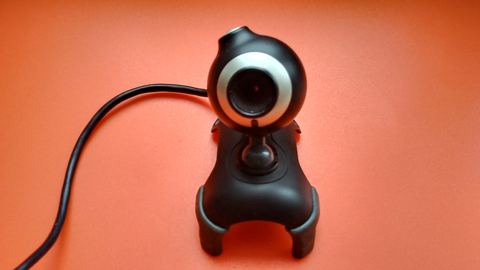
Why the Genius Driver Doesn’t Load
Common Causes
- Windows already loaded the generic UVC driver before Genius software could install.
- The Genius installer wasn’t run as administrator.
- An old, incompatible Genius app from a previous webcam is still installed and conflicting.
- Another app (Zoom, Teams, OBS) is holding the camera open, blocking installation or detection.
- The model-specific driver was downloaded for the wrong Genius model number.
Matching Fixes
- Uninstall the generic driver from Device Manager, then reinstall Genius software with the camera unplugged.
- Right-click the installer and choose “Run as administrator” every time.
- Remove old Genius apps via Settings > Apps before installing a new one.
- Close all video-calling and recording apps before running setup or plugging in the camera.
- Confirm the exact model printed on the camera body or its original packaging before downloading.
Step-by-Step Installation
- Find your exact Genius model number, usually printed on a small label on the underside or base of the webcam.
- Visit the Genius (KYE) global support and download page and search for your model.
- Download the driver and software package listed for Windows.
- Unplug the webcam if it’s already connected.
- Right-click the installer and run it as administrator.
- Follow the on-screen prompts, then reboot when asked.
- After the reboot, plug the webcam into a USB port directly on the motherboard rather than a hub.
- Open the Genius camera app (if included) to confirm the video feed appears.
Manual Install Through Device Manager
When the installer won’t run, or you only have the driver files without a setup wizard, you can point Windows at them directly:
- Extract the downloaded driver package to a folder if it’s a zip file.
- Open Device Manager and expand “Cameras” or “Imaging devices.”
- Find the Genius webcam, or an entry marked “USB Video Device” if Windows already assigned a generic driver.
- Right-click it, select “Update driver,” then “Browse my computer for drivers.”
- Point Windows to the folder with the extracted .inf file and let it install.
- Restart the PC and reconnect the webcam.
I’ve helped set up several older Genius webcams for relatives during video call troubleshooting sessions, and the most common issue by far is Windows Update silently replacing the Genius driver with its own generic one after a system update. The fix each time was reinstalling the Genius software and then disabling automatic driver updates for that specific device through Device Manager’s driver properties.
Per Farah Osman, who is a freelance customer support trainer, “My old Genius webcam works fine most of the time, but every few months Windows resets it back to a generic driver and my auto-focus stops working until I reinstall the Genius app.”
Windows 10 vs Windows 11 Notes
- Windows 11’s camera privacy settings are stricter by default; check Settings > Privacy & Security > Camera and make sure both the system toggle and per-app toggles allow camera access.
- Windows 10 handles UVC devices the same way but has fewer built-in privacy prompts, so a webcam that works fine on Windows 10 can appear “blocked” on Windows 11 purely due to privacy settings, not a driver problem.
- Both versions will happily run the camera with zero drivers installed since UVC is a Windows-native class, but you lose Genius-specific features like digital zoom or built-in filters without their software.
Using the Webcam Without the Genius App
If you don’t need the extra Genius software features, you can often skip the driver download entirely:
- Plug the webcam directly into a USB port.
- Open the Camera app in Windows to test that video shows up.
- In Zoom, Teams, or your app of choice, select the Genius webcam from the camera dropdown in settings.
This works because UVC is a standardized class driver built into Windows, similar to how USB flash drives don’t need a custom driver either. For more on how Windows handles standard device classes, see Microsoft’s official support documentation.
Troubleshooting Failed Installs
- Camera detected but image is black: another app has exclusive access; close Zoom, Teams, Discord, and any browser tabs using the camera, then reopen the app you need.
- Genius app won’t detect the camera after install: unplug and replug the webcam into a different USB port, preferably USB 2.0 if the camera is an older model.
- Driver installs but Device Manager still shows a warning icon: uninstall the device entry completely, unplug the camera, restart, then reinstall the Genius software before reconnecting.
- Video is laggy or low frame rate: check the camera’s resolution setting inside whatever app you’re using; older Genius models default to lower frame rates at higher resolutions.
Frequently Asked Questions
Do I need to install a driver for a Genius webcam at all?
Not always. Most Genius webcams use the standard UVC class, which Windows supports natively. You only need the Genius driver and software for extra features like face tracking or custom video effects.
Where can I find my exact Genius webcam model number?
Check the underside or base of the camera for a small printed label, or look at the original box if you still have it. The model number is essential since Genius made many different webcam lines.
Why does my Genius webcam keep switching back to a generic driver?
Windows Update sometimes reinstalls its own generic UVC driver during system updates. You can prevent this by going into the device’s driver properties in Device Manager and disabling automatic driver updates for that device.
My webcam isn’t listed on the Genius support site anymore. What do I do?
For discontinued models, try searching for the exact model number plus “driver” through a general web search, or check archived driver directories. Since most Genius cameras are UVC-based, Windows’ built-in driver will still work even without the official software.
Can I use a Genius webcam driver from a different but similar model?
It’s not recommended. Drivers are matched to specific hardware IDs, and using the wrong one can cause features to malfunction or the camera to not be detected at all. Stick to the exact model number.
Conclusion
Genius webcams are simple UVC devices at heart, so Windows can usually get basic video working with zero setup. The official driver and app are only necessary if you want the extra features Genius built in, and installing them cleanly just means keeping the camera unplugged until setup finishes.
This guide was written by Ryan, a long-time PC hardware troubleshooter with a computer science background and over 20 years fixing driver problems for readers and clients alike. Browse more guides at SoftwareDriverDownload.com.