Set up alctron hp1200 by confirming the exact model, power requirement, connection type and supported accessories.
I picked up a pair of Alctron HP1200 headphones a few years back when I needed a reliable closed-back monitor for mixing at home without disturbing anyone else in the house. Out of the box, they felt tight around my ears, and after a couple hours the clamping force gave me a mild headache. I found that gently stretching the headband over a box overnight loosened them up considerably, and after that break-in period they became genuinely comfortable for long sessions. It’s a common issue with new closed-back headphones that isn’t always mentioned in the reviews.
This guide separates identification, compatibility, setup and troubleshooting. That order prevents common mistakes such as using the wrong cable, receiver, battery, firmware or audio input.
The label on the product is the final reference. Retailer titles can shorten a model, combine accessories or omit a suffix that changes compatibility.
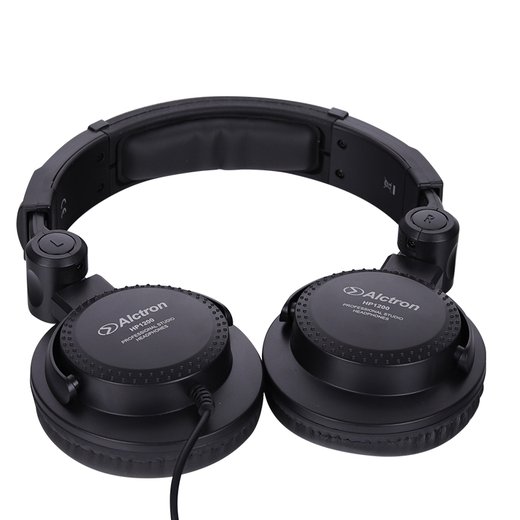
Safe setup sequence
- Inspect the exact model and supplied accessories.
- Confirm power, polarity and connector direction.
- Connect one component at a time.
- Test basic operation before advanced settings.
- Save the working configuration.
- Perform a longer controlled validation test.
Make one controlled change at a time and repeat the same test. This prevents a second fault from hiding the original problem.
Do not force a connector, hot shoe, battery or mounting thread. Stop when parts do not align easily and verify the model and orientation.
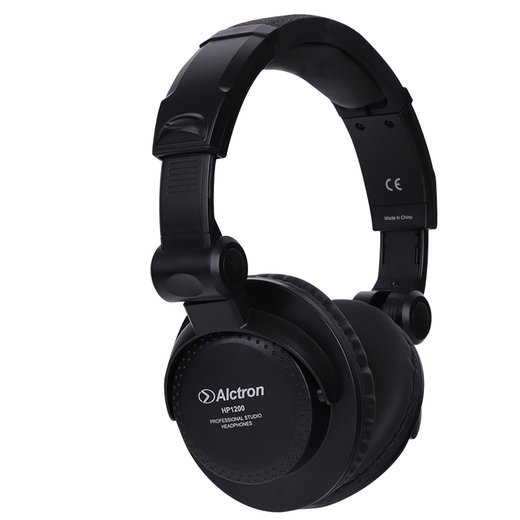
Identify the exact version first
Read the complete model code on the device, battery, receiver, adapter and package. Record suffixes, connector type, firmware version and regional information. A small extra letter can identify different electronics or accessories.
Compare the product with the linked source pages. Check buttons, ports, battery shape, receiver plug and included parts. Similar appearance does not prove electrical, radio or software compatibility.
Photograph the original setup and save current settings before repair or updating. Keep the records with the source links for alctron hp1200 so the last working configuration can be restored.
Specifications and compatibility checks
| Area | What to confirm |
|---|---|
| Product type | Studio monitoring headphones |
| Connection | Check plug size and included adapter |
| Impedance | Match headphone output capability |
| Fit | Adjust headband and ear-pad seal |
| Monitoring | Begin at low level to protect hearing |
Published specifications describe a reference package. Retail bundles may include another cable, battery, case or accessory. Verify the complete kit instead of relying on a short title.
Match electrical limits before physical fit. Voltage, polarity, connector standard and signal type matter more than wire colour. Audio equipment also needs the correct plug wiring and input level.
Common problems and first checks
| Symptom | Likely area | First action |
|---|---|---|
| No response | Wrong power, input or product identity | Verify the label and power source |
| Intermittent operation | Loose connector or weak battery | Test with a known cable under load |
| Unexpected behaviour | Wrong mode, setting or accessory | Return to the basic configuration |
| Part does not fit | Different revision or model family | Compare dimensions and full part code |
| Device becomes hot | Overload or blocked cooling | Disconnect and inspect immediately |
Start with the symptom that can be observed directly. Software cannot repair a damaged cable, weak battery, loose connector, dirty contact or wrong power adapter.
Use a known-good comparison when possible. Keep voltage, connector standard and signal type within the published limits while changing one component at a time.

Maintenance and long-term reliability
Disconnect power before cleaning. Use a soft dry cloth on cabinets, controls and connectors. Do not spray cleaner directly onto electronics, microphone capsules or battery contacts.
Inspect batteries, adapters, receivers and cables regularly. Retire swollen batteries and damaged leads. Keep USB, XLR, hot-shoe and audio contacts clean and protected.
Store alctron hp1200 in a dry area. Protect microphones from moisture, flashes from impact and wireless systems from pressure on antennas or charging pins.
Keep a service record with the exact model, firmware, connector type and changed settings. Clear records make recovery and parts ordering easier.
Practical checks before regular use
Confirm that every required accessory is included or available separately. A compatible product can still be difficult to use when the correct receiver, battery, cable, charger, stand or adapter is missing.
Test alctron hp1200 in the real working conditions. A short desk test may not reveal battery drain, radio interference, heat, background noise or cable strain that appears during a longer session.
Keep the first test simple. Remove optional accessories and software processing, verify basic operation, then add one item at a time. This creates a reliable baseline.
Final validation before normal use
Complete a full power cycle and confirm that settings remain. Test every input, output, button and status indicator that will be used in the real workflow.
Run a longer test instead of stopping after startup. A microphone should record cleanly, a wireless link should remain stable, and a flash or battery should operate without unusual heat.
Write down the test condition and result. Notes such as “fails only with the long cable” or “drops only near the router” make later troubleshooting faster.
Detailed inspection checklist
Use bright light to inspect ports, plugs, battery contacts and cable joints. Look for bent pins, cracked insulation, loose sockets, damaged threads and signs of overheating. A connection can look normal while failing when moved.
Test with the shortest known-good cable or the simplest signal path. Remove unnecessary adapters, hubs and extension leads. Add them back one at a time only after the basic setup remains stable.
Measure power at the device while the problem is happening. An unloaded battery or adapter can show the correct voltage and then fall when a transmitter, flash or processor draws more current.
Configuration and service records
Write down firmware, cable type, operating-system input and every changed setting. Save photographs before and after work. Name records with the exact model and suffix.
Keep factory settings separate from experiments. When a change performs worse, return to the last known working state instead of adding another change.
Frequently Asked Questions
Where should I get information for Alctron Hp1200?
Use the manufacturer, support or established product pages linked in this article and match the complete model code.
Can I use an accessory from a similar model?
Only after confirming the connector, voltage, dimensions and part number. Similar appearance does not guarantee compatibility.
Should I install software or firmware immediately?
Install it only when the official source lists the exact product and the update solves a relevant issue.
Why does the product work briefly and then fail?
Loaded voltage, heat, radio interference, USB power saving or a loose connection may appear only during a longer test.
What is the safest first troubleshooting step?
Return to the last known working setup and test power, connection, configuration and hardware one section at a time.
Sources
Ryan is a Computer Science graduate who has spent years testing and troubleshooting studio headphones, monitors, and home recording gear as part of his broader PC hardware work. He writes at softwaredriverdownload.com to help readers avoid common setup mistakes with audio equipment.