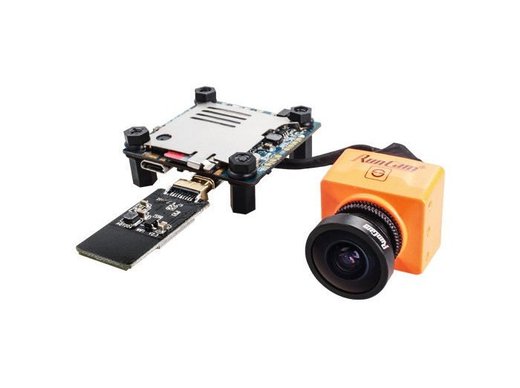
The RunCam Split 2 combines an analog FPV feed with onboard HD recording. It uses a separate camera module connected to the main board by a ribbon cable.
I set up a RunCam Split 2 with its WiFi module and found the live preview dropped out constantly until I moved my phone closer, since the module’s WiFi range is noticeably shorter than the analog FPV link itself.
The board needs clean 5V power with enough current, a compatible microSD card and correct grounding. Many faults that look like firmware problems are actually ribbon, power or card issues.
Understand the system
The camera sensor sends video to the main board through the ribbon cable. The board records HD files and produces an analog TV-out signal for the VTX or flight controller.
A failure in one section does not always stop the other. The board may record while TV-out is missing, or the FPV feed may work while the card reports an error.
Power and wiring
- Seat both ribbon-cable ends with power off.
- Power the board from clean regulated 5V.
- Connect ground according to the manual.
- Connect TV-out to CAM or directly to the VTX.
- Insert a compatible microSD card.
- Test from USB power before installing on the quad.
RunCam support recommends a clean 5V source with enough current. Avoid direct LiPo power because noise can enter the FPV feed.
Connect ground according to the manual. A poor ground is a common cause of interference, rolling or unstable TV-out.
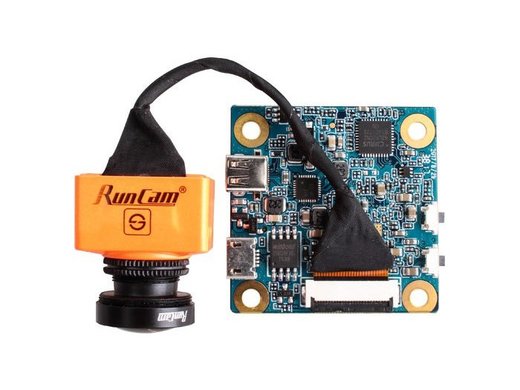
Ribbon cable installation
Power off before opening the connector latch. Insert the ribbon evenly and close the latch without force.
Inspect both ends for crooked insertion, torn traces or sharp folds. A constant red LED or missing image can be caused by the ribbon.
Keep the cable away from carbon edges and moving parts. Do not crease it tightly during assembly.
MicroSD card setup
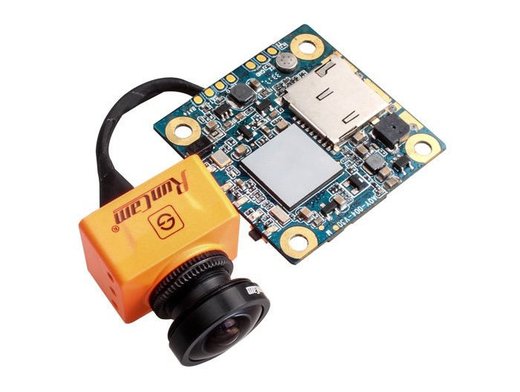
Use a compatible card and confirm that the small detection switch is touched when the card is inserted. RunCam support notes that card retention can affect No Card or Card Error messages.
Back up recordings before formatting. Test a short clip on the bench before final assembly.
App and Wi-Fi
The Split 2 uses a 2.4GHz Wi-Fi module for preview and parameter settings. Join the camera network manually and open the RunCam app.
The app can update firmware on supported versions. Turn Wi-Fi off during normal flight when it is not required.
Firmware update
The official manual update file is RCSplit.BRN. Copy it to the card root and power the camera from a stable charger.
- Back up recordings and charge or use stable USB power.
- Download and extract the official firmware.
- Copy RCSplit.BRN to the card root.
- Insert the card and power on.
- Wait while the orange LED blinks slowly.
- Allow automatic shutdown before removing power.
The orange light blinks slowly during the update. The camera shuts down automatically when the process completes.
Common Split 2 problems
| Symptom | Likely cause | Action |
|---|---|---|
| Constant red LED | Ribbon or insufficient power | Reseat cable and test USB |
| No Card | Card or detection switch | Inspect contact and format |
| FPV interference | Noisy power or ground | Use clean 5V and filtering |
| PC not recognised | Cable or mode | Use data cable and direct port |
| Choppy feed | Card, power or heat | Test card and regulator |
Constant red LED and no startup
Reseat the ribbon cable, test another cable and power the board through USB from a stable charger. If the board starts without the sensor cable, inspect the camera module and ribbon.
No Card or Card Error
Check the card-detection contact, card seating and file system. Test a known compatible card.
Interference in FPV feed
Use clean 5V power, correct grounding and extra filtering where required. Test another VTX or PDB because some combinations inject noise.
Camera records but PC does not recognise it
Use a data USB cable and a direct computer port. Check whether the board is in storage mode and whether the card is readable.
FPV feed is choppy
Check power stability, card health, firmware and heat. A failing card can affect board responsiveness even when the analogue feed remains visible.
Rapid isolation test
Remove the board from the aircraft and power it through USB with a known cable. Connect TV-out to a monitor or known VTX and use a verified card.
If the board works outside the quad, reconnect one aircraft connection at a time. Start with ground, then power, then video and remote control. The fault appears when the problematic connection is added.
This method is slower than changing random parts but gives a clear answer and reduces the risk of damaging a replacement board.
Separate recording faults from FPV faults
Make a short HD recording while watching the analog feed. If the saved file is clear but the goggles show interference, focus on TV-out, ground, VTX and power filtering.
If the analog feed is clear but the recording freezes, focus on the microSD card, board temperature and firmware. A single symptom does not prove that the camera sensor is faulty.
When both outputs fail together, inspect the ribbon cable and main power first. The camera module depends on the ribbon for image data.
Board mounting and insulation
Use the correct standoffs and keep the PCB away from conductive carbon. RunCam support recommends insulation when the frame or mounting arrangement creates interference.
Do not compress the board between plates. Pressure can bend the PCB, disturb the card contact or damage the ribbon connector.
Allow airflow around the recorder. High-resolution recording creates heat, and a tightly enclosed stack can become unstable during a long flight.
Conclusion
The RunCam Split 2 depends on four things working together: clean 5V power, correct ground, a healthy ribbon cable and a compatible microSD card.
Test from USB power before replacing parts, and use the exact RCSplit.BRN file for manual firmware updates.
Sources
Frequently Asked Questions
What firmware filename does the RunCam Split 2 use?
The official manual update file is RCSplit.BRN.
What Wi-Fi frequency does it use?
RunCam support states that the module uses 2.4GHz.
Why does the camera show a constant red LED?
Check the ribbon cable and test the board from a stable USB charger.
What causes FPV interference?
Common causes include noisy power, incorrect ground, the VTX, PDB or insufficient filtering.
Why does it report No Card?
Check the microSD card, format and the physical card-detection contact.
Ryan has configured WiFi-equipped FPV and HD hybrid cameras, learning that WiFi preview range rarely matches the analog video link’s usable distance. He shares these findings at softwaredriverdownload.com.