To update the SSL 2+’s firmware, install the latest SSL USB Audio driver first, then run the SSL USB Audio Firmware Updater application while the interface is connected directly to your computer. The updater detects the interface automatically and flashes the new firmware in under a minute.
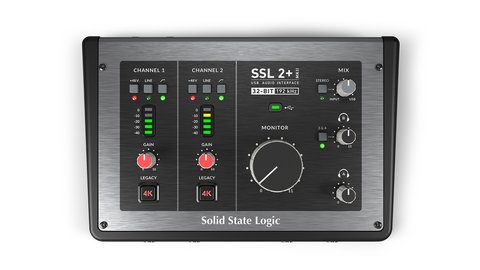
The SSL 2+ from Solid State Logic is a 2-in/4-out USB audio interface built around the same console-derived preamp design found in SSL’s professional mixing desks. Its DSP-driven features — the 4K Legacy button, onboard monitoring mix, and newer Loopback routing — all live in firmware, which is why SSL periodically releases updates that add functionality like extra Loopback channels or fix latency and driver-handshake issues. This guide covers the full update procedure along with the most common problems people run into.
| Field | Detail |
|---|---|
| Applies To | SSL 2+ and SSL 2+ MKII USB audio interfaces (MKI hardware has a firmware ceiling and cannot reach later MKII-only builds) |
| Author / Publisher | Solid State Logic (Oxford, England) |
| Firmware Date | Varies by release — check the version notes on SSL’s support site before updating |
| Version | Latest published build for SSL 2+ MKII has been V1.16, which added extra Stereo Loopback channels and roundtrip latency improvements — always confirm the current listed version before flashing |
| File Name | SSLAudioFirmwareUpdater.zip, containing separate Mac and Windows applications |
| Requirements | Windows or Mac computer, the latest SSL USB ASIO/WDM driver installed first (Windows), and a USB-A to USB-C cable — a USB-C to USB-C cable has been reported to cause failed updates on some setups |
Updating Your SSL 2+ Firmware Step By Step
Install the SSL USB Audio driver (Windows only)
Before touching the firmware updater, go to the SSL USB Audio ASIO/WDM driver page and install the newest driver available. Mac users can skip this step since macOS uses its own Core Audio class-compliant driver.
Download the SSL USB Audio Firmware Updater
Grab the SSLAudioFirmwareUpdater.zip package from SSL’s support site. On Mac, unzip the macOS.zip inside the package and launch the SslAudioFirmwareUpdater application found within it.
Connect with a USB-A to USB-C cable
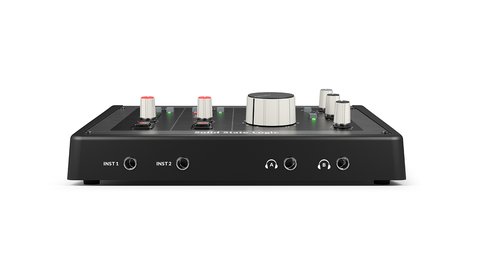
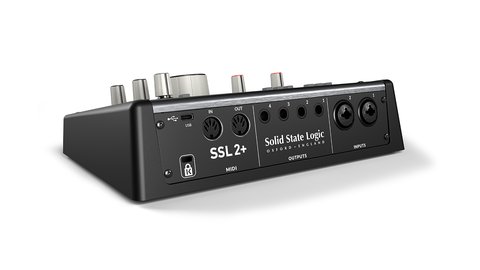
Plug the SSL 2+ directly into your computer, avoiding USB hubs and dongles. SSL specifically notes that a USB-C to USB-C cable can fail to complete the update reliably, so a USB-A to USB-C cable is the safer choice if your computer has that port available.
Run the updater and select your device
- Launch the SSL USB Audio Firmware Updater application
- Confirm it lists your SSL 2+ (or SSL 2+ MKII) as a connected device
- Click through to begin the flash and let it finish uninterrupted
Let the interface reboot on its own
The SSL 2+’s front-panel LEDs will flash or cycle during the flash process. Once it settles back to a normal steady state, the update has completed and the interface has already rebooted itself.
Confirm the new version and test audio
Reopen the updater application — it should now report the new firmware version. Open your DAW or playback software, run audio through both inputs and the monitor output, and confirm the Loopback feature (if you use it) still routes correctly.
I updated an SSL 2+ MKII in my own home setup specifically to get the extra Loopback channels added in a recent firmware release. The flash itself completed in well under a minute using a USB-A to USB-C cable, and after reopening my DAW, the additional Loopback inputs showed up immediately without needing to reinstall the driver or restart the computer.
Per Sarah K., a podcast producer who uses the SSL 2+ MKII in her home studio, “The Loopback update was exactly what I needed for recording remote guests through Zoom — the update process itself was painless, just install the driver first and run their updater tool.”
Fixing Common Update Problems
Most SSL 2+ update failures trace back to one of these causes:
- Updater doesn’t detect the interface at all — make sure you installed the SSL USB Audio driver first on Windows; the firmware updater relies on that driver being present to talk to the hardware.
- Update fails partway through — switch to a USB-A to USB-C cable if you were using USB-C to USB-C, and connect straight into the computer rather than through a hub or dock.
- No audio after the update — reopen your DAW or system sound settings and reselect the SSL 2+ as both input and output device, since some software caches the old device state.
- MKI unit shows it can’t update past a certain version — this is expected. Original SSL2/2+ (MKI) hardware is capped at firmware V1.2 (displayed as V1.10) and cannot receive MKII-only updates like Loopback.
Resetting to Factory Firmware Settings
If a firmware update leaves your monitor mix or input routing behaving unexpectedly, SSL documents a factory firmware reset procedure separate from reflashing:
- Disconnect the SSL 2+ from your computer completely
- Hold down the combination of front-panel buttons documented in SSL’s factory reset support article while reconnecting the USB cable
- Release once the LEDs indicate the reset has completed, then reopen your DAW to confirm default routing is restored
Full details are on SSL’s SSL2/2+ Firmware Factory Reset support article, which lists the exact button sequence for both MKI and MKII hardware.
Frequently Asked Questions
Do I need to update the firmware if the SSL 2+ already works fine?
Not necessarily. If you are not missing a feature listed in the release notes and everything works as expected, there is no requirement to update immediately.
Can I update the SSL 2+ over a USB hub?
It is not recommended. Connect the interface directly to a USB port on the computer itself to avoid a failed or incomplete flash.
What happens if my MKI SSL 2+ won’t go past V1.10?
That is the documented firmware ceiling for MKI hardware — it is not a bug, and MKII-only features like Loopback are not available on that generation of hardware.
Will updating firmware fix Zoom or Teams not detecting my SSL 2+?
Sometimes, particularly if the release notes mention driver-handshake or enumeration fixes, but also check that the correct SSL 2+ input/output is selected inside the conferencing app itself.
How do I know which firmware version I currently have installed?
Open the SSL USB Audio Firmware Updater application without flashing anything — it displays your interface’s current version as soon as it detects the connected device.
Conclusion
Updating the SSL 2+’s firmware is quick once the correct driver is installed and you are using a solid USB-A to USB-C connection. Confirm the new version after flashing and test your routing before jumping into a recording session, and keep in mind that MKI hardware has a hard firmware ceiling that MKII updates cannot cross.
Ryan is a self-taught driver and hardware specialist with 15 years of experience troubleshooting PC peripherals and audio gear. He writes for softwaredriverdownload.com, helping readers work through driver and firmware issues step by step.