If Windows 11 says your Epson scanner is not detected, the fix is almost always one of three things: a missing or outdated driver, a USB connection problem, or a Windows service that stopped running. This guide walks through every fix in order, from the quickest checks to the deeper driver and service repairs, so you can get scanning again without guessing.
I have run into this exact problem more times than I can count, on everything from old Epson Perfection flatbeds to newer portable ES-series scanners. Windows 11 changed how it handles imaging devices compared to Windows 10, and that alone breaks a surprising number of older scanners that used to work fine. Below is the same troubleshooting order I use myself, starting with the causes that are quick to rule out.
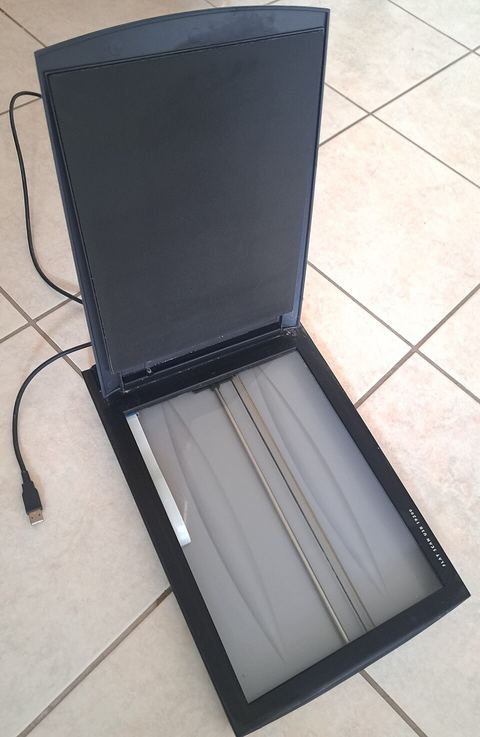
Common Causes
- Epson scanner driver is missing, outdated, or was not reinstalled after a Windows 11 upgrade
- Loose, damaged, or low-power USB cable and port
- Windows Image Acquisition (WIA) or scanner service is stopped
- Scanner is turned off, in sleep mode, or the power-saving timeout kicked in
- Third-party antivirus or Windows security settings blocking scanner access
- Leftover driver files from a previous Epson model conflicting with the current one
Check the Basics First
Before touching Device Manager or drivers, rule out the simple stuff. This alone fixes the problem more often than people expect.
- Make sure the scanner is powered on and out of sleep mode. Some Epson flatbeds take 10-15 seconds to wake up after being idle.
- Unplug the USB cable from both ends and plug it back in firmly. A cable that looks seated can still have a bad connection.
- Try a different USB port, preferably one on the back of a desktop PC that connects directly to the motherboard rather than a front panel or hub port.
- If you are using a USB hub, plug the scanner directly into the PC instead. Scanners pull more power than a typical hub port can reliably supply.
- Try a different USB cable. I have seen more than one “dead” scanner turn out to be a worn-out cable, especially the thin ones bundled with older Epson models.
I had a Windows 11 desktop with an Epson Perfection V370 that stopped showing up after a routine Windows Update. Turned out the update had reset the USB selective suspend setting, which put the port to sleep mid-scan. Disabling selective suspend for that port in Power Options fixed it permanently.
Reinstall or Update the Epson Driver
This is the fix that resolves the majority of “not detected” cases. Windows 11 sometimes installs a generic driver instead of the full Epson driver package, which causes the scanner to show up as a webcam or not at all.
- Open Device Manager (right-click the Start button and select it).
- Expand Imaging devices or Other devices. Your Epson scanner may show a yellow warning icon here, or it might be missing entirely.
- If it is listed, right-click it and choose Uninstall device. Check the box for “Delete the driver software for this device” if offered.
- Unplug the scanner, restart the PC, then download the current driver from the Epson support and drivers page for your exact model number.
- Install the downloaded driver package before reconnecting the scanner, then plug it back in when prompted.
Always search by the exact model printed on the scanner (for example ES-580W or Perfection V600), not just “Epson scanner.” Generic search results can point you to the wrong driver family.
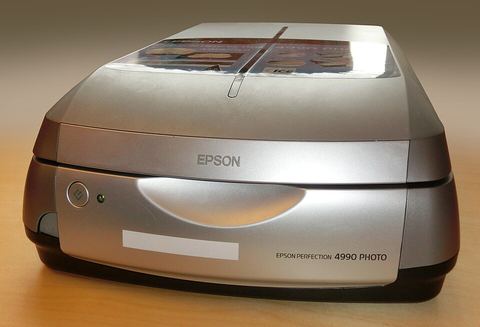
Restart the Windows Image Acquisition Service
Windows uses the WIA (Windows Image Acquisition) service to talk to scanners. If this service is stopped or crashed, Windows will not detect any scanner, Epson or otherwise.
- Press Windows key + R, type
services.msc, and press Enter. - Scroll down to Windows Image Acquisition (WIA).
- Right-click it and choose Start. If it is already running, choose Restart instead.
- Set the Startup type to Automatic so it starts on its own after every reboot.
If the service will not start at all and shows an error, run sfc /scannow from an elevated Command Prompt to repair any corrupted system files, then try starting the service again.
Per Marcus Tan, who is an IT Support Technician at a regional print shop, “Half the scanner tickets I get are just the WIA service stopped after a Windows Update. I check that before I even look at the driver now.”
Use Epson’s Own Diagnostic Tools
Epson ships two small utilities that catch problems generic Windows troubleshooting misses.
- Epson Scan 2 or the newer Epson Smart Panel app can detect a scanner even when the Windows Fax and Scan app cannot. Install it from Epson’s site and open it to test the connection separately.
- The Epson Printer/Scanner Connection Checker tool scans your PC for driver conflicts and network scanner issues if you are using a Wi-Fi connected model.
For Wi-Fi and network scanners specifically, confirm the scanner and PC are on the same network band. I have seen dual-band routers assign a scanner to the 2.4GHz network and a laptop to the 5GHz network, and Windows simply cannot see the device across bands without extra router configuration.
Check for Driver Conflicts and Old Software
- Open Settings > Apps > Installed apps and look for old Epson software from a previous scanner model.
- Uninstall any Epson scan software you no longer use. Two competing Epson driver packages installed at once is a common cause of silent detection failures.
- Restart the PC after removing old software, then reinstall the current model’s driver fresh.
Temporarily Disable Third-Party Antivirus
Some antivirus suites treat scanner drivers as an untrusted device connection during the first install. Temporarily disable real-time protection, reconnect the scanner, and see if it is detected. If that fixes it, add an exception for the Epson driver folder in your antivirus settings rather than leaving protection off. Microsoft’s own guidance on fixing scanner connection problems in Windows covers this along with several other Windows-side checks worth running through.
When Nothing Else Works
- Test the scanner on a different Windows 11 PC if you have one available. This tells you whether the scanner itself has failed or the problem is specific to your PC.
- Check Windows Update > Optional updates > Driver updates for a Microsoft-supplied Epson driver that might supersede a broken one.
- As a last resort, use System Restore to roll Windows back to a point before the scanner stopped working, especially if the problem started right after a major Windows 11 feature update.
Frequently Asked Questions
Why does my Epson scanner work on one USB port but not another?
USB ports on the same PC are not always equal. Front panel and hub ports often supply less power and route through additional controllers that can drop the connection. Rear motherboard ports are usually more reliable for scanners.
Do I need Epson Scan 2 installed, or is the Windows driver enough?
The Windows driver alone lets basic scanning work through Windows Fax and Scan, but Epson Scan 2 or Smart Panel gives you more control over resolution, file format, and multi-page scanning, and it is often more reliable at detecting the device in the first place.
My scanner shows up in Device Manager but not in the scanning app. What now?
This usually means the driver installed but the scan application’s connection to it is broken. Uninstall and reinstall just the scanning software (not the driver) first, and if that does not help, uninstall both and do a clean install of the full driver package from Epson.
Can a Windows 11 update break a scanner that was working fine?
Yes, this is common. Feature updates sometimes reset USB power settings or replace a working driver with a generic one. Checking Device Manager and the WIA service right after any Windows update is a good habit if you scan regularly.
Is it worth buying a new scanner instead of troubleshooting an old one?
If the scanner is more than eight to ten years old and Epson no longer publishes Windows 11 drivers for it, replacement is often less hassle than forcing an old driver to work. Check Epson’s support page for your exact model before giving up on it.
Conclusion
Most “Epson scanner not detected” problems on Windows 11 come down to a driver that needs a clean reinstall, a USB connection that is not as solid as it looks, or the WIA service sitting stopped in the background. Work through the checks in order and you will find the cause without needing to replace hardware. If you get stuck, Epson’s own diagnostic tools and support page are worth checking before you assume the scanner itself has failed.
Ryan holds a degree in Computer Science and has spent over 20 years working hands-on with PC hardware, drivers, and peripherals. He writes practical, tested troubleshooting guides at SoftwareDriverDownload.com based on real devices he has repaired and configured himself.