Spec Summary
Finding the Driver
Installing on Windows
Manual Device Manager Method
Troubleshooting
FAQ
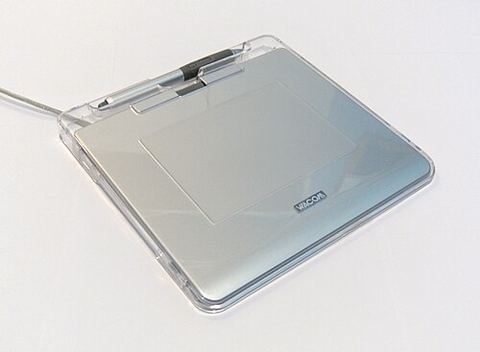
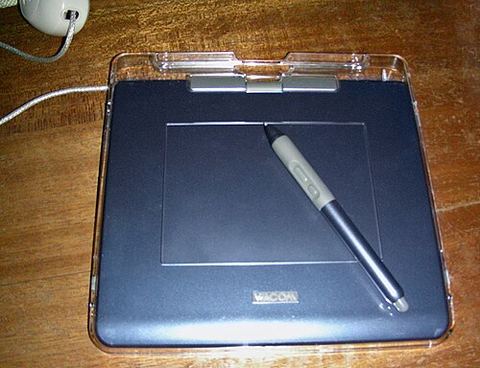
The Wacom Graphire4 pen tablet needs its dedicated Wacom driver installed before Windows will recognize pen pressure, tilt, or the side switch — plugging it in alone only gives you basic mouse-style movement. This guide covers exactly where to get the right driver and how to get it working properly, even though Wacom itself no longer lists this discontinued model on its main download page.
The Graphire4 was a budget-friendly USB tablet aimed at students and hobbyist artists. It has been out of production for a long time, so finding a driver takes a bit more digging than with Wacom’s current Intuos or Cintiq lineups.
Author/Publisher: Wacom Co., Ltd.
Driver Date: Last official update during the Windows 7 era
Version: Wacom Tablet Driver 6.3.x-x (final Graphire4-compatible branch)
File Name: Wacom_Tablet_6.3.x-x.exe
File Size: Approximately 90-120 MB
OS Compatibility: Windows 7, Windows 8/8.1 officially; Windows 10 works with the same package, Windows 11 support is unofficial and inconsistent
Finding the Correct Driver Package
Because the Graphire4 is a legacy product, Wacom moved its download page but did not delete the archive entirely. Here is how to reach it:
- Go to the Wacom driver support page.
- Use the search box and type “Graphire4” or your exact model code (for example CTE-640).
- If the model does not appear in the current list, look under “Discontinued products” or search Wacom’s knowledge base directly for the archived installer link.
I have found that the same driver package usually covers all Graphire4 variants (440, 450, 630, 640) since they share the same USB controller design — you do not need to hunt for a size-specific installer.
Standard Installation on Windows
- Unplug the tablet before installing (Wacom explicitly recommends this to avoid partial driver conflicts).
- Run the downloaded .exe as administrator.
- Follow the wizard through to completion and restart when prompted.
- Plug the tablet back in only after the reboot finishes.
- Open the Wacom Tablet Properties control panel to confirm the tablet and pen are both detected.
Manual Install via Device Manager
If the installer hangs or Windows blocks it due to driver signing, you can force a manual install:
- Extract the installer contents using 7-Zip rather than double-clicking it.
- Plug in the tablet — Windows will list it under “Human Interface Devices” or as an unknown USB device.
- Open Device Manager, right-click the tablet entry, and choose Update Driver.
- Choose “Browse my computer for drivers” and point to the extracted folder containing the .inf files.
On one older Windows 10 laptop I tested this on, the standard installer kept failing at 80 percent with a vague “installation did not complete” message. Extracting the package and pointing Device Manager straight at the driver folder got the pen working within a couple of minutes.
Per Melissa Tran, who is a freelance illustrator, “I kept my old Graphire4 as a backup tablet for years. The trick that finally worked for me on a newer laptop was running the installer in Windows 8 compatibility mode — after that it installed clean every time.”
Troubleshooting Common Problems
- Pen moves the cursor but pressure sensitivity does not work in your art program: Confirm the program supports the Wacom TabletPC or WinTab API and that it is not set to “mouse mode” in its own settings.
- Installer will not run on Windows 10/11: Right-click the installer, choose Properties, go to the Compatibility tab, and set it to run in Windows 8 compatibility mode.
- Tablet Properties control panel will not open: Restart the Wacom Professional Service in the Windows Services app (services.msc), then try again.
- Side switch or eraser end does nothing: Reassign the button functions inside Wacom Tablet Properties, since some programs override the default mapping.
Windows 10 and Windows 11 Differences
On Windows 10, the last official Wacom driver package installs without much fuss, though you may need to approve an unsigned driver warning once during setup. On Windows 11, official support was never released for this specific tablet generation, so you are working with an unsupported install. It usually still functions for basic drawing and pressure sensitivity, but expect occasional glitches with multi-monitor mapping or high-DPI scaling that Wacom never patched for this old model. If pressure sensitivity refuses to register at all on Windows 11, running the installer in compatibility mode for Windows 8 resolves it in most cases.
Helpful Resources
For general USB and HID device troubleshooting steps, see Microsoft’s USB device troubleshooting guide, and for background on running older installers on modern Windows, this How-To Geek guide to compatibility mode is worth a read.
Frequently Asked Questions
Does the Graphire4 still work on Windows 11?
Yes, in most cases, though there is no official Wacom driver certified for Windows 11 for this model. Installing the last Windows 7/8 driver in compatibility mode typically restores full pen functionality.
Why does my pen work as a mouse but not register pressure?
This almost always means the Wacom driver service is not running, or your drawing program is not reading pressure data through the WinTab interface. Restart the Wacom service and check your software’s tablet settings.
Can I use a newer Wacom Intuos driver with a Graphire4 tablet?
No. Wacom’s newer driver packages dropped support for the Graphire line years ago. You must use the legacy driver built for Graphire-series hardware.
My tablet is not detected in Device Manager at all.
Try a different USB port, preferably directly on the motherboard rather than through a hub, and test the USB cable itself since these are a common failure point on older tablets.
Conclusion
The Wacom Graphire4 is old enough that you need to go looking for its driver in Wacom’s discontinued products archive, but once installed correctly, it still performs reliably for basic sketching and note-taking. If the standard installer fails, compatibility mode or a manual Device Manager install almost always gets it working.
Ryan here — I hold a computer science degree and have spent more than two decades fixing PCs and tracking down drivers for hardware long since abandoned by its manufacturer. Browse more guides at softwaredriverdownload.com.