The Wacom Bamboo CTH-470 driver is the software package that lets Windows recognize and use the pressure-sensitive pen and multi-touch surface on this popular entry-level graphics tablet, and you can get it directly from Wacom’s support site in a few minutes.
I have set up a handful of these Bamboo tablets for relatives and readers who wanted to try digital drawing or sign documents electronically, and the CTH-470 is still one of the more common used models people ask me about. Below is exactly how I install and troubleshoot the driver, plus the details you need before you start.
| Applies To | Wacom Bamboo CTH-470, CTH-470M, CTH-470K (pen and touch small tablet) |
| Author/Publisher | Wacom Co., Ltd. |
| Driver/Software Date | Latest maintenance release from Wacom Desktop Center |
| Version | 6.3.x series (varies by download date) |
| File Name | Bamboo_6.3.x-x.exe |
| File Size | Approximately 120-160 MB |
| OS Compatibility | Windows 11, Windows 10 (32-bit and 64-bit) |
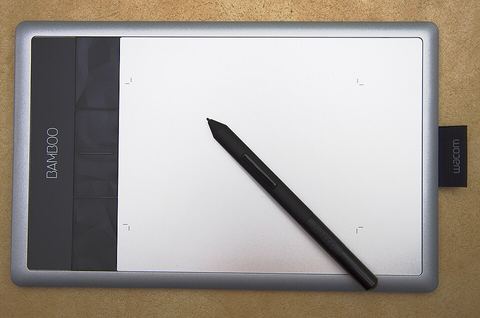
The Bamboo CTH-470 was discontinued years ago, so it is no longer listed on Wacom’s front page. Follow the steps below to find and install the correct driver.
Step 1 – Download the Correct Driver Package
- Go to the Wacom driver support page.
- Search for “Bamboo” in the product search box, then choose “Bamboo Pen & Touch” or “CTH-470” from the list.
- Select your Windows version (Windows 11 or Windows 10) and download the installer.
- If the exact CTH-470 entry is missing, the generic “Bamboo” driver package on that page still covers this model, since Wacom groups several Bamboo variants under one installer.
Step 2 – Uninstall Any Old Wacom Software First
If you previously had a different Wacom tablet installed, or an old copy of the Bamboo driver, remove it before installing the new one. Mixed driver versions are the most common reason the tablet stops responding to pressure or gestures.
- Open Settings > Apps > Installed apps.
- Search for “Wacom” and uninstall any entry you find (Wacom Tablet, Bamboo, Wacom Desktop Center).
- Restart the PC before installing the fresh driver.
Step 3 – Run the Installer
Plug in the CTH-470 with the supplied USB cable, then run the downloaded .exe file as administrator. The installer copies the Wacom Tablet Properties panel and background service, then asks for a restart. Reboot when prompted rather than skipping it, because the pen driver service needs a clean start to register with Windows.
Step 4 – Confirm It Is Working
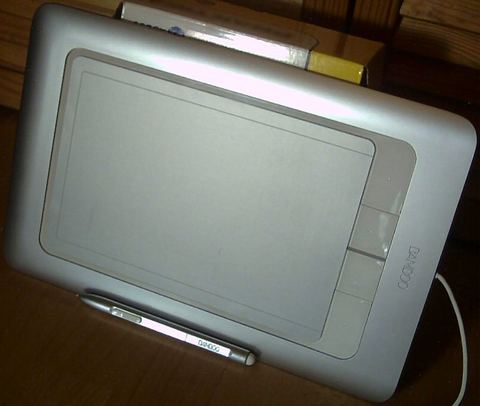
Open the Wacom Tablet Properties app from the Start menu. You should see the CTH-470 listed with tabs for Pen, Touch, and Mapping. Move the pen near the surface without touching it and the on-screen cursor should jump to that spot, confirming the driver is reading the tablet correctly.
Troubleshooting a Failed Install
On one CTH-470 I set up on a Windows 11 machine last year, the installer finished without errors but the tablet still showed up as an “Unknown USB Device.” Restarting did not fix it. What worked was unplugging the tablet, uninstalling the driver completely with the Wacom uninstaller, restarting again, and only then plugging the tablet back in before reinstalling. Windows had cached a broken driver association from an earlier attempt, and that cache needed to clear first.
Other things worth checking if the tablet is not detected:
- Try a different USB port, preferably directly on the motherboard rather than through a hub.
- Check Device Manager (right-click Start > Device Manager) under “Human Interface Devices” or “Other devices” for a Wacom entry with a yellow warning icon.
- Disable and re-enable the device from Device Manager to force Windows to reload the driver binding.
- Temporarily disable third-party antivirus software during install, since some security suites block the Wacom background service the first time it runs.
Manual Install via Device Manager
If the automatic installer will not run at all, you can point Windows to the driver files directly:
- Download and run the Wacom installer once so it extracts its files to a temp folder, then cancel before it finishes (or extract the .exe with an archive tool like 7-Zip).
- Open Device Manager, find the Wacom entry (or “Unknown Device” if the pen has never worked), right-click it and choose Update Driver.
- Choose “Browse my computer for drivers,” then point it at the extracted Wacom driver folder.
- Let Windows install the matching .inf file, then restart.
This manual path works on both Windows 10 and Windows 11, though Windows 11’s driver installer UI adds an extra confirmation prompt that Windows 10 does not show.
Per Daniela Novak, who is a freelance illustrator at a small design studio, “My old Bamboo CTH-470 sat in a drawer for two years, and I honestly expected it to be dead software-wise. The driver from Wacom’s site still installed fine on my Windows 11 laptop, and the pressure sensitivity felt exactly like I remembered.”
Windows 10 vs Windows 11 Differences
The core driver behaves the same on both systems, but there are small differences worth knowing. On Windows 11, the Wacom Tablet Properties panel sometimes opens behind other windows the first time you launch it after install, so check the taskbar if it seems like nothing happened. On Windows 10, older builds occasionally need the “Tablet PC Input Service” enabled in Services.msc for touch gestures to register properly, even though the pen itself works without it.
Tips for Better Pen Performance
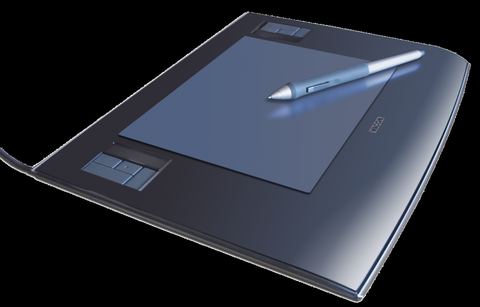
- Calibrate the pen mapping in Wacom Tablet Properties if the cursor position feels offset from where the pen touches.
- Lower the pen pressure sensitivity slightly in art programs like Photoshop or Krita if lines come out too thick by default.
- Keep the driver updated even though the hardware is old, since Wacom periodically patches compatibility issues for newer Windows feature updates. You can check for updates from within Wacom Desktop Center.
- If you use the tablet mainly for signing PDFs or note-taking, disable the touch surface in the driver settings to avoid accidental palm input while writing with the pen.
For more background on how Wacom’s driver architecture works across product lines, Wacom’s general support hub has additional articles, and How-To Geek has covered general USB driver troubleshooting steps that apply here too.
Frequently Asked Questions
Is the Wacom Bamboo CTH-470 still supported?
Wacom no longer actively markets the CTH-470, but the driver package for the wider Bamboo Pen & Touch line still installs and runs on current Windows versions. It receives compatibility updates occasionally rather than new features.
Why does my CTH-470 show up but the pen does not draw?
This is almost always a driver-service issue rather than a hardware fault. Restart the “Wacom Professional Service” from Task Manager’s Services tab, or reinstall the driver following the uninstall-restart-reinstall order described above.
Can I use the CTH-470 without installing any driver?
Windows will detect it as a generic USB HID device and basic cursor movement may work, but you lose pressure sensitivity, button mapping, and touch gestures. Installing the proper driver is necessary for full functionality.
Does the CTH-470 work with Windows 11 on ARM or Mac?
The Windows driver targets standard x86/x64 Windows 10 and 11. For Mac, Wacom provides a separate macOS driver package on the same support page; ARM-based Windows support is not officially listed by Wacom for this older model.
Where can I find my exact driver version after installing?
Open Wacom Tablet Properties, click the “About” tab or the Wacom icon in the system tray, and select About Wacom Tablet to see the installed version number.
Conclusion
The Wacom Bamboo CTH-470 driver install is quick once you know where Wacom hides the download for this older model. If the automatic installer stumbles, a clean uninstall-reboot-reinstall cycle or a manual Device Manager install almost always solves it. With the driver in place, this little tablet still holds up well for sketching, note-taking, and signing documents years after release.
Written by Ryan, a computer science graduate with over 20 years of hands-on experience installing and troubleshooting PC hardware and drivers. He shares practical, tested fixes at softwaredriverdownload.com.