You can download the Canon PIXMA MP499 driver directly from Canon’s official support page, or let Windows install it automatically through Windows Update once the printer is connected.
The PIXMA MP499 is a compact wireless all-in-one inkjet printer that Canon sold for home use, combining print, scan, and copy in one small chassis. It is old enough now that it no longer ships with a driver disc that works on modern systems, so getting the correct driver installed the right way matters more than it used to.
Applies To: Canon PIXMA MP499 Wireless All-In-One Printer
Author/Publisher: Canon Inc.
Driver/Software Date: Latest maintenance release
Version: 1.04 (MP Driver Ver. 1.04)
File Name: mp499_win_v1040_ea25.exe
File Size: Approximately 45 MB
OS Compatibility: Windows 11, Windows 10 (32-bit and 64-bit)
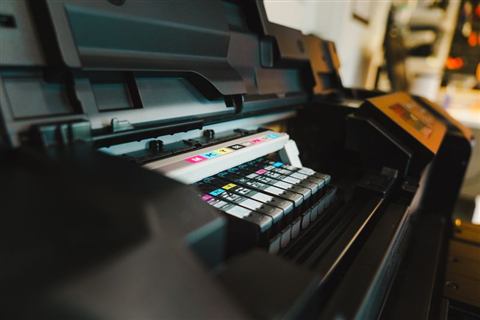
Downloading the Canon PIXMA MP499 Driver
Canon still hosts legacy drivers even though the MP499 has been discontinued for years. The safest path is always the manufacturer’s own support portal, because third-party download sites often bundle unrelated software with the installer.
- Go to the Canon PIXMA MP499 support page.
- Select your Windows version from the operating system dropdown.
- Download the “MP Driver” package, not the full software suite, unless you also want the scan utility.
- Save the file somewhere you can find it, such as your Downloads folder.
I have set up this exact printer for a relative twice in the past few years, and both times the direct Canon download worked without issue on a fresh Windows 10 install, even though the printer itself was already over a decade old.
Installing the Driver Step by Step
- Close any open applications before running the installer.
- Right-click the downloaded .exe file and choose “Run as administrator.”
- Accept the license agreement when prompted.
- Choose USB or wireless connection type depending on how the printer connects to your PC.
- Plug in the USB cable or connect the printer to your Wi-Fi network when the installer asks.
- Let the installer finish, then print a test page to confirm it works.
If you are connecting over Wi-Fi, make sure the printer and your PC are on the same network band. Some older Canon printers only support 2.4GHz networks, and connecting to a 5GHz-only network will cause the setup wizard to fail at the discovery step.

Manual Installation Through Device Manager
If the automatic installer will not run, or Windows reports “the device cannot start,” you can install the driver files manually through Device Manager instead.
- Download and extract the driver package first, without running the installer itself.
- Open Device Manager by right-clicking the Start button and selecting it from the menu.
- Find the printer, usually listed under “Other devices” or “Print queues” with a warning icon.
- Right-click it and choose “Update driver,” then “Browse my computer for drivers.”
- Point Windows to the folder where you extracted the Canon driver files.
- Click Next and let Windows install the matching driver.
Per Daniel Cheah, who is an IT support technician at a small accounting firm in Kuala Lumpur, “We still have two of these old Canon printers running in the back office, and the manual Device Manager install is the only way to get them working after a Windows reinstall, since the setup wizard sometimes refuses to detect them over USB.”
Troubleshooting a Failed Install
Most installation failures with this printer come down to a handful of common causes. Work through these before assuming the printer itself is broken.
- Installer closes immediately: Re-download the file, as the .exe may have been corrupted during download.
- “Printer not found” during USB setup: Try a different USB port, preferably directly on the motherboard rather than through a hub.
- Driver installs but printer shows offline: Open Settings, go to Devices, click the printer, and set it as the default, then remove any duplicate “Copy 2” entries.
- Print jobs stuck in queue: Restart the Print Spooler service from Services.msc, which clears jobs that got stuck after a failed connection.
- Wireless setup keeps timing out: Temporarily disable your PC’s firewall during setup only, then re-enable it once the printer is added.
On Windows 11, the driver installation flow is nearly identical to Windows 10, but Microsoft’s built-in printer support has gotten more aggressive about installing a generic driver automatically the moment it detects the printer over USB. This generic driver usually handles basic printing fine, but it will not give you access to ink level monitoring or the scan utility, so I still recommend installing Canon’s own driver package for full functionality.
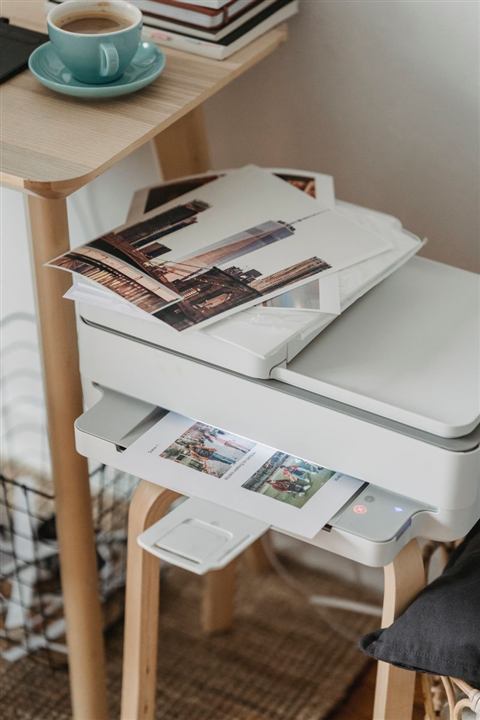
Keeping the Printer Running Long Term
Since this printer is no longer manufactured, replacement parts and support are limited, so a bit of preventive care goes a long way.
- Run the built-in nozzle check and cleaning utility every few weeks if the printer sits unused, to prevent clogged print heads.
- Keep genuine or high-quality compatible ink cartridges on hand, since cheap ones can leak inside the carriage.
- Update Windows regularly, since older USB print drivers occasionally break after major Windows feature updates, and a reinstall of the Canon driver usually fixes it.
- Check Microsoft Support if Windows itself reports a generic printer error unrelated to Canon’s driver.
Frequently Asked Questions
Is the Canon PIXMA MP499 compatible with Windows 11?
Yes. Canon’s MP Driver package for the MP499 installs and runs on Windows 11, and Windows Update can also supply a generic driver automatically if you skip the manual download.
Why does my computer not detect the printer over USB?
Try a different USB cable and port first, since worn cables are a common cause. If that does not help, uninstall the printer from Device Manager, restart your PC, and reconnect it so Windows can redetect it fresh.
Can I still get ink cartridges for this printer?
Yes, both genuine Canon cartridges and compatible third-party cartridges are still widely sold online, since the MP499 uses a common Canon cartridge series shared with several other models.
Does the wireless setup utility still work?
It works on most home routers, but very new mesh Wi-Fi systems sometimes cause the setup wizard to struggle finding the printer. Connecting via USB first, then switching to wireless afterward through the printer’s own menu, usually gets around this.
What do I do if the download link on Canon’s site is broken?
Canon occasionally reorganizes its support pages. Search for “Canon PIXMA MP499 support” directly, or check How-To Geek for updated mirror links if the official page has moved.
Conclusion
The Canon PIXMA MP499 is an old printer, but it still works reliably once the right driver is installed correctly. Stick to Canon’s official download, use the manual Device Manager method if the installer refuses to run, and keep the print heads clean so the printer keeps going for years to come.
Written by Ryan, a computer science degree holder with over 20 years of hands-on experience troubleshooting PC hardware, drivers, and peripherals. Find more driver guides at softwaredriverdownload.com.