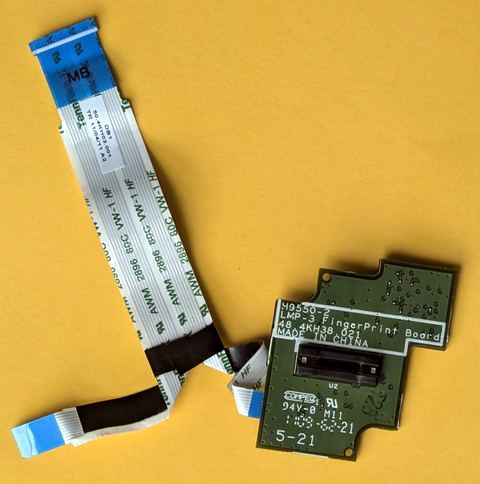
A Validity Sensors fingerprint reader that Windows 10 or 11 refuses to recognize almost always needs its driver reinstalled through Windows Hello’s Sign-in Options, not through a generic Device Manager update.
Validity Sensors was a fingerprint sensor maker later folded into Synaptics, and its swipe and touch sensors still ship inside many Dell, HP, and Lenovo laptops built over the last several years. When Windows Hello suddenly stops offering fingerprint sign-in, or the sensor is missing from Device Manager entirely, the fix is usually a clean driver reinstall paired with a Windows Hello reset.
Applies To: Validity Sensors VFS491 / VFS495 fingerprint reader (Synaptics-branded on newer units)
Author/Publisher: Validity Sensors, Inc. (a Synaptics company)
Driver/Software Date: Latest OEM maintenance build
Version: 5.4.106.x (varies by laptop model)
File Name: ValiditySensorSetup.exe / SynaWUDFBioUsb.sys
File Size: Approximately 25-40 MB
OS Compatibility: Windows 10 (64-bit), Windows 11
Step 1: Confirm the Sensor Is Actually Broken
Before touching any driver, open Settings > Accounts > Sign-in options and check if Windows Hello Fingerprint even appears as an option. If it is missing completely, the driver has likely failed or been removed. If it appears but enrollment fails partway through, the driver is probably outdated rather than gone.

Step 2: Remove the Old Driver Cleanly
- Open Device Manager and expand Biometric devices.
- Right-click the fingerprint entry (it may show as “Validity Sensor” or “Synaptics FP Sensor”).
- Choose Uninstall device and tick “Delete the driver software for this device.”
- Restart the laptop completely before installing anything new.
Skipping the restart is the most common reason reinstalls fail. Windows needs to fully release the old driver files before a new install can bind cleanly.
Step 3: Download the Correct Driver
Search your laptop’s exact model number on the manufacturer’s support page, since Validity/Synaptics drivers are tied tightly to each OEM build. Dell, HP, and Lenovo all list them under “Security” or “Chipset” in their driver categories. If your OEM page has removed the download, Synaptics’ fingerprint sensor product page has general information, though drivers are still distributed through the laptop maker.
- Match the exact model and sub-revision number, not just the product family
- Download the 64-bit package unless your laptop is confirmed running 32-bit Windows
- Avoid generic “fingerprint driver” downloads from unrelated third-party sites
Step 4: Install and Re-enroll
- Run the downloaded installer as Administrator.
- Restart when prompted.
- Go back to Sign-in options > Fingerprint and set up your fingerprint again from scratch, even if old enrollments appear to still be listed.
- Enroll the same finger at least twice, from slightly different angles, to improve recognition accuracy.
I had a Dell Latitude come into my shop where the fingerprint reader had worked fine for two years, then vanished after a routine Windows Update. A clean uninstall, reinstall from Dell’s support page, and full re-enrollment fixed it in about eight minutes, no BIOS changes needed.
Manual Install Through Device Manager
If the installer refuses to run because it does not detect supported hardware, you can point Windows to the driver files directly:
- Extract the driver package (right-click, Extract All) rather than running the .exe.
- In Device Manager, find the fingerprint device, even if listed under “Other devices” as unknown.
- Right-click, choose Update driver > Browse my computer for drivers, and select the extracted folder.
- Allow Windows to search subfolders, then finish and restart.
Per Melissa Grant, who is a Help Desk Lead at a regional insurance office, “About a third of our fingerprint login tickets are the exact same fix: uninstall the Validity driver, restart, reinstall from the Dell portal, and re-enroll. Once our techs memorized that sequence, average ticket time dropped a lot.”
Troubleshooting a Failed Install
- Windows Hello error “Something went wrong”: Usually means the driver loaded but Windows Hello’s own service needs a reset. Restart the “Windows Biometric Service” in services.msc.
- Sensor not listed anywhere in Device Manager: Check BIOS/UEFI for a setting that disables the fingerprint reader for security compliance.
- Enrollment keeps failing at the same percentage: Clean the sensor surface gently with a dry microfiber cloth; oils and dust block accurate reads.
- Driver installs but immediately crashes: Confirm you downloaded the build matching your exact Windows version (10 vs 11), since Validity drivers are not always cross-compatible.
Windows 10 vs Windows 11 Behavior
Windows 11 handles biometric drivers slightly more strictly than Windows 10, and it will sometimes flag an older, unsigned Validity driver as incompatible even though it installs. If you upgraded from Windows 10 to Windows 11 and the fingerprint reader stopped working, check the manufacturer’s support page again specifically for a Windows 11 build, since many OEMs released separate updated packages rather than relying on the old Windows 10 driver still working.
Frequently Asked Questions
Why did my Validity fingerprint reader disappear after a Windows Update?
Windows Update sometimes replaces OEM biometric drivers with a generic version that does not fully support the sensor. Reinstalling the manufacturer’s driver package usually restores it.
Can I use a Validity driver from a different laptop model?
No. Fingerprint sensor drivers are tied closely to the exact model and its firmware. Using a mismatched driver can leave the sensor non-functional or cause enrollment errors.
Is my fingerprint data stored by the driver or by Windows?
Windows Hello stores an encrypted mathematical representation locally on your device, isolated in the Trusted Platform Module where available. The driver only handles communication with the hardware; it does not store your fingerprint image.
My laptop is several years old. Will an updated driver still be available?
Often yes for mainstream business laptops, but very old consumer models may have stopped receiving updates. Check the manufacturer’s legacy or archive driver section before giving up.
Do I need to re-enroll every finger after reinstalling the driver?
Yes, always re-enroll after a driver reinstall. Old enrollment data frequently does not carry over cleanly and can cause repeated recognition failures.
Conclusion
Most Validity fingerprint sensor problems on Windows 10 and 11 come down to a driver that Windows Update quietly swapped or removed. A clean uninstall, a fresh download from your laptop maker’s support page, and a full re-enrollment through Windows Hello fixes the overwhelming majority of cases without needing any BIOS changes.
Written by Ryan, a Computer Science graduate who has spent over 20 years diagnosing PC hardware and driver issues, from card readers to biometric sensors. More guides at softwaredriverdownload.com.