On this page
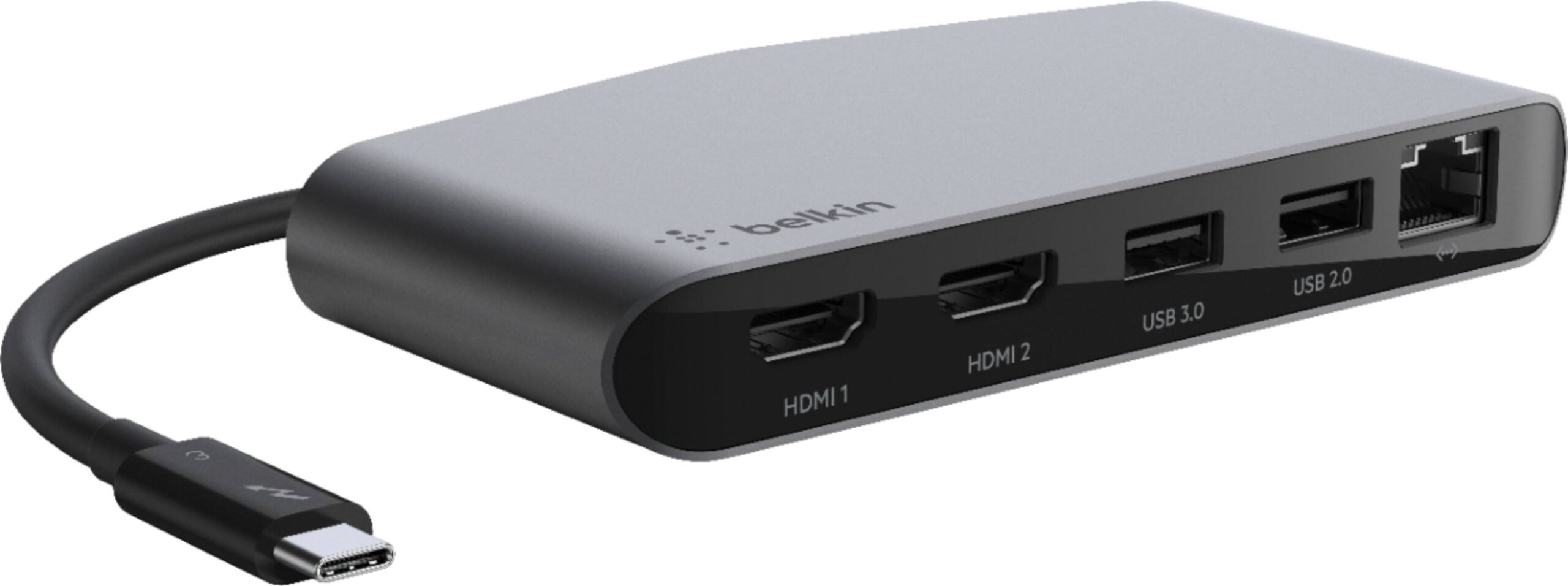
Unlike a simple USB hub, the Belkin Thunderbolt 3 Dock needs the Intel Thunderbolt driver and software installed on your PC before Windows will fully trust and enable all its ports — without it, the dock may charge your laptop but drop external displays or peripherals randomly.
| Field | Detail |
|---|---|
| Applies To | Belkin Thunderbolt 3 Dock (Core, Plus, and Pro models) |
| Publisher | Belkin, using Intel Thunderbolt controller drivers |
| Driver Type | Intel Thunderbolt Software / Thunderbolt Control Center |
| Connection | Thunderbolt 3 (USB-C) cable, 40Gbps |
| Requirements | Windows 10 or 11 with a Thunderbolt 3 or 4 port; BIOS Thunderbolt security enabled |
Installing the Thunderbolt Driver
- Go to Belkin’s official support page and search your dock’s exact model number (printed on the underside, e.g. F4U097 or F4U109) to get the matching firmware notes.
- Download the Intel Thunderbolt Software from your laptop manufacturer’s support site (Dell, HP, Lenovo all host their own signed build) rather than a generic download, since Thunderbolt drivers are tied to each laptop’s specific controller.
- Run the installer, restart when prompted, then connect the dock and approve the “Thunderbolt device connected” prompt that appears the first time.
- Open the Thunderbolt Control Center or Intel Thunderbolt app and set the Security Level to “User Authorization” so the dock is trusted automatically after future reconnects.
Fixing “Dock Not Detected” or Dropped Displays
I ran into this exact issue setting up a Belkin dock for a colleague’s Dell laptop — the second monitor kept flickering off every few minutes. It turned out the laptop’s BIOS had Thunderbolt set to “No Security,” which some Windows updates handle inconsistently; switching it to “User Authorization” in BIOS solved it completely.
- Check Device Manager under System devices for a yellow warning icon on any “Thunderbolt” or “PCI Express” controller entry.
- Confirm the Thunderbolt cable is the one that shipped with the dock — a plain USB-C charging cable will not carry the full Thunderbolt 3 signal.
- Update the laptop’s BIOS/UEFI firmware, since Thunderbolt controller compatibility is frequently patched at that level, not just in Windows.
- In Device Manager, right-click the Thunderbolt controller and select Uninstall device, then restart to force Windows to reload it cleanly.
If displays connect but show the wrong resolution, install any DisplayLink component listed alongside the Thunderbolt driver on your laptop maker’s support page, and see Intel’s official Thunderbolt software documentation for the driver version matched to your controller generation.
Per Aaron P., who is a Systems Administrator at a design agency, “the dock itself is solid hardware — every support ticket I have handled traced back to an out-of-date Thunderbolt controller driver on the laptop side.”
Frequently Asked Questions
Do I need a separate driver for each USB port on the dock?
No, only the Thunderbolt controller itself needs its driver; USB-A and USB-C peripheral ports on the dock use standard Windows USB drivers automatically.
Why does my laptop charge through the dock but show no video output?
This usually means the Thunderbolt data lanes are not authorized yet — check the Thunderbolt Control Center for a pending connection approval, or reinstall the Thunderbolt driver.
Can this dock work on a laptop with only USB-C, no Thunderbolt?
Partially — USB data and single-display output often work, but you lose full 40Gbps bandwidth and dual 4K support, which require an actual Thunderbolt 3 port.
Conclusion
Most Belkin Thunderbolt 3 Dock problems are Thunderbolt controller driver or BIOS security-level issues rather than a fault with the dock itself. Install the driver from your laptop maker (not a generic download), keep BIOS firmware current, and set Thunderbolt security to User Authorization for the most stable daily connection.
Additional Compatibility Notes
A few extra scenarios are worth covering separately since they trip up otherwise correct Thunderbolt installations.
- Dock works on battery but disconnects when charging: this usually means the dock’s power supply is undersized for your laptop’s charging draw combined with connected peripherals — check the dock’s rated wattage against your laptop’s charger.
- External SSD connected to the dock runs slower than expected: confirm the SSD’s own enclosure supports USB 3.1 Gen 2 or Thunderbolt speeds; a Gen 1 enclosure will bottleneck regardless of the dock’s capability.
- Audio output through the dock has no sound: set the dock’s audio jack or HDMI audio as the default playback device separately, since Windows does not always switch automatically when docking.
- Dock is recognized differently on Mac and Windows dual-boot machines: Thunderbolt security settings are stored per-OS in some BIOS implementations, so re-approve the device after switching operating systems.
If none of the driver or BIOS steps resolve detection issues, test the dock on a second Thunderbolt-equipped PC if one is available — this quickly separates a dock hardware fault from a laptop-side driver or port problem.
Can I daisy-chain a second Thunderbolt device off the dock?
Depends on the specific dock model — check whether your Belkin dock has a downstream Thunderbolt port rated for daisy-chaining versus a USB-only expansion port.
Does the dock work with USB4 laptops released after it?
Yes, Thunderbolt 3 docks are backward and forward compatible with USB4 ports, though you may not get every USB4-exclusive feature.
What does “Thunderbolt Security Level” actually control?
It determines whether Windows silently trusts any Thunderbolt device plugged in (No Security), prompts you the first time (User Authorization), or blocks unknown devices entirely (Secure Connect) — User Authorization is the recommended balance of safety and convenience for a dock you use daily.
Is it safe to leave peripherals plugged into the dock overnight?
Yes, though external drives should still be safely ejected before power loss to avoid file system corruption, the same as any USB storage device.
Does the dock support two 4K monitors at once?
Yes, on laptops with a full Thunderbolt 3 controller, the dock can drive dual 4K displays at 60Hz, though total bandwidth is shared, so pushing both displays plus heavy USB storage traffic at the same time can occasionally throttle one port.
Should I update the dock’s own firmware, not just the driver?
Yes, Belkin periodically releases firmware updates for the dock itself through the Thunderbolt Control Center’s firmware tab, separate from the Intel driver update, and these often fix specific display-detection bugs the driver alone cannot.
Ryan
Self-taught driver/hardware specialist · 15 years experience