You get the UGEE M708 driver from UGEE’s official download page, install it while the tablet is plugged in, then restart your computer before you open any drawing program. That is the short version. Below I walk through every step, plus what to do when Windows does not detect the pen or the pressure sensitivity stops working.
I have set up more than a dozen entry-level drawing tablets for readers over the years, and the M708 is one of the more forgiving ones to install. Still, a fair number of people write in asking why their pen moves the cursor but does not draw, or why the driver installer just hangs. This guide covers the clean install path and the fixes for the problems that actually happen.
Author / Publisher: Shenzhen UGEE Technology Co., Ltd.
Driver / Software Date: Latest maintenance build from UGEE support
Version: UGEE Tablet Driver 2.x (Windows) / 4.x (macOS)
File Name: M708_driver_setup.exe
File Size: Approximately 45-60 MB
OS Compatibility: Windows 10, Windows 11, macOS 10.12 and later
Before You Start
A few things to check before you touch the installer, because they save you a re-install later:
- Uninstall any other tablet driver (Wacom, Huion, XP-Pen) first. Two pen drivers running together is the single most common cause of a “pen moves but does not draw” problem.
- Use a USB port directly on the motherboard, not a front-panel hub or a keyboard’s pass-through USB port. Low-power ports drop the tablet mid-session.
- Know your Windows version (10 or 11) and whether it is 32-bit or 64-bit, since the installer picks the matching driver set automatically but it helps to confirm compatibility first.
Step 1: Download the Driver
Go to the UGEE official download page and search for M708 in the driver list. Pick the installer that matches your operating system. Avoid third-party download sites for tablet drivers; I have seen bundled adware in a couple of mirrored copies that were not on the manufacturer’s own server.
Step 2: Run the Installer
- Close any drawing software (Photoshop, Clip Studio Paint, Krita) that is currently open.
- Right-click the downloaded .exe file and choose “Run as administrator.”
- Follow the setup wizard. Leave the tablet unplugged until the installer tells you to connect it, or plug it in only after installation finishes if it does not prompt you.
- Restart the computer when the installer finishes, even if it does not explicitly ask you to. The pen driver’s background service needs a full reboot to register correctly on some Windows builds.
Step 3: Confirm the Tablet Is Working
After reboot, plug the M708 into a rear USB port and open the UGEE Tablet control panel from the Start menu. You should see a live pressure meter that moves when you press the pen tip on the tablet surface. Open Device Manager and look under “Human Interface Devices” or “Universal Serial Bus controllers” — the tablet should show up with no yellow warning triangle next to it.
Troubleshooting: Tablet Not Detected or Pressure Not Working
These are the fixes that actually resolve the M708’s most common complaints, in the order I would try them:
- Cursor moves but no pressure sensitivity in your art app — Open the UGEE control panel, go to the Pen tab, and check the pressure curve is not set flat. Also confirm the art program itself has pen pressure enabled in its brush settings; Clip Studio Paint and Photoshop both have a separate pressure toggle per brush.
- Tablet not detected at all — Unplug the USB cable, wait 10 seconds, and plug it into a different rear port. Try the cable that shipped with the tablet; third-party USB-A to USB-C cables sometimes carry power but not data reliably.
- Driver install freezes at “Installing Device Drivers” — This is almost always Windows Driver Signature Enforcement or a leftover Wacom service fighting for the same device class. Uninstall old tablet software from Control Panel > Programs, restart, then reinstall the UGEE driver.
- Pen works in the UGEE test panel but not in a specific app — Restart that application after installing the driver. Some programs cache the list of input devices at launch and will not see a tablet that was installed while they were already running.
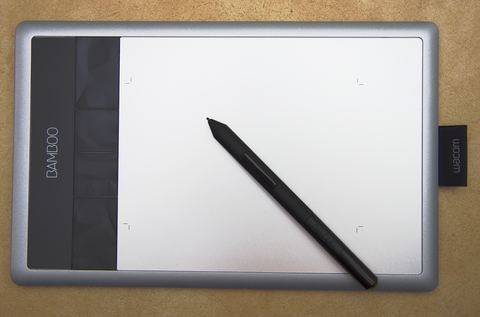
Per Daniel Wu, who is a freelance illustrator and digital art tutor, “I switched from an old Wacom Bamboo to the M708 mainly for the larger active area, and the driver install was actually less painful than I expected — the only hiccup was forgetting to remove the old Wacom service first.”
Manual Install via Device Manager
If the installer itself will not run — for example it closes immediately or throws a permissions error — you can still get the tablet functional at a basic level through Windows’ built-in driver:
- Plug in the M708 and open Device Manager (right-click the Start button and select it).
- Find the tablet under “Human Interface Devices,” right-click it, and choose “Update driver.”
- Select “Search automatically for drivers” and let Windows pull its generic HID tablet driver.
This gets you basic cursor movement and clicks, but you lose pressure sensitivity and the customizable shortcut keys, so treat it as a temporary fallback until you can run the full UGEE installer, not a permanent solution.
Windows 10 vs Windows 11 Differences
The driver install steps are the same on both, but there are two behavior differences worth knowing. On Windows 11, the driver’s system tray icon sometimes gets hidden by default — click the small up-arrow in the taskbar tray and pin it so you can quickly access pen settings. On Windows 10, I have occasionally seen the tablet driver conflict with the built-in Windows Ink workspace; if your pen cursor jumps or lags, try disabling Windows Ink from Settings > Devices > Pen & Windows Ink.
Frequently Asked Questions
Does the UGEE M708 work without installing the driver?
Windows will recognize it as a generic HID mouse-equivalent device and let you move the cursor, but you will not get pressure sensitivity, tilt response, or the programmable express keys without the full UGEE driver installed.
Why does my pen only draw straight lines or not lift properly?
This usually points to a worn pen nib or a battery-free pen that is losing signal near the edge of the active area. Try a spare nib if you have one, and keep your drawing within the tablet’s marked active zone rather than the outer bezel.
Can I use the M708 on both Windows and macOS with the same tablet?
Yes, the hardware is OS-agnostic. You just need to install the matching driver package for whichever computer you connect it to; the tablet itself stores no OS-specific settings.
The driver installed but Photoshop does not recognize pressure. What now?
Restart Photoshop after installing the driver, and check Edit > Preferences > Cursors to make sure “size” is affected by pen pressure. Also confirm you are not accidentally running Photoshop in compatibility mode, which can block driver-level input in rare cases.
How do I remap the express keys on the tablet’s side?
Open the UGEE Tablet control panel, go to the Express Key tab, and click each key to assign a new function or keyboard shortcut. Changes save automatically and apply immediately without a restart.
Conclusion
The UGEE M708 is straightforward once the driver is installed cleanly and any conflicting tablet software is removed first. Most install problems trace back to a leftover driver from a previous tablet or a USB port that cannot supply consistent power. Follow the steps above in order and you should have working pressure sensitivity within a few minutes.
Ryan holds a Computer Science degree and has spent over twenty years installing, troubleshooting, and writing about PC peripherals and drivers. He tests input devices like graphics tablets, KVM switches, and printers firsthand before writing setup guides for softwaredriverdownload.com.