Updating the firmware on a ToolkitRC M8D is a USB file-copy job, not a special flashing tool — the charger shows up on your computer as a small removable drive, and you drop the new firmware file onto it. Here is the exact step-by-step process, including the fallback method if the charger does not show up as a drive the normal way.
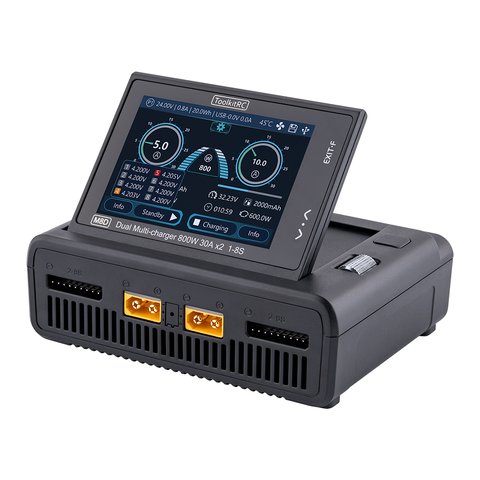
Quick Specs: ToolkitRC M8D
- Model / Applies to: ToolkitRC M8D dual-channel DC charger
- Output: up to 800W / 30A per channel, or 1600W / 50A combined in synchronous mode
- Battery types supported: LiPo, LiHV, LiFe, LTO, Li-ion (1-8S), NiMH (1-20S), Pb (1-15S)
- Ports: 2x XT60 charge outputs, 2x balance ports, 65W USB fast-charge port, microSD slot
- Input: 10-49V DC via XT90 (needs a DC power supply or battery source, it is not a wall-plug charger on its own)
- Price tier: mid-range hobbyist DC charger
- Compatibility: Windows and macOS computers for the firmware file transfer; no dedicated flashing software needed
| Model | ToolkitRC M8D |
| Output | Up to 800W / 30A per channel, 1600W / 50A combined |
| Battery types | LiPo, LiHV, LiFe, LTO, Li-ion, NiMH, Pb |
| Ports | 2x XT60 outputs, 2x balance ports, USB fast-charge, microSD |
| Input | 10-49V DC via XT90 |
| Firmware update method | USB mass-storage file copy |
Before You Start
Firmware updates on the M8D occasionally change menu layout or add new charge profiles, so it is worth checking your current version first: open the M8D’s touchscreen settings menu and note the version number shown there against the latest release listed on ToolkitRC’s official M8D downloads page. Only update if a newer version is actually listed, since flashing the same version again gains nothing and just adds risk.
- Use the original USB-C data cable that came with the charger, or a cable you know supports data transfer, not just charging — some cheap USB-C cables are power-only and will not show the drive.
- Keep the charger connected to a stable power source throughout the update; do not disconnect input power mid-flash.
- Back up nothing special is required, but make a note of your custom charge profiles beforehand in case a firmware reset clears them.
Step-by-Step Firmware Update
- Download the latest firmware file (named something like
app.upga) from the official ToolkitRC M8D downloads page and save it somewhere easy to find, like your desktop. - Connect the M8D to your computer using a USB-C data cable while the charger is powered on.
- Your computer should recognize the M8D as a small removable USB drive, typically labeled something like “Toolkit.”
- Open that drive and delete or overwrite the existing firmware file inside it with the new
app.upgafile you downloaded. - Safely eject the USB drive from your computer before unplugging the cable.
- Power-cycle the M8D by disconnecting and reconnecting its input power. The charger should detect the new firmware file and begin flashing automatically, usually shown as a progress bar on the touchscreen.
- Wait for the update to finish completely without disconnecting power. This typically takes only a couple of minutes.
- Once finished, check the settings menu again to confirm the version number now matches the firmware you downloaded.
Alternate Update Method: Forced Bootloader Mode
If the M8D does not appear as a USB drive using the normal method above (this happens more often on units running a very old firmware version), there is a manual fallback that forces the charger into its update mode directly:
- Press and hold the charger’s power button.
- While still holding the button, connect the Type-C cable between the M8D and your computer.
- Connect a 2S or higher battery to the XT90 input port to ensure the charger has stable power during the forced update, since USB alone may not provide enough power for this mode.
- The M8D should now appear as a removable drive even if the standard method failed, letting you copy over the firmware file as described above.
I ran into exactly this issue on an M8D that had been sitting unused for a long stretch on old firmware — the normal USB connection did not show a drive at all, and the button-hold method was what finally got it into update mode on the first try.
Troubleshooting Common Firmware Update Problems
- Charger doesn’t show up as a USB drive: try a different USB-C cable first (many are charge-only), then fall back to the forced bootloader method described above.
- Update seems stuck at the same progress percentage: give it a few extra minutes before assuming it has failed; do not disconnect power on a guess, since interrupting a flash mid-write can leave the charger unable to boot.
- Screen stays blank after the update finishes: disconnect and reconnect input power once to force a clean restart; a blank screen right after flashing is usually just the charger finishing its internal reboot.
- Custom charge profiles disappeared after updating: some firmware versions reset saved profiles as part of the update; this is a known side effect rather than a fault, so re-enter your commonly used profiles afterward.
- Computer asks to format the drive instead of showing files: do not format it. Disconnect, power-cycle the charger, and reconnect; formatting can wipe the partition the charger needs to boot from.
If none of the above resolves it and the charger becomes unresponsive after a failed update, ToolkitRC’s support channels linked from their official FAQ page can usually walk you through a recovery flash, so it is worth reaching out rather than assuming the hardware itself has failed.
Frequently Asked Questions
Do I need special software to update the M8D’s firmware?
No. The process is a simple file copy to a USB drive that the charger exposes itself; there is no separate flashing application required.
Will updating the firmware erase my saved charge profiles?
It can, depending on the specific update. It is a good idea to note down your custom profiles before flashing just in case.
What happens if the power disconnects during the update?
An interrupted flash can leave the charger unable to boot normally, which is why keeping stable input power connected throughout the process matters.
Where do I find the current firmware version installed on my charger?
Check the settings menu on the M8D’s touchscreen, which displays the current firmware version number.
Is the forced bootloader method safe to use every time?
Yes, it is an intentional, supported fallback built into the charger for exactly this situation, not a workaround that risks the hardware.
Conclusion
Updating the ToolkitRC M8D’s firmware comes down to downloading the correct file from the official downloads page, copying it onto the charger’s exposed USB drive, and letting it flash on its own during a power cycle. Keep a data-capable USB-C cable on hand, and remember the button-hold fallback method if the normal drive connection does not show up, and the whole process takes just a few minutes from start to finish.
Ryan is a Computer Science graduate with over 20 years of hands-on experience with PC hardware, software, and hobbyist RC gear, including flashing firmware on DC chargers like the M8D. He writes at softwaredriverdownload.com.