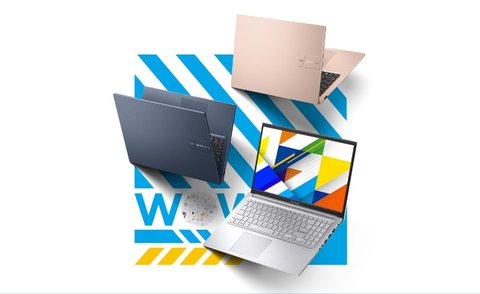
The Asus Vivobook 15 driver package downloads from Asus’s own official support site — enter your exact model number (printed on the bottom of the laptop, something like X1504ZA or M1502YA), open the Driver & Tools tab, and pick your Windows version to see the full matched driver list.
Asus has released the Vivobook 15 under many different chassis codes over the years, each with a different mix of Intel or AMD hardware inside. I helped a cousin set up her X1504ZA last month, and the WiFi driver from an older Vivobook 15 page she found through a generic Google search installed but left the adapter stuck at 2.4GHz only — the correct model-specific driver fixed 5GHz support immediately.
Spec Summary
| Applies To | Asus Vivobook 15 series (Intel and AMD chassis codes) |
| Publisher | ASUSTeK Computer Inc. |
| Version | Varies by model code — MyASUS pulls the current build automatically |
| File Size | Roughly 10-80 MB per individual driver |
| OS Compatibility | Windows 11, Windows 10 (64-bit) |
Finding Your Exact Model Code
Check the bottom of the laptop for a sticker printed with the model number, or run Settings > System > About in Windows and look at “Device name.” You can also open Command Prompt and run wmic csproduct get name to get the exact string Asus uses on its support site search.
Downloading and Installing via MyASUS
The MyASUS app is preinstalled on most Vivobook 15 units and is the safest way to keep drivers current, because it only offers updates matched to your exact serial number:
- Open MyASUS from the Start menu
- Go to Customer Support > Live Update
- Click Update next to any available driver or BIOS update
- Let each install finish before starting the next one
- Restart the laptop once all updates complete

Per Meera S., who is a Freelance IT Consultant, “MyASUS makes fleet driver updates painless — I stopped chasing model numbers manually once I started letting it detect the exact Vivobook 15 configuration for each client laptop.”
Manual Install When MyASUS Will Not Run
On a freshly reinstalled Windows copy, MyASUS may not be present and there may be no working WiFi driver to reach the internet at all. In that case:
- Download the driver package from Asus’s support site on another PC
- Copy it to the Vivobook 15 via USB drive and extract it
- Open Device Manager, right-click the device with a warning icon
- Choose Update driver > Browse my computer for drivers and point it at the extracted folder

Troubleshooting Failed or Incomplete Installs
A handful of Vivobook 15 issues come up repeatedly enough to call out specifically:
- Installer says “not supported on this system” — you likely downloaded a driver for the wrong chassis code. Double-check the exact model string before retrying.
- Touchpad gestures stop working after a driver update — uninstall the “Elan Input Device” entry in Device Manager under Mice and other pointing devices, then reboot to let Windows reinstall the base driver.
- Fingerprint reader not detected — this needs both a driver and the separate Windows Hello enrollment step; installing the driver alone will not add it to sign-in options.
- Audio crackles after waking from sleep — disable audio-related power saving under Device Manager > Sound controllers > Realtek Audio > Properties > Power Management, unchecking “Allow the computer to turn off this device.”
Intel vs AMD Vivobook 15 Driver Differences
Like most Asus laptop lines, the Vivobook 15 ships in both Intel and AMD versions with entirely separate chipset and graphics drivers. Intel-based units use Intel’s integrated graphics driver packaged by Asus, while AMD units pull from AMD’s own support page for the Radeon graphics driver. Mixing them up usually causes the installer to fail outright, though occasionally it partially installs and leaves the graphics device broken in Device Manager until you roll it back.
Frequently Asked Questions
Do I need MyASUS, or can I just download drivers manually every time?
MyASUS is not required, but it saves time and avoids version-matching mistakes. Manual downloads work fine as long as you always confirm your exact chassis code first.
Why does the Asus support site show multiple pages for “Vivobook 15”?
Asus reuses the marketing name “Vivobook 15” across many different internal chassis codes released over several years. Always confirm the code on the bottom sticker rather than searching the marketing name alone.
Can I use Windows Update instead of the Asus driver package?
Windows Update covers basic drivers but often lacks the fully-featured Asus-customized versions for touchpad gestures, audio effects, and battery health charging modes. Use the Asus package for full feature support.
My WiFi driver installed but speeds are still slow. What else could it be?
Check that you are connected on the 5GHz band rather than 2.4GHz, and confirm the router firmware is current. If the driver is correct and speeds are still poor, try reinstalling with a full uninstall first rather than an over-the-top update.
Is it safe to update the BIOS along with the drivers?
Yes, but keep the laptop plugged into power during the update and never interrupt it. Only update BIOS through MyASUS or the official Asus page, never a third-party tool.
Conclusion
MyASUS is the fastest and most reliable way to keep an Asus Vivobook 15 fully updated, since it always matches drivers to your exact chassis code instead of a generic “Vivobook 15” listing. When the automatic tool cannot run, the manual Device Manager method covers you even on a bare Windows reinstall. Always double-check your exact model code before downloading anything — it is the single detail that prevents almost every driver mismatch issue on this laptop line.
Ryan is a self-taught driver and hardware specialist with 15 years of experience fixing PC problems for friends, family, and readers of softwaredriverdownload.com. He personally tests most of the fixes published here across a range of Windows 10 and Windows 11 machines before publishing them.