You can get the Linksys WUSB54G driver for Windows XP straight from Linksys’ legacy support archive, or install it from the original setup CD that shipped with the adapter — either way, you need the driver installed before you plug the dongle into your USB port for the first time.
The WUSB54G is a small USB wireless network adapter that Linksys sold for years as a cheap way to add Wi-Fi to an older desktop or laptop. It is a Windows XP-era device, and getting it working today usually means hunting down an old driver package, dealing with a setup wizard that assumes you are running XP, and sometimes fighting with Windows over which piece of software is allowed to manage your wireless connection. Below I will walk through where to get the driver, how to install it properly, and what to do when the install does not go smoothly.
| Applies To | Linksys WUSB54G USB Wireless-G Network Adapter (v1–v4) |
| Author / Publisher | Linksys (a Cisco/Belkin brand) |
| Driver / Software Date | Last major update during the Windows XP support era |
| Version | Varies by hardware revision — check the version number printed on the adapter label (v1, v2, v3, or v4) before downloading |
| File Name | Typically packaged as a self-extracting setup .exe, e.g. Wusb54g_v-driver.exe (exact name depends on hardware version) |
| File Size | Roughly 5–15 MB depending on version and included utility software |
| OS Compatibility | Windows XP (32-bit); some later driver packages also cover Windows 2000 |
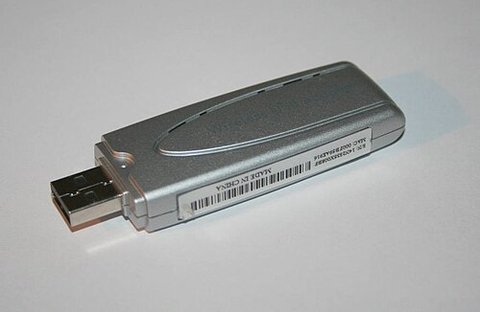
Why the WUSB54G Needs a Special Driver
Windows XP does not include a built-in driver for the WUSB54G, so the adapter will show up as an unrecognized device if you plug it in without installing anything first. The chipset inside the WUSB54G (usually a Broadcom or Ralink chipset, depending on the hardware version) needs a matching driver package that Windows XP can load.
- There were several hardware versions of the WUSB54G released over the years (v1 through v4), and each one uses a different internal chipset.
- Drivers are not interchangeable between versions — a v2 driver will usually fail to install, or install but not work correctly, on a v4 adapter.
- The version number is printed on a small sticker on the underside or side of the adapter itself, right next to the serial number.
I ran into this myself a few years back when I dug an old WUSB54G v3 out of a drawer to get a spare XP machine online for testing an old accounting program. I grabbed the wrong driver package on the first try (a v2 build) and Device Manager just kept flagging it as a “Wireless-G USB Network Adapter” with a yellow warning icon until I found the correct v3 package.
How to Download and Install the WUSB54G Driver
- Check the hardware version first. Flip the adapter over and look for “Ver. 1”, “Ver. 2”, “Ver. 3”, or “Ver. 4” printed near the model number.
- Go to the Linksys support search page and search for “WUSB54G” to find the archived download for your exact version.
- Download the driver/setup package that matches your hardware version and save it somewhere you can find it, such as your desktop.
- Do not plug in the adapter yet. Run the setup .exe first and let it finish installing the driver and the Linksys wireless utility.
- Restart the computer if the installer asks you to.
- Now plug the WUSB54G into a free USB port. Windows XP should detect it and finish loading the driver automatically.
- Open the Linksys Wireless Network Monitor (installed along with the driver) to scan for and connect to your Wi-Fi network.
If you no longer have internet access on the XP machine to grab the file, download it on another computer, transfer it over with a USB flash drive, and run the installer locally on the XP machine.
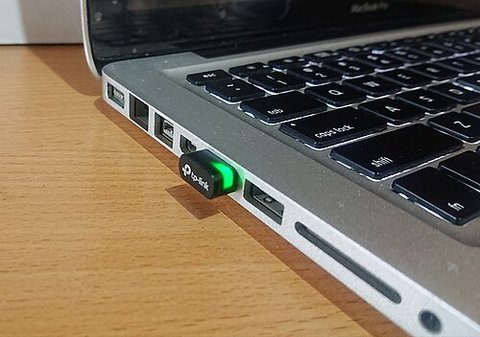
Windows Zero Config vs the Linksys Wireless Utility
This is the part that trips up a lot of people. Windows XP has a built-in wireless manager called Wireless Zero Configuration (WZC), and the Linksys driver installs its own Wireless Network Monitor utility. Both programs can try to manage the same adapter at the same time, and when that happens you get random disconnects, a connection that shows “connected” but has no internet, or a network list that will not refresh.
- By default, the Linksys installer usually asks whether you want to use its own utility or hand control back to Windows. Pick one and stick with it.
- If you want Windows to manage the adapter: open the Linksys Wireless Network Monitor, go to its preferences, and disable the option that lets it manage the connection. Then re-enable Wireless Zero Configuration in Services (Control Panel > Administrative Tools > Services).
- If you want the Linksys utility to manage the adapter: stop and disable the Wireless Zero Configuration service so it stops fighting with the Linksys software over control.
Per Daniel Reyes, who is a Network Support Technician at a regional IT services firm, “We still had a handful of WUSB54G dongles on old XP kiosks, and the number one support call was always the connection dropping every few minutes — nine times out of ten it was Zero Config and the Linksys utility both trying to control the same adapter at once.”
Failed Install? Manual Driver Install via Device Manager
If the setup .exe fails, hangs, or Windows still shows the adapter as unrecognized after installing, you can point Windows directly at the extracted driver files.
- Run the driver setup .exe once so it extracts its files, or extract the download with an archive tool if it is a .zip.
- Plug in the WUSB54G. Windows XP will open the Found New Hardware Wizard.
- Choose “Install from a list or specific location” instead of the automatic option.
- Browse to the folder where the driver files were extracted (look for a folder containing an .inf file).
- Let Windows finish the install, ignoring the “has not passed Windows Logo testing” warning if it appears — this is normal for older unsigned drivers.
- Open Device Manager (right-click My Computer > Manage > Device Manager) and confirm the adapter shows up under Network adapters with no yellow warning icon.
If Device Manager still shows a yellow exclamation mark after this, right-click the device, choose Update Driver, and manually browse to the .inf file again — sometimes Windows XP picks a generic driver first and needs to be told explicitly to use the Linksys one.
Common Error Signs and What They Mean
- Adapter listed as “Unknown Device” — the driver was never installed, or the wrong hardware version driver was used.
- Yellow warning icon with Code 10 or Code 28 — the driver files are missing or corrupted; try re-extracting and reinstalling.
- Adapter installs but no networks appear — usually the Zero Config / Linksys utility conflict described above.
- “Cannot install this hardware” message — try installing as an Administrator account, since XP driver installs often fail silently under limited accounts.
A Word on Windows XP Compatibility
It is worth being upfront about this: Windows XP is long out of support. Microsoft ended all updates and security patches for it years ago, and you can read the full details on the official Microsoft Windows XP lifecycle page. That means no security patches, no driver signing updates, and no help from Microsoft if something in the OS itself breaks.
If the XP machine you are setting up the WUSB54G on is only used offline, for a legacy application, or as a retro/hobby project, this is generally fine. If it is going to be connected to the internet regularly, it is worth thinking about isolating it on its own network segment, since an unpatched XP install is a real security risk on a modern network. For a broader look at why old adapters like this become harder to support over time, Tom’s Hardware has covered the general decline of legacy peripheral support well.
WUSB54G Hardware Versions at a Glance
| Version | Typical Chipset | Notes |
|---|---|---|
| v1 | Broadcom | Earliest revision, largest case design |
| v2 | Broadcom | Slightly revised case and antenna |
| v3 | Ralink | Different driver package than v1/v2, smaller size |
| v4 | Ralink | Compact “nano” style design, newest revision |
Always match the driver to the exact version printed on your adapter. Installing a driver for the wrong version is the single most common reason people end up with a WUSB54G that “installs” but never actually connects to anything.
Frequently Asked Questions
Where can I still download the Linksys WUSB54G driver?
The Linksys support search page still hosts archived downloads for most legacy hardware, including the WUSB54G. Search using the exact model and version number to find the right file.
Does the WUSB54G work on Windows 7, 8, or 10?
Officially, no. Linksys never released drivers for the WUSB54G beyond Windows XP (and in some cases Windows 2000). It generally will not install on newer Windows versions without a compatible driver, which does not exist for this model.
Why does Device Manager keep showing a yellow warning icon?
This almost always means the wrong driver version was installed, or the driver files got corrupted during download. Re-check the hardware version on the adapter label and reinstall using the manual Device Manager method described above.
Do I need the Linksys Wireless Network Monitor utility, or can I use Windows to manage the connection instead?
Either works, but not both at the same time. Pick one to manage the wireless connection and disable the other, as explained in the Zero Config section above, to avoid random disconnects.
Is it safe to keep using a Windows XP computer with this adapter?
It is safest for offline or isolated use. Since Windows XP no longer receives security updates, avoid using it for everyday browsing or anything involving sensitive accounts.
Conclusion
Getting the Linksys WUSB54G running on Windows XP today is mostly about matching the right driver to your exact hardware version, installing the driver before plugging in the adapter, and making sure Windows Zero Config and the Linksys utility are not fighting each other for control. If the install fails, the Device Manager manual method almost always gets it sorted out. It is an old adapter on an old operating system, but with the right driver package it still works exactly as it did when it was new.
Ryan holds a degree in Computer Science and has spent more than two decades troubleshooting PC hardware, drivers, and legacy Windows setups, from vintage USB adapters to modern laptops. He writes practical, hands-on driver guides for softwaredriverdownload.com based on devices he has actually installed and tested himself.