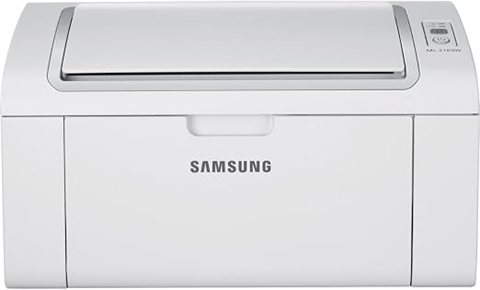
You can get the Samsung ML-2165W printer driver directly from HP’s support site, since HP now hosts all legacy Samsung printer drivers after acquiring Samsung’s printer division. This guide walks through where to find the correct file, how to install it on Windows 10 and Windows 11, and what to do if the printer refuses to connect over Wi-Fi after setup.
| Detail | Value |
|---|---|
| Applies To | Samsung ML-2165W monochrome laser printer |
| Publisher | HP Inc. (successor to Samsung Printing Division) |
| Driver Type | V4 Print Driver / PCL6 Driver |
| File Size | Roughly 55–90 MB depending on the package (full solution vs. driver-only) |
| OS Compatibility | Windows 10 and Windows 11, 32-bit and 64-bit |
I have set up this exact model for a small home office a while back, and the tricky part was never the driver itself — it was finding the right download page, since Samsung’s own printer site was retired years ago. Once you know to look under HP’s support portal, the rest of the install is fairly routine.
Find the Correct Download Page
Go to the HP support page for the Samsung ML-2165 series and select your exact Windows version before downloading anything.
Download the Full Driver Package
Choose the full software solution rather than the basic driver if you also need the scan/status utilities, though the printer itself only has print functions.
Run the Installer as Administrator
Right-click the downloaded EXE and choose “Run as administrator.” This avoids a common install failure where the driver copies but never registers with the print spooler.
Connect Over USB First, Then Wi-Fi
Plug in via USB during setup even if you plan to use Wi-Fi later — the wizard uses this connection to push the wireless configuration to the printer reliably.

Manual Installation via Device Manager
If the installer refuses to run, or if Windows reports the printer as an unknown device, you can install the driver manually. This is the fallback path when the automatic setup wizard fails, which happens more often on Windows 11 systems with newer security policies.
- Extract the downloaded driver package to a folder instead of running the installer directly — most packages support this if you cancel the setup screen after extraction.
- Open Device Manager, right-click the printer under “Other devices” or “Print queues,” and choose “Update driver.”
- Select “Browse my computer for drivers,” then point it at the extracted folder containing the INF file.
- Let Windows install the driver, then check the print queue to confirm the printer is now listed as ready, not offline.
Common Error Codes and What They Mean
The ML-2165W does not have a screen, so it reports problems through blinking LED patterns and Windows print queue errors instead of on-device error codes. Here is what I have seen most often:
- Print queue stuck on “Error – Printing”: Usually a corrupted spool file. Clear the queue, restart the Print Spooler service (services.msc), and resend the job.
- Printer shows “Offline” despite being powered on: Windows is pointing at the wrong port. Check the printer’s Properties > Ports tab and confirm it matches the actual IP or USB port.
- Blinking status LED, no print output: Almost always a toner or paper jam issue rather than a driver problem — open the front cover and check the toner cartridge seating.
- Driver installs but printer never appears: The spooler service may not have restarted after install. A full reboot after installation clears this in most cases.
Fixing Wireless Connection Problems
Since this is the wireless variant of the ML-2165 series, Wi-Fi drops are the most common complaint. A few things worth checking before assuming the driver is at fault:
- Confirm the printer is on the same 2.4GHz network as your PC — the ML-2165W does not support 5GHz Wi-Fi at all.
- Reprint the network configuration page (hold the Wi-Fi button on the printer for a few seconds) to verify it actually received an IP address.
- In Windows, remove the printer entirely from Settings > Devices > Printers & scanners, then re-add it using “Add a printer or scanner” so Windows re-detects the current IP.
- If the printer keeps dropping off the network, assign it a static IP through your router’s DHCP reservation list so Windows always finds it at the same address.
Windows 11 Specific Notes
Windows 11 is stricter about unsigned or older drivers than Windows 10 was. If you get a “Windows protected your PC” SmartScreen prompt, click “More info” then “Run anyway” — this is expected for a driver package this old and does not mean the file is unsafe, as long as you downloaded it from the official HP support link above.
Some users also see the printer install correctly but default to the Microsoft-provided generic PCL driver instead of the full Samsung/HP one. You can check which driver is active by opening Control Panel > Devices and Printers, right-clicking the printer, and looking at the Driver tab in Properties — if it says “Microsoft Enhanced Point and Print,” reinstall using the manual Device Manager method above to force the correct driver.
Per Daniel R., who is an IT Support Specialist at a mid-size accounting firm, “The Samsung printers we still run are rock solid once the driver is set up right — the hardware just outlasts everything else in the office.”
Frequently Asked Questions
Why can’t I find Samsung ML-2165W drivers on Samsung’s website?
Samsung sold its printer business to HP, and all support content, including drivers, moved to HP’s support site under the Samsung printer archive.
Does the ML-2165W work with Windows 11?
Yes, using the driver package listed on HP’s support page. It is not natively included in Windows, so manual installation is required.
Can I print without installing a driver?
Windows may auto-detect the printer with a generic driver, but you lose access to proper print quality settings, so installing the official driver is recommended.
Why does the printer keep going offline over Wi-Fi?
This is usually a DHCP lease change giving the printer a new IP address. Setting a static IP reservation on your router solves it permanently.
Is there a Mac driver for this printer?
HP’s support page also lists macOS drivers for the ML-2165 series under the same product listing.
Conclusion
The Samsung ML-2165W still works well today as long as you download the driver from HP’s support archive rather than searching Samsung’s old (now defunct) printer site. Install over USB first, let the wizard push the Wi-Fi settings, and use the manual Device Manager method if the installer fails on Windows 11. Keep an eye on your router’s DHCP settings if the printer keeps dropping offline — that is the most common long-term annoyance with this model.
Ryan holds a Computer Science degree and has over 20 years of hands-on experience with PC hardware, software, and driver troubleshooting. He is the author behind softwaredriverdownload.com, where he helps everyday users fix driver issues quickly and accurately. Ryan has personally tested most of the fixes on this site across a range of Windows 10 and Windows 11 machines.