If your PC does not detect your Samsung Galaxy Tab when you plug it in, you need Samsung’s USB driver, either through Smart Switch or the standalone Samsung USB Driver for Mobile Phones package.
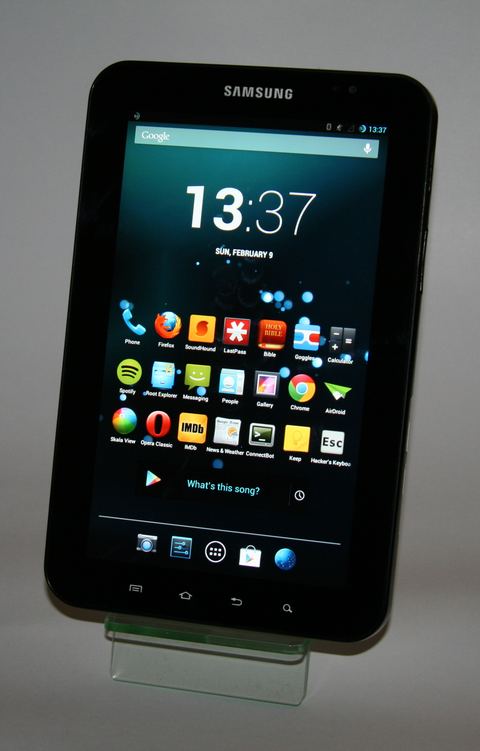
Samsung Galaxy Tab models have been around for a long time, from the original 7.0 through the many Tab A, Tab S, and Tab Active generations. The USB driver situation is the same across almost all of them: Windows needs a Samsung-specific driver to see the tablet as more than a generic MTP device, and sometimes not even that much without help. Here is the full step-by-step process I use whenever a reader’s Galaxy Tab refuses to show up in File Explorer.
Author/Publisher: Samsung Electronics Co., Ltd.
Driver/Software Date: Current release, updated with each Smart Switch version
Version: Samsung USB Driver 1.7.62.0
File Name: SAMSUNG_USB_Driver_for_Mobile_Phones.exe
File Size: Approximately 47 MB
OS Compatibility: Windows 10 (32-bit/64-bit), Windows 11 (64-bit)
Step 1: Download the Correct Driver
- Go to Samsung’s official support downloads page and search for USB Driver for Mobile Phones.
- Alternatively, install Samsung Smart Switch, which bundles the same USB driver automatically.
- Save the installer to a folder you can find easily, such as your Downloads folder.
Step 2: Install the Driver
- Close any Samsung Kies or Smart Switch windows that are already open.
- Right-click the downloaded installer and choose Run as Administrator.
- Follow the prompts. The installer typically finishes in under a minute.
- Restart your PC once setup completes, especially if this is the first time installing a Samsung driver on this machine.
Step 3: Connect the Galaxy Tab and Confirm
- Unlock your tablet before connecting the cable, since Android often ignores USB prompts on the lock screen.
- Plug in a genuine USB-C or micro-USB cable, depending on your Tab model.
- On the tablet, pull down the notification shade and tap the USB notification.
- Select File Transfer (MTP), not Charging Only.
- Windows should show the tablet under This PC within a few seconds.
Step 4: Manual Install Through Device Manager
If the tablet shows up as an unrecognized or generic device even after installing the driver package, you can force it manually.
- Open Device Manager (Windows key + X, then Device Manager).
- Look for the Galaxy Tab under Other Devices, Portable Devices, or sometimes Android Device.
- Right-click it and choose Update Driver, then Browse my computer for drivers.
- Point it to
C:\Program Files\Samsung\USB Drivers, or wherever the Samsung driver package installed to. - Confirm and let Windows finish. A restart afterward is a good idea.
I ran into this exact issue helping a relative set up file transfers on an older Galaxy Tab A. The driver installed fine, but Windows kept showing the tablet as a generic MTP device until I manually pointed Device Manager at the Samsung driver folder. After that, it worked every time without reinstalling.
Per Nurul Aina, who is an Administrative Officer at a school in Johor Bahru, “I use my Galaxy Tab S6 to move lesson files to my office laptop every week. The Samsung driver install through Smart Switch has been reliable, but I always remember to tap File Transfer mode on the tablet or nothing shows up.”
Troubleshooting Common Connection Problems
- Tablet not detected at all: Try a different USB port and a different cable. Cheap cables often lack data lines.
- Driver installs but no folders appear: On the tablet, confirm USB mode is set to File Transfer, not Charging or USB tethering.
- Windows shows an error code in Device Manager: Uninstall the driver entry, unplug the tablet, reinstall the Samsung USB Driver package fresh, then reconnect.
- Smart Switch will not open: Run it as Administrator once, then it typically launches normally afterward.
- Tablet detected but very slow transfer speeds: Switch to a USB 3.0 port and a shorter, higher-quality cable.
A Note on Cables and Ports
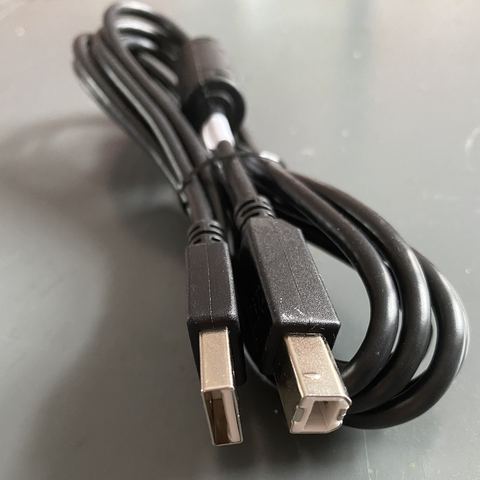
A surprising number of Galaxy Tab connection problems trace back to the cable rather than the driver. Many Samsung tablets ship with a cable meant primarily for fast charging, and while it usually carries data fine, cheaper third-party replacements often do not. If your tablet charges normally but never shows up in File Explorer no matter what you try in Windows, swap the cable before doing anything else. I keep a couple of known-good, data-capable USB-C cables set aside just for testing this kind of issue, since it saves a lot of time chasing driver settings that were never the real problem.
It also helps to plug directly into a rear USB port on a desktop PC rather than a front-panel port or a USB hub. Front-panel headers on older cases are sometimes wired incorrectly or run at reduced USB speeds, which can cause Windows to detect the tablet inconsistently even with the correct Samsung driver installed.
Windows 10 vs Windows 11 Behavior
Windows 10 tends to auto-install a generic MTP driver for the Galaxy Tab even without the Samsung package, though file transfer can be unreliable that way. Windows 11 is stricter about driver matching and more often leaves the tablet as an unrecognized device until the official Samsung driver is installed. On both systems, installing the full Samsung USB Driver package resolves the vast majority of detection issues.
Frequently Asked Questions
Do I need Smart Switch just to transfer files?
No. Smart Switch is for backup and phone-to-phone transfer. For simple file browsing, installing the Samsung USB Driver for Mobile Phones package is enough.
Why does my Galaxy Tab only charge and not show as a drive?
Your tablet is likely set to Charging Only mode. Pull down the notification shade after connecting and switch to File Transfer.
Is the Samsung USB driver the same for all Galaxy Tab models?
Yes, Samsung uses one universal USB driver package across nearly all Galaxy phones and tablets, including the full Galaxy Tab lineup.
My Galaxy Tab is not detected even after installing the driver. What now?
Check the cable and port first, then verify File Transfer mode is selected on the tablet. If it still fails, manually update the driver through Device Manager as described above.
Conclusion
Getting a Samsung Galaxy Tab connected over USB comes down to installing the correct Samsung driver, using a real data cable, and setting the tablet to File Transfer mode. Follow the steps above in order and most connection problems clear up without needing any third-party tools.