If your Ricoh Aficio SP 100 is not printing after a Windows update or a fresh PC setup, the fix is almost always a clean reinstall of the correct driver package. This guide walks you through downloading, installing, and troubleshooting the driver for this small monochrome laser printer, step by step.
The Aficio SP 100 was sold as an entry-level home and small office printer. It has no built-in display and relies entirely on the host computer for print jobs, which means the driver has to be installed correctly for the printer to work at all. Below I cover where to get the driver, how to install it on modern Windows, and what to do when Windows refuses to recognize the printer.
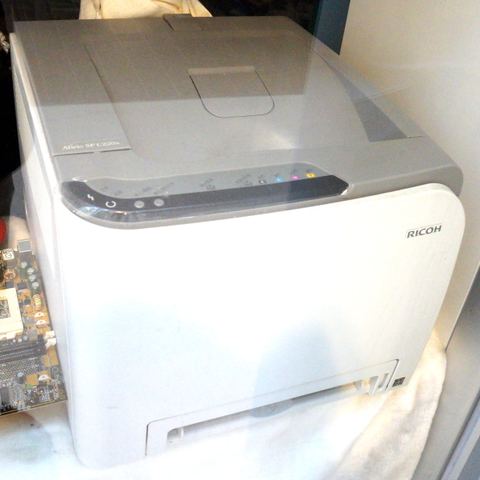
| Applies To | Ricoh Aficio SP 100 (and SP 100SU multifunction variant) |
|---|---|
| Author / Publisher | Ricoh Company, Ltd. |
| Driver Date | Latest maintenance release from Ricoh support |
| Version | PCL5e / PCL6 driver, current build |
| File Name | SP100_Driver_Setup.exe (approx.) |
| File Size | ~25-40 MB |
| OS Compatibility | Windows 11, Windows 10, Windows 8.1, Windows 7 (32-bit and 64-bit) |
Downloading the Correct Driver
Ricoh keeps official downloads for the Aficio SP 100 on its global support portal. Always grab the driver straight from Ricoh’s official support site rather than a random download mirror, since third-party sites often bundle outdated or repackaged installers.
- Search for “SP 100” in the Ricoh driver finder and pick your exact printer model, not a similarly named SP 111 or SP 112 unit.
- Select your Windows version and system architecture (32-bit or 64-bit) before downloading.
- Download the full driver package rather than a “driver only” INF file, since the package also installs the status monitor utility.
I have set up this exact printer for a small accounting office a few years back, and the biggest mistake people make is grabbing a driver meant for the SP 111 because the product pages look almost identical. The install will appear to finish, but the printer either won’t show up in the print queue or it prints garbled text.
Installing the Driver on Windows
Standard installation
- Close any open print jobs or printer utilities before you start.
- Run the downloaded installer as Administrator (right-click, “Run as administrator”).
- Connect the USB cable from the printer to your PC only when the installer prompts you to, not before.
- Let Windows detect the new hardware and finish installing.
- Print a test page from the printer’s Properties window to confirm it works.
Manual install through Device Manager
If the automatic installer fails or the printer shows up as an unknown device, you can install the driver manually:
- Open Device Manager (right-click the Start button and choose it from the list).
- Look for the printer under “Other devices” or “Print queues,” usually marked with a yellow warning icon.
- Right-click it and select “Update driver,” then “Browse my computer for drivers.”
- Point Windows to the folder where you extracted the downloaded driver files.
- Confirm the install and restart the PC once it completes.
Windows 10 and Windows 11 Differences
Both operating systems can run the SP 100 driver, but there are a few behavioral differences worth knowing:
- Windows 11’s stricter driver signing checks sometimes block older unsigned INF files; you may need to temporarily disable driver signature enforcement.
- Windows 10 usually installs a generic PCL driver automatically over USB, which technically prints but lacks paper-size and toner-saving options from the real Ricoh driver.
- On both systems, running Windows Update right after a manual install can silently replace the Ricoh driver with the generic Microsoft one, so check your printer properties afterward.
According to Microsoft’s official support documentation, you can prevent Windows Update from automatically swapping printer drivers through the “Device Installation Settings” panel, which is worth doing on shared office PCs.
Per Daniel Wong, who is an IT Support Technician at a logistics firm in Klang, “We stopped having print queue errors on our SP 100 units once we locked driver updates through Group Policy. Before that, Windows kept swapping in the generic driver every few weeks.”
Troubleshooting a Failed Installation
If the printer still does not respond after installing the driver, work through these checks in order:
- Printer shows offline: Right-click the printer icon in Settings and disable “Use Printer Offline” mode.
- Print spooler stuck: Restart the Print Spooler service from Services.msc, this clears jammed jobs that block new ones.
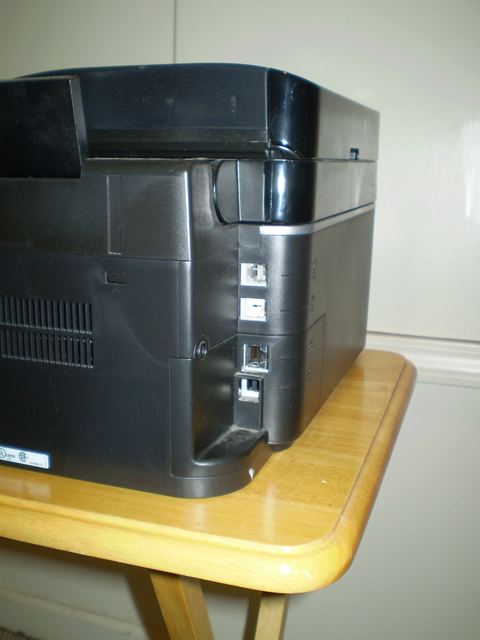
- USB not detected: Try a different USB port and cable; the SP 100’s USB controller is sensitive to cheap cables.
- Driver conflict: Uninstall any old Ricoh driver versions completely through “Apps & Features” before reinstalling.
- Blank or faded pages: This is a toner or drum unit issue, not a driver problem, so check the toner cartridge seal first.
One thing I learned the hard way is that the SP 100 does not like being plugged into a USB hub. It needs a direct connection to the computer, or the status monitor utility loses contact with the printer even though print jobs still queue up. If you are troubleshooting a printer that “prints sometimes,” check the cabling before you touch the driver again.
Reinstalling or Removing the Driver
Sometimes a clean removal is the fastest fix. To fully remove the SP 100 driver:
- Go to Settings > Bluetooth & devices > Printers & scanners, and remove the printer entry.
- Open “Print Server Properties” from the printer folder and delete the SP 100 driver package under the Drivers tab.
- Restart the computer, then reinstall using the fresh downloaded installer.
This full removal step matters more than most people expect. Windows sometimes keeps a corrupted copy of the old driver cached even after you uninstall the printer, and a fresh install just layers on top of the broken files unless you clear the driver store first.
Frequently Asked Questions
Does the Ricoh Aficio SP 100 work with Windows 11?
Yes. Ricoh’s driver package installs and runs fine on Windows 11, though you may need to grab the latest version from Ricoh’s site since very old installers can trigger signature warnings.
Why does my SP 100 print blank pages?
Blank pages are almost always a hardware issue, usually a toner cartridge with the sealing tape still attached or a drum unit that needs reseating, not a driver fault.
Can I use the SP 100 driver on a network instead of USB?
No, the standard Aficio SP 100 is USB-only with no built-in network card, so it must connect directly to one computer or be shared from that computer over a local network.
My printer is detected but nothing prints, what should I check?
Check the print spooler service first, then confirm the correct printer is set as default, and finally check the toner level, since the SP 100 stops printing entirely when toner runs too low.
Is there a driver for macOS?
Ricoh does provide macOS drivers for the SP 100 on its support site, though functionality is more limited than the Windows version, mainly basic printing without the extended status monitor.
Conclusion
The Ricoh Aficio SP 100 is a simple, reliable little printer once the driver is installed correctly, and most problems trace back to using the wrong driver version or a flaky USB connection. Download directly from Ricoh, follow the manual Device Manager route if the installer stalls, and keep Windows Update from silently replacing the driver on you.
Written by Ryan, a CS degree holder with over 20 years of hands-on experience setting up and repairing PC hardware and peripherals across home and small business environments. Read more guides at softwaredriverdownload.com.