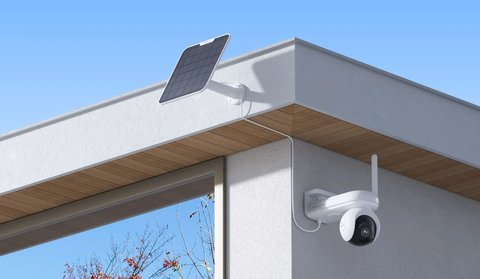
Reolink doesn’t publish an official Fire TV or smart TV app, since the mobile app is built around touch-screen navigation rather than a remote control. That said, getting Reolink cameras up on a living room TV is still very possible with a couple of workarounds, and one is genuinely simple to set up. This covers all three practical routes, what each one actually requires, and how to troubleshoot the most common snags.
| Spec | Detail |
|---|---|
| Applies to | Fire TV Stick, Fire TV Cube, and Android TV-based smart TVs |
| Official app support | None directly for Fire TV/Android TV; official apps target phones, tablets, select Chromebooks |
| Sideload method | Android APK via file manager/downloader app, requires a Bluetooth mouse for setup |
| Third-party alternative | TinyCam Pro or similar RTSP/MJPEG viewer, available from the Amazon app store |
| Voice alternative | Reolink Alexa Skill, works if Fire TV is paired with an Alexa device |
| Network requirement | Same local Wi-Fi network as the cameras for fastest streaming |
| Price tier | Free, no subscription needed for any of the three viewing methods |
Option 1: Sideload the Android APK (Fire TV Stick)
Since Fire TV runs a modified version of Android, the Android Reolink APK can be sideloaded directly, though the touch-based interface means a Bluetooth mouse is genuinely useful for initial setup.
- Enable “Apps from Unknown Sources” in Fire TV’s developer settings, found under Settings > My Fire TV > Developer Options
- Install a file manager or downloader app from the Amazon app store to fetch the Reolink APK, since Fire TV’s browser handles direct APK downloads poorly
- Use the downloader app to navigate to Reolink’s official APK download link, or transfer the APK file over from a computer on the same network using a file-sharing app
- Install the APK once downloaded, then connect a Bluetooth mouse to navigate the touch-oriented interface during the login and camera-adding steps
- Sign in with your existing Reolink account and add each camera the same way you would on a phone, either by scanning a QR code shown on screen or entering the camera’s UID manually
- Once cameras are added, live view generally works fine using just the Fire TV remote afterward, since the main viewing screen only needs directional navigation between camera tiles
The Bluetooth mouse is really only needed for the account login screen and the initial camera-adding wizard, both of which expect precise taps that the Fire TV remote’s directional pad struggles with. Once cameras are set up, day-to-day viewing works fine remote-only.
Option 2: Third-Party Viewer Apps
Apps like TinyCam Pro, available directly from the Amazon app store, are built to display RTSP and MJPEG streams from IP cameras, including Reolink models, without needing to sideload anything.
- Install TinyCam Pro or a similar viewer directly from the Amazon app store, no sideloading required, which also means it stays current through normal app store updates
- Add your Reolink cameras using their RTSP stream URLs, found in each camera’s network settings inside the Reolink mobile app, typically formatted as
rtsp://username:password@camera-ip:554/h264Preview_01_main - Arrange multiple cameras into a single grid view, which most sideloaded single-camera apps don’t offer as cleanly
- This route tends to feel more remote-friendly than the sideloaded Reolink app itself, since TinyCam Pro is built with TV navigation in mind from the start rather than adapted from a phone interface
The tradeoff with a third-party viewer is that features specific to Reolink’s own ecosystem, like two-way talk or AI person/vehicle detection alerts, generally aren’t exposed the same way. For pure live viewing on a big screen, though, this is often the smoother experience of the three options.
Option 3: Alexa Skill
If your Fire TV is paired with an Alexa-enabled device, enabling the Reolink Skill in Alexa lets you ask Alexa to show a specific camera on the TV without installing anything extra.
- Open the Alexa app on your phone and search for the Reolink Skill under Skills & Games
- Enable the skill and link it to your existing Reolink account credentials
- Discover devices so Alexa recognizes each camera by name
- Say a command like “Alexa, show the front door camera on the TV” to a nearby Echo device or the Fire TV’s own far-field microphone if it’s a Fire TV Cube
This is the least technical of the three routes since it requires no sideloading or app installs on the Fire TV itself, but it also offers the least control — you get a live feed on demand rather than a persistent grid view or recorded playback.
Local network streaming, whichever route you pick, tends to load noticeably faster than the same feed viewed over the phone app remotely, since the TV connection usually stays entirely on the home Wi-Fi network rather than round-tripping through the internet.
Troubleshooting Common Setup and Streaming Issues
Most issues with any of these three methods come down to network configuration or a step skipped during the sideload process, not a fundamental compatibility problem.
- APK won’t install: double-check “Apps from Unknown Sources” is enabled for the specific downloader app you used, since Fire TV manages this permission per-app rather than as one global toggle.
- Sideloaded app is slow to navigate: this is expected, since the interface wasn’t designed for remote navigation; a Bluetooth mouse remains the more comfortable option for anything beyond basic live viewing.
- Camera won’t add via QR code on the TV app: switch to manual UID entry instead, since holding a phone screen up to a TV-mounted camera app can be awkward and error-prone compared to typing the UID directly.
- TinyCam Pro shows a black screen or connection error: confirm the RTSP URL, username, and password are correct, and that the camera’s RTSP feature is enabled in its own settings, since some Reolink cameras have RTSP off by default.
- Alexa can’t find the cameras: re-run device discovery in the Alexa app, and confirm the Reolink account linked to the skill matches the account the cameras were originally added under.
- Stream lags or buffers: if the Fire TV or smart TV is connecting over Wi-Fi rather than Ethernet, moving it closer to the router or switching to the 5GHz band usually resolves stuttering, since 4K or high-bitrate camera streams need more consistent bandwidth than typical video streaming apps.
- No workaround feels reliable enough: as a manual fallback, most Reolink cameras can also be viewed through a web browser pointed at the camera’s local IP address, which sidesteps the TV entirely if you just need occasional access from a laptop.
For more detail, see Reolink’s official support article on using the Reolink app on a TV, tablet, or other device.
Frequently Asked Questions
Does sideloading void any warranty on the camera?
No, sideloading an app onto your own Fire TV device doesn’t affect the camera’s warranty in any way.
Can I get push notifications on the TV app?
Notifications generally work best on the mobile app; the sideloaded TV version is mainly useful for live viewing rather than alert management.
Does this work on other smart TVs, not just Fire TV?
Some Android TV-based smart TVs support similar sideloading; check whether your specific TV’s OS allows installing APKs from outside its default app store.
Is an internet connection required to view cameras this way?
No, as long as the Fire TV and cameras are on the same local Wi-Fi network, live viewing works even without internet access.
Which of the three options is easiest for someone non-technical?
The Alexa Skill route, since it requires no sideloading or app installation on the TV itself, only linking an existing Alexa account to your Reolink account.
Conclusion
There’s no official Reolink Fire TV app, but sideloading the Android APK or using a dedicated viewer like TinyCam Pro both get your cameras onto the big screen without much hassle. If you already use Alexa, the skill-based option is the least technical route to try first, and if you want the smoothest multi-camera grid view, TinyCam Pro is generally worth the extra setup step over the sideloaded official app.
Ryan T. is a PC hardware enthusiast with over two decades of experience fixing drivers and testing consumer tech. He writes for softwaredriverdownload.com.