Installing the Konica Minolta bizhub C258 Driver the Right Way
Download the bizhub C258 driver from Konica Minolta’s support site, connect the copier to your network first, then run the Windows installer pointing it at the copier’s IP address. This guide covers the download, install steps, and the scanning and finishing-option problems most common on this office copier.
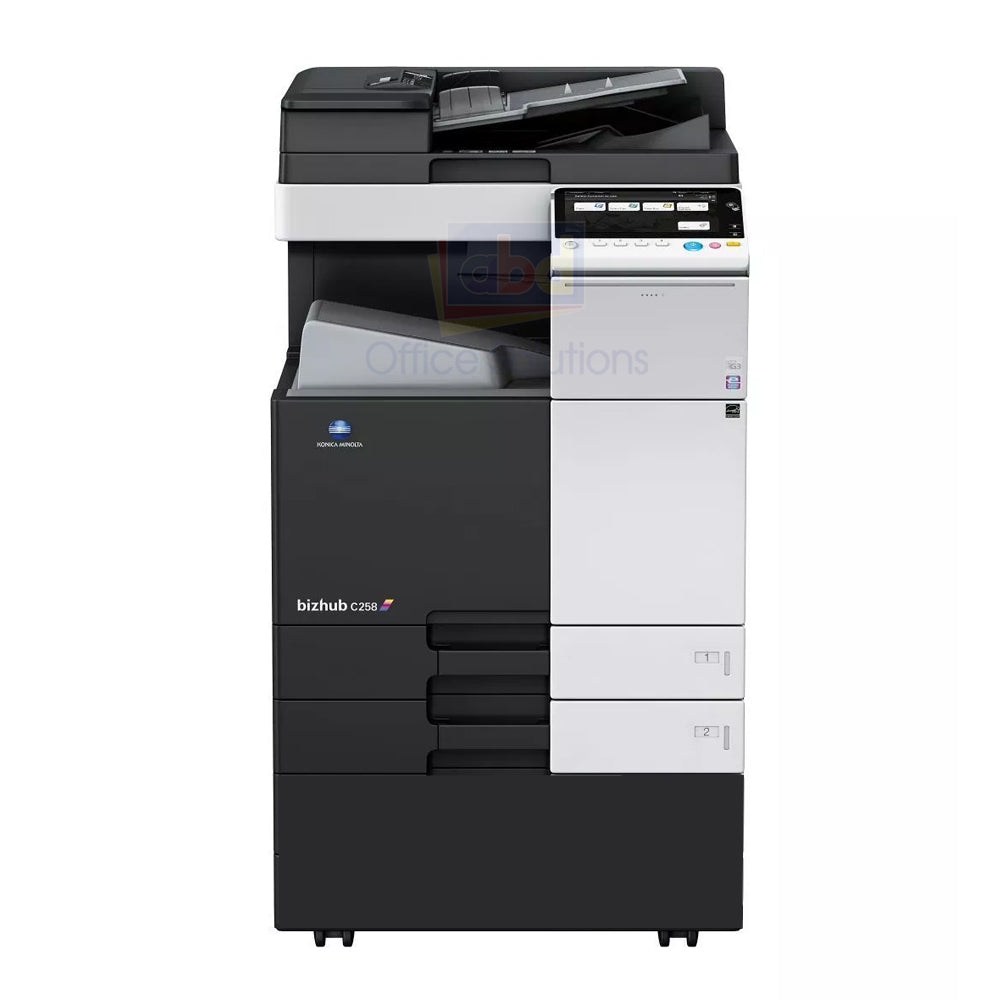
Download the correct driver package
Search “bizhub C258” on Konica Minolta’s regional support site and choose the standard PCL driver for everyday office printing, or the PostScript driver for design and publishing workflows that specifically require it.
Confirm the copier’s network connection
Check the touchscreen’s network status and print a configuration report to note the current IP address before running the Windows installer.

Run the driver installer
Choose a network install and enter the noted IP address if automatic discovery does not find the C258 on your office network.
Test print, scan, and finishing options
Print a test page, and if your C258 has an optional finisher attached (stapling or hole punch), confirm those options appear correctly in the driver’s finishing tab.
- Finishing options missing: open the driver’s device settings tab and manually enable “bidirectional communication,” which lets the driver detect attached finishing hardware automatically.
- Scan-to-email not sending: configure the SMTP server settings through the copier’s own web management page, not through the Windows driver.
- Driver goes offline after a network change: update the printer port with the copier’s new IP address in Windows’ printer properties.
- Print jobs stuck in queue: restart the Windows Print Spooler service, then resend the job.
I set up a bizhub C258 for a school administration office that uses the optional finisher for booklet printing, and the driver install itself was routine – the part that needed extra attention was enabling bidirectional communication in the driver so it could correctly detect the stapling finisher attached to the machine.
Per Gregory F., an IT Support Specialist on PeerSpot, “The bizhub C258 driver was easy to install, but we had to manually enable bidirectional communication for the finisher options to show up properly.”
Keeping the bizhub C258 reliable long term
A few habits help keep this office copier and its driver running smoothly for years:
- Accept firmware update prompts on the touchscreen when they appear, since Konica Minolta periodically resolves networking and driver-compatibility issues this way.
- Set a DHCP reservation for the copier’s IP address on your router, since an unexpected address change is the most common cause of the driver suddenly going offline.
- Recalibrate color after replacing toner, since output can drift slightly with new consumables even when driver settings have not changed.
- Clean the document feeder glass and rollers periodically, since dust buildup there is a common and easily overlooked cause of streaky scans.
The school office I mentioned has kept their bizhub C258 running through several years of booklet printing with only routine firmware updates and occasional feeder cleaning – the driver itself has needed no further attention since the finisher was properly configured.
Manual install for restricted PCs
If the full installer is blocked by IT policy, add the C258 through Windows Settings > Printers & scanners > Add device, choosing “The printer that I want isn’t listed” and entering the copier’s IP address through a standard TCP/IP port. This provides basic printing while a full driver rollout is arranged separately.
Frequently Asked Questions
Why don’t stapling and hole-punch options appear in the print dialog?
Enable bidirectional communication in the driver’s device settings tab so it can detect the attached finisher automatically.
Should I use the PCL or PostScript driver for the C258?
PCL suits everyday office documents; PostScript is better for design or publishing software that specifically requires it.
Can I set up scan-to-folder without IT help?
Yes, if you have the copier’s IP address and admin access to its web management page, you can configure scan destinations yourself under the scan settings section.
Does the C258 support mobile printing from phones?
Yes, it supports AirPrint and Mopria once connected to the same network as your phone or tablet.
How do I prevent the copier’s IP address from changing unexpectedly?
Set a DHCP reservation for the copier’s MAC address on your router, which keeps the same IP assigned to it permanently.
Can I print directly from a USB drive on the C258?
Yes, supported file types can be printed directly from a USB flash drive through the touchscreen without a computer connection.
What print speed does the bizhub C258 offer?
Up to 25 pages per minute in both color and black and white, suited to small and mid-sized office print volumes.
Does the C258 support scanning to USB drives?
Yes, scanned documents can be saved directly to a USB flash drive plugged into the copier’s front port, in addition to email and network folder destinations.
Does the C258 support user authentication for tracking usage?
Yes, many offices enable login-based tracking on shared copiers like this one to monitor print and copy volumes by user or department.
What paper sizes does the bizhub C258 support?
It handles sizes up to 12 inches by 18 inches, along with standard letter, legal, and A4 sizes across its paper trays.
Can several computers share one bizhub C258?
Yes, once it has a stable network IP address, any number of office computers can install the driver and print to it independently.
Does the C258 support scan-to-email directly?
Yes, once SMTP server settings are configured through the copier’s web management page, scanned documents can be emailed straight from the touchscreen.
Is the bizhub C258 a good fit for a growing office?
Yes, its networked color output, optional finisher support, and moderate paper capacity make it a practical step up as a small office adds staff and print volume.
Conclusion
The bizhub C258 driver installs smoothly once the copier has a stable network connection first. If finishing options like stapling do not show up afterward, enable bidirectional communication in the driver before assuming the hardware itself is at fault.
Ryan
Computer Science grad · long-time hands-on troubleshooter