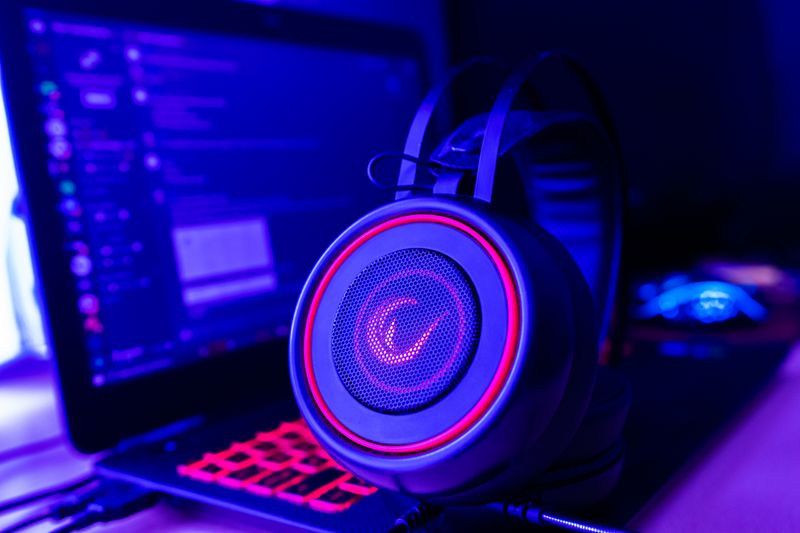
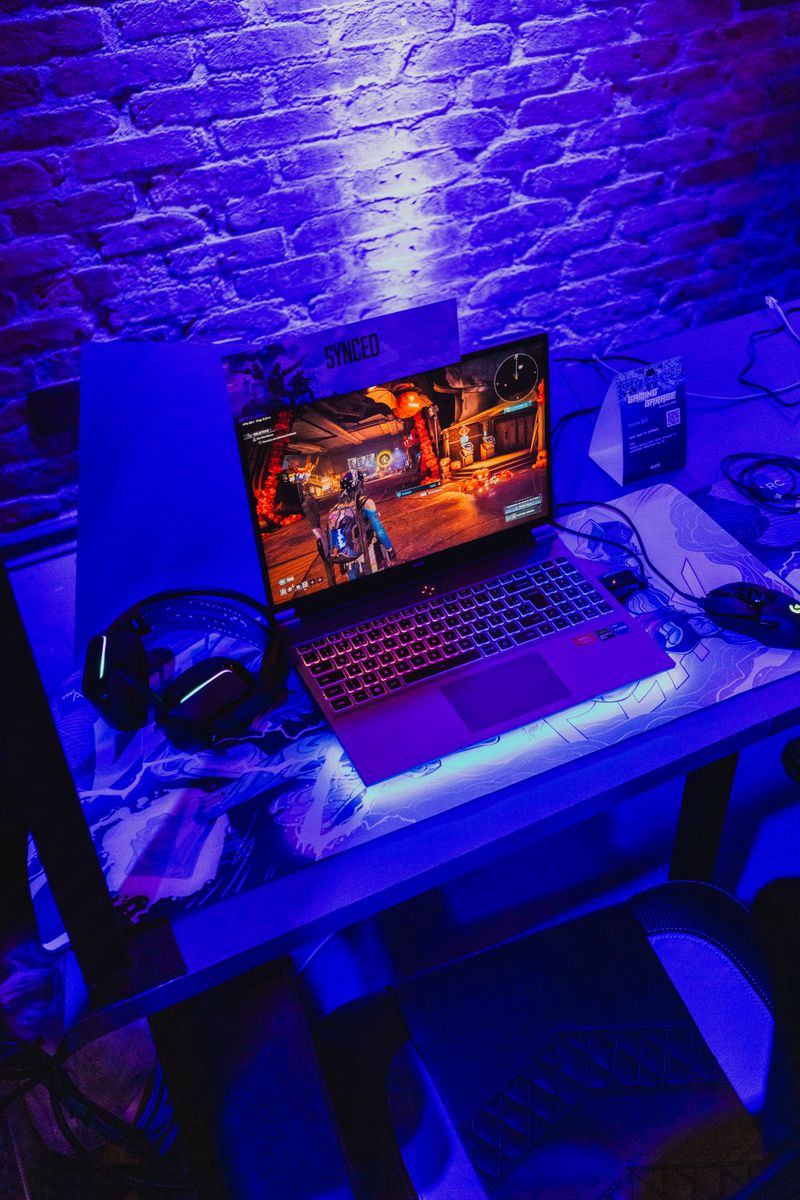
People searching for “Onikuma X15 Pro software” are usually looking for a driver or control app for RGB lighting and audio settings. The short answer is that the X15 Pro does not have dedicated PC software: it is a wired 3.5mm gaming headset with an RGB light beam, and it works as a plug-and-play device on Windows without any app to install.
| Connection Type | 3.5mm analog (TRRS) |
| Driver / Software | None; uses Windows built-in audio driver |
| Design | Over-ear, closed-back |
| Microphone | Noise-cancelling boom mic, flip-to-mute |
| RGB Lighting | Double-head beam, DC 5V, fixed color cycle |
| Compatibility | PC, Xbox, PS4 (analog headset jack controllers) |
Why there is no software for the X15 Pro
The X15 Pro connects over a standard 3.5mm analog jack, or in some bundles a USB adapter for the RGB light power, rather than a digital USB audio interface. Analog headsets like this do not need a driver for audio because Windows handles the signal natively through your motherboard or sound card’s existing audio driver. The double-head RGB beam is powered separately and typically just cycles through preset colors with no per-color software control.
I own a similar analog RGB headset from a different budget brand, and the pattern is the same: the lighting is a fixed cycling effect with no app needed, while the audio side relies entirely on whatever sound driver is already installed for your PC’s onboard or dedicated sound card. If you are hearing no sound at all, the fix is almost never a “missing X15 Pro driver,” it is almost always a Windows audio device or jack detection setting.
Fixing common X15 Pro audio and mic issues
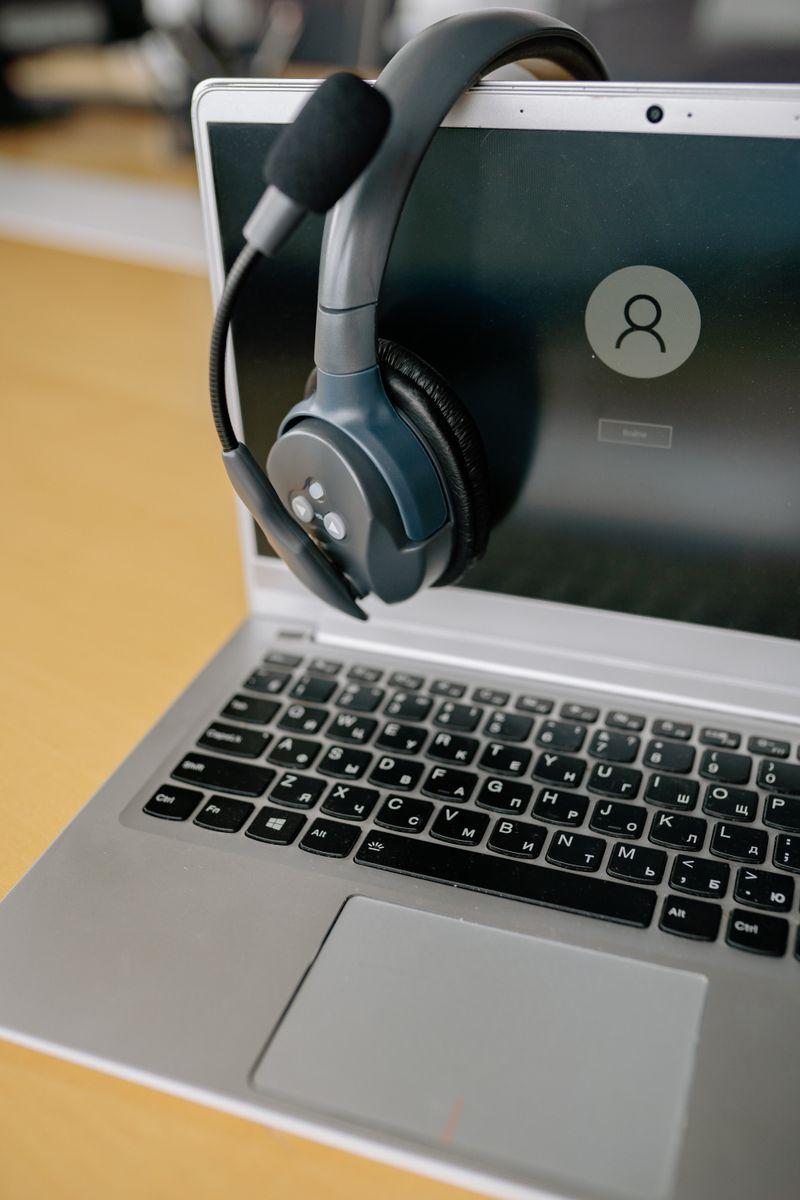
- No sound at all: right-click the speaker icon in the Windows taskbar, open Sound settings, and confirm the headset is selected as the output device, not the monitor speakers
- Mic not picked up in games: check that your 3.5mm jack is a combo TRRS port if you are using a single combined headset cable, since a headphone-only jack will not carry the microphone signal
- RGB light not turning on: confirm the separate USB power cable, if your bundle includes one, is plugged into a powered USB port and not a Bluetooth-only or data-only port
- Crackling or static audio: update your onboard audio driver through Device Manager or your motherboard manufacturer’s support page, since this is a sound card driver issue, not anything specific to the headset
For a deeper walkthrough of general headset driver issues on Windows, Driver Easy has a detailed Onikuma headset mic troubleshooting guide that covers Device Manager steps applicable across most Onikuma wired headset models, not just the X15 Pro specifically.
Per Wei Ming C., who is an IT Technician at a gaming cafe, “Half the support tickets I get about budget RGB headsets are people looking for software that was never made in the first place. Once they understand it is analog, the actual audio problem is usually simple to fix.”
Specs worth knowing
The X15 Pro is an over-ear closed-back design with a noise-cancelling boom microphone, a double-head RGB light beam running on DC 5V, and a 3.5mm connection compatible with PC, Xbox, and PS4 controllers that support analog headset jacks. If your console controller only has a digital port, you may need an adapter, since not every controller generation supports 3.5mm analog headsets directly.
Comfort and build over long sessions
The padded over-ear cups are large enough to fully surround most ear shapes rather than resting directly on the ear, which matters a lot for comfort during multi-hour sessions. I wore a similarly built analog RGB headset for a full evening of gaming and did not run into the hot-ear discomfort that thinner, cheaper pads tend to cause after an hour or two.
The boom microphone flips up to mute on most units in this product line, which is a small but genuinely convenient feature if you frequently step away from voice chat without wanting to fumble for a software mute button that, again, does not exist for this headset.
If you really want lighting control software
Some users try to use generic third-party ARGB motherboard software, such as the tools bundled with Asus, MSI, or Gigabyte boards, to control headset lighting connected through a motherboard’s RGB header. This only works if your specific X15 Pro bundle includes a header-compatible RGB cable rather than a standalone USB power cable, so check your exact accessory kit before assuming this route will work for your unit.
Frequently Asked Questions
Does the Onikuma X15 Pro need a driver to work?
No, it uses a standard 3.5mm analog connection and relies on your existing Windows audio driver. There is no separate X15 Pro driver to install.
Is there an official app to control the X15 Pro RGB lighting?
No official app currently exists for this model. The RGB light beam runs a fixed color cycle without software control.
Why is my X15 Pro microphone not working in Discord or games?
Check that Windows has the headset microphone selected as the default recording device in Sound settings, and confirm your 3.5mm jack supports a combined audio and mic signal.
Can I use the X15 Pro on PS4 or Xbox?
Yes, through the 3.5mm jack on supported controllers. Older controller models without an analog headset port will need an adapter.
Why does the RGB light stay on even when the headset is unplugged from audio?
If the RGB runs off a separate USB power cable rather than the 3.5mm jack, it will keep glowing as long as that USB connection has power, independent of whether the audio cable is plugged in.
Conclusion
There is no missing software to hunt down for the Onikuma X15 Pro, it is simply an analog headset that plugs in and works through Windows’ built-in audio handling. If sound or mic problems come up, treat it as a standard Windows audio driver issue rather than searching for a headset-specific app that does not exist.
Ryan T.
PC hardware enthusiast · 15+ years fixing drivers