If your Behringer UMC22 is not showing up in Windows, or your DAW records nothing but silence, the fix is almost always installing the correct ASIO driver from Behringer’s own site, then pointing your recording software at the UMC22 as both input and output device.
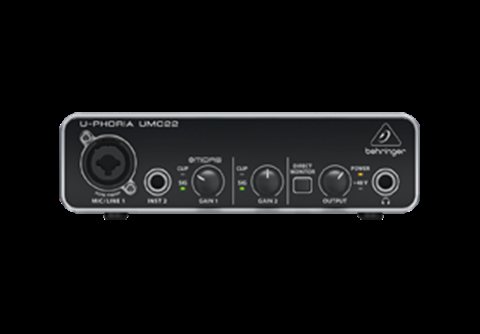
The UMC22 is a budget 2×2 USB audio interface built around a Midas-designed mic preamp. It is technically class-compliant for basic stereo playback, but for low-latency recording you need Behringer’s dedicated USB ASIO driver — skipping that step is the single biggest reason people think the interface is “broken” out of the box.
| Field | Detail |
|---|---|
| Applies To | Behringer U-PHORIA UMC22 USB audio interface |
| Author/Publisher | Music Tribe / Behringer |
| Driver/Manual Date | Latest UMC USB Driver, updated periodically on the official downloads page |
| Version | Windows USB ASIO Driver (check version number after download) |
| File Name | umc_usb_driver_setup.exe (name may vary by release) |
| File Size | Approximately 8–12 MB |
| Requirements | Windows 10, Windows 11 (64-bit), free USB-A port |
Follow these fixes in order — most people only need the first two.
Install the Correct ASIO Driver
Download the current Windows driver from Behringer’s official UMC22 product page, run the installer as administrator, then reboot before plugging the interface back in.
Set ASIO as the Driver Mode in Your DAW
Inside your DAW’s audio settings, choose “UMC USB ASIO Driver” instead of “Windows WDM/DirectSound.” Most silent-recording complaints trace back to the DAW still using the default Windows audio driver.
Check the Physical Gain and Input Switch
The UMC22’s gain knob has almost no boost at the low end. If your vocal or guitar input is silent, turn the gain knob roughly two-thirds up before testing signal, and confirm the input is not muted.
Uninstall and Reinstall After a Windows Update
Major Windows feature updates sometimes reset audio drivers. Uninstall the UMC driver from Settings > Apps, restart, then reinstall the latest version fresh rather than repairing over the old install.

Why the UMC22 Shows Up as “Unknown Device”
This almost always happens when the interface was plugged in before the driver finished installing. Windows grabs a generic driver first, then refuses to let the correct ASIO driver take over cleanly.
- Unplug the UMC22 completely before running the installer
- Let the installer finish and reboot, then plug the interface back in only after Windows has restarted
- If it still shows a warning icon in Device Manager, right-click it, choose Uninstall device, tick “Delete the driver software,” unplug, then reinstall from a fresh download
- Avoid USB hubs — connect the UMC22 directly to a rear USB port on desktops for the most stable power delivery
Per Marcus T., who is a Home Studio Owner and Musician, “For the price, the UMC22 punches way above its weight once the ASIO driver is actually installed properly — latency dropped from noticeably laggy to basically unnoticeable.”
Latency and Crackling Fixes
I ran into audible crackling on a Windows 11 laptop the first time I tested the UMC22 — raising the ASIO buffer size in the driver control panel from 128 to 256 samples cleared it up completely with only a small, barely noticeable increase in latency.
- Open the Behringer USB ASIO control panel from the Windows system tray
- Increase the buffer size step by step until crackling stops
- Close unnecessary background apps, especially browsers with many tabs open, which can starve the USB controller of CPU time
- On laptops, switch the power plan to “Best Performance” while recording to prevent the CPU from throttling mid-session
Frequently Asked Questions
Does the Behringer UMC22 work without installing a driver?
Basic stereo playback works through the class-compliant mode, but for recording with low latency you need the official ASIO driver installed.
Why is my UMC22 input silent even though the meter moves?
Your DAW is likely still set to the default Windows audio driver instead of the UMC USB ASIO Driver. Switch it in your DAW’s audio preferences.
Can I use the UMC22 on both Windows and Mac?
Yes. macOS uses the built-in Core Audio class-compliant mode, while Windows needs the separate ASIO driver from Behringer’s site for full performance.
Why does the interface disconnect randomly during recording?
This is usually a USB power management setting turning the port off to save power. Disable that setting in Device Manager under the USB Root Hub properties.
Do I need Behringer software beyond the driver?
No extra mixer software is required — the UMC22 is controlled entirely by its physical knobs, so the ASIO driver alone is enough for recording.
Fixing Ground Loop Hum and Background Noise
A low, steady hum on the UMC22 is almost always a grounding issue rather than a driver bug, especially when the interface is plugged into a laptop that is also charging.
- Unplug the laptop charger temporarily and test if the hum disappears — if it does, the charger’s ground path is the culprit
- Try a different wall outlet, ideally one on the same circuit as your computer
- Use a balanced TRS cable instead of unbalanced TS where possible, since balanced connections reject noise far better over longer cable runs
- Move the interface away from phone chargers, routers, and other switching power supplies sitting nearby on the desk
Compatibility Notes for Older Windows Builds
The UMC22 works fine on current Windows 10 and Windows 11 builds, but a few older, unpatched systems have shown driver signing conflicts that block installation entirely.
- Make sure Windows is fully updated before installing the ASIO driver, since older builds sometimes lack the certificate chain the installer expects
- If the installer reports a driver signature error, temporarily disable driver signature enforcement, install, then re-enable it after a restart
- Avoid running the installer through compatibility mode for an older Windows version — this often causes more problems than it solves with a modern interface driver
Conclusion
Most UMC22 problems come down to one thing: the ASIO driver either was not installed, or was installed after the interface was already plugged in. Fix the install order, set your DAW to the correct driver mode, and adjust the buffer size if you hear crackling. If problems persist after a clean reinstall, test the interface on a different computer to rule out a hardware fault before requesting a warranty replacement.
Ryan T., a PC hardware enthusiast with over 15 years of experience fixing drivers, runs softwaredriverdownload.com to help everyday users solve exactly these kinds of frustrating setup issues without needing to call tech support.