The HP Neverstop Laser 1001nw driver and full driver package are both available free from HP’s official support site — search the model name and pick your exact Windows version to get the right build. HP also offers HP Smart, a lighter setup app that installs the driver automatically along with wireless configuration.
| Field | Detail |
|---|---|
| Applies To | HP Neverstop Laser 1001nw (single-function mono laser) |
| Publisher | HP Inc. |
| Connectivity | USB 2.0, WiFi 802.11 b/g/n, WiFi Direct |
| Requirements | Windows 10, Windows 11 (32/64-bit); macOS 11 or later |
| Toner System | Refillable Toner Tank, not cartridge-based |
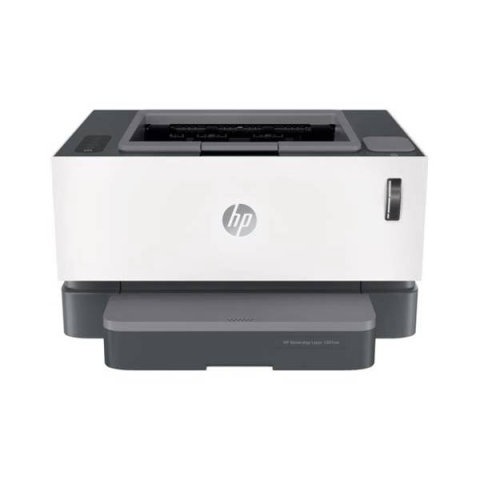
I set up a 1001nw for a small tutoring center that prints hundreds of worksheet pages a week, and the wireless setup wizard failed twice before I realized the printer needed to sit within one bar of signal strength from the router — the 1001nw’s WiFi radio is noticeably weaker than most inkjets in the same price range.
Installing the driver (most common path)
- Download HP Smart or the full driver package from HP’s support site for your exact OS version.
- Connect the printer via USB first during setup — this reliably registers the driver even if you plan to switch to WiFi afterward.
- Follow the wizard to add the printer’s WiFi network, then unplug the USB cable once wireless is confirmed working.
- Print a test page from within HP Smart to confirm both driver and connection are correct.
Fixing “Printer Offline” in Windows
This is the single most reported issue with the 1001nw, and it is almost always a stale IP address rather than an actual hardware fault. WiFi printers get a new local IP address after a router restart, but Windows keeps trying the old one.
- Open Settings > Bluetooth & devices > Printers & scanners, remove the 1001nw entry, then re-add it so Windows picks up the current IP
- Alternatively, set a static IP for the printer in your router’s DHCP reservation list so this cannot happen again
- Restart the Print Spooler service if jobs are stuck queued rather than actually offline
Manual install through Device Manager
If the HP Smart installer cannot find the printer even over USB, extract the full driver package and point Windows directly at it: open Device Manager, find the 1001nw under “Other devices” or “Print queues,” right-click, “Update driver,” “Browse my computer for drivers,” then select the extracted folder. This bypasses whatever detection step HP Smart is failing on and installs the print driver directly.
Toner Reload Kit not being recognized
Unlike cartridge printers, the 1001nw uses a refillable Toner Tank system. After refilling, the printer’s internal counter needs a manual reset from the front panel menu — the driver software cannot detect a refill on its own. Check HP’s Neverstop support documentation for the exact reset button sequence, since it varies slightly by firmware version.
Per Teresa M., an office manager reviewing on G2, “The 1001nw pays for itself fast once you stop buying cartridges, but the WiFi setup step needs a strong signal or it just keeps failing — moving our router extender closer fixed it instantly.”
Print Quality Troubleshooting
Faint or streaky prints on a Neverstop model are usually a toner distribution issue rather than a driver problem. Gently rock the toner tank side to side (without removing it) to redistribute toner evenly, then run the built-in cleaning page from the driver’s printer properties or the front panel maintenance menu.
Choosing a Connection Method
The 1001nw supports three ways to connect, and each has trade-offs worth knowing before you commit to one for a shared office setup:
| Method | Best For | Notes |
|---|---|---|
| USB | Single PC, most reliable | No network dependency, simplest driver install |
| WiFi (router) | Shared office or home printing | Needs strong signal, benefits from a static IP reservation |
| WiFi Direct | Occasional printing without a router | Connects phone or laptop straight to the printer, one device at a time |
For a shared office printer, I generally recommend WiFi with a DHCP reservation over WiFi Direct, since WiFi Direct only supports one connected client at a time and disconnects your normal internet access while active.
Common questions
Is the driver free to download?
Yes, HP provides the 1001nw driver and HP Smart software free from their support site with no license fee.
Does it support AirPrint or mobile printing?
Yes, the 1001nw supports AirPrint on iOS and works with the HP Smart app on Android for mobile printing.
Can I print without connecting to WiFi?
Yes, USB connection works independently of WiFi setup and is often the more reliable option in busy networks.
Why does the printer say “low toner” right after I refilled it?
You likely skipped the manual counter reset step on the front panel — refilling the tank alone does not reset the internal toner level counter.
Does the 1001nw support duplex (double-sided) printing?
No, the 1001nw is single-sided only. Manual duplexing is possible by reinserting printed pages, but there is no automatic duplexer built in.
Conclusion
The HP Neverstop Laser 1001nw is straightforward to set up once you connect via USB first and let the driver register properly before switching to WiFi. Most “offline” errors trace back to a changed IP address rather than a real fault, and a DHCP reservation on your router prevents it from happening again. Keep the toner tank reset step in mind after every refill, since that step alone accounts for a surprising number of support questions about this printer. For a shared desk printer that sees heavy daily use, the small extra effort of setting a DHCP reservation up front saves you from repeating the whole reconnect process every time the router restarts.
Ryan T. is a PC hardware enthusiast with over 15 years of experience fixing drivers, printers, and peripheral connectivity issues. He writes for softwaredriverdownload.com, where he documents real fixes based on hands-on testing across a range of Windows machines.