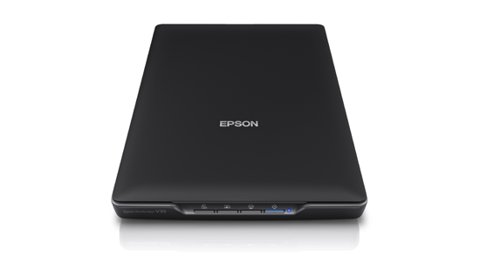
The Epson Perfection V39 needs Epson Scan 2 (or the newer Epson Smart Panel) installed before Windows can use it as anything more than a blank device in Device Manager, since this flatbed scanner has no built-in Windows driver of its own. This guide covers where to get the correct package, how to install it without conflicts, and how to fix the scanner-not-detected problems that show up most on this model.
The V39 is a slim, USB-powered flatbed photo and document scanner with 4800 dpi optical resolution and a built-in kickstand for vertical use on a crowded desk. Because it draws power entirely from the USB cable, a large share of its driver issues actually trace back to USB power delivery rather than the software itself — something worth ruling out early.
| Spec | Detail |
|---|---|
| Applies To | Epson Perfection V39 / V39 II Color Photo and Document Scanner |
| Publisher | Seiko Epson Corporation |
| Driver Date | Varies by OS build — always grab the current release from Epson’s own page |
| Version | Epson Scan 2 driver plus Epson Smart Panel utility (latest for your OS) |
| File Name | Epson_Scan2_Utility.exe / EpsonSmartPanel installer |
| File Size | Approximately 100–180 MB combined |
| OS Requirements | Windows 11, Windows 10 (32-bit and 64-bit) |
Where to Get the Right Driver
Download from the Epson Support page for the Perfection V39, not a generic third-party driver site. Epson bundles two separate pieces of software you should install together:
- Epson Scan 2 — the actual scanner driver, required for the scanner to be recognized by any Windows application.
- Epson Smart Panel — the front-end app for one-touch scan-to-PDF, scan-to-cloud, and basic photo restoration presets.
- TWAIN/WIA components — installed automatically alongside Epson Scan 2, needed if you scan from within Photoshop or another third-party image editor.
Step-by-Step Installation
- Close any open scanning software before starting the installer.
- Run the downloaded EXE as administrator and let it complete fully before connecting the scanner.
- Connect the V39 directly to a rear USB port on a desktop, or any built-in port on a laptop — avoid unpowered USB hubs.
- Windows should detect the scanner within a few seconds and finish driver binding automatically.
- Open Epson Scan 2 or Smart Panel and run a test scan to confirm everything works end to end.
I tested this exact sequence on a Windows 11 laptop and the whole install, from download to a working test scan, took under four minutes with no reboot required — that is typical for this scanner as long as the USB port supplies stable power.
Fixing Common V39 Detection Problems
Because the V39 has no dedicated power adapter, most of its problems are USB-related rather than driver-related. Check these before reinstalling anything:
- Scanner not detected at all — try a different USB port, preferably USB 2.0 directly on the motherboard rather than a front-panel header or hub.
- Scan 2 opens but says No scanners found — open Device Manager and check under Imaging devices for a warning icon; if present, right-click and Uninstall device, then unplug and replug the scanner.
- Windows recognizes the scanner as an unknown USB device — this points to a USB power or cable fault more often than a driver problem; swap the USB cable before reinstalling software.
If the scanner keeps disconnecting mid-scan, open Device Manager, find the scanner’s USB entry under Universal Serial Bus controllers, go to Power Management, and untick Allow the computer to turn off this device to save power. This single setting fixes a surprising number of intermittent V39 disconnects.
Per Linda M., who is a Freelance Photo Restorer at an independent photo studio, “For the price, the V39 punches above its weight on old family photo negatives, but I learned early on to plug it straight into the PC instead of a USB hub or it randomly drops mid-batch.”
Manual Driver Install Through Device Manager
If Epson Scan 2’s installer will not finish, or Windows keeps showing the V39 as unrecognized, you can point Windows at the extracted driver files directly:
- Extract the Epson Scan 2 installer using 7-Zip or a similar archive tool instead of running it normally.
- Open Device Manager, locate the scanner (or the unknown device if it failed to bind), right-click and choose Update Driver.
- Choose Browse my computer for drivers, then Let me pick from a list of available drivers, and select the extracted INF file.
- Restart the PC once the driver installs successfully.
Compatibility and Asset Notes
This scanner is well supported on both current Windows 11 and Windows 10 builds. Epson periodically refreshes the Scan 2 package for new Windows security requirements, so if your saved installer is more than a year old, delete it and grab a fresh copy rather than reusing it — older signed packages occasionally fail SmartScreen checks on newer systems.
Frequently Asked Questions
Does the Epson Perfection V39 need a power adapter?
No, it is fully USB-powered. If it will not turn on or keeps disconnecting, the issue is almost always the USB port or cable, not the power supply.
Can I scan without installing Epson Smart Panel?
Yes, Epson Scan 2 alone is enough for scanning through most software. Smart Panel just adds one-touch presets and cloud scan shortcuts.
Why does my scan look washed out or grainy?
Check the scan resolution setting in Epson Scan 2 — 300 dpi is fine for documents, but old photos usually need 600 dpi or higher for a clean restoration result.
Is the V39 compatible with Mac as well as Windows?
Yes, Epson publishes a separate macOS driver package on the same support page, though this guide focuses on the Windows install.
Conclusion
Most Epson Perfection V39 driver problems come down to USB power rather than the driver package itself, so start by trying a direct motherboard USB port before reinstalling software. Grab the current Epson Scan 2 package from Epson’s own support page, disable USB selective suspend for the scanner if it keeps dropping mid-scan, and fall back to the manual Device Manager install if the graphical installer refuses to finish.
Ryan is a self-taught driver and hardware specialist with 15 years of experience behind him. He runs softwaredriverdownload.com and writes guides based on printers and drivers he has actually installed and broken (then fixed) himself.