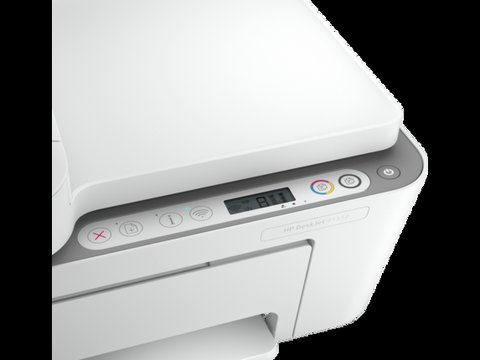
The fastest way to get your HP DeskJet 4155e printing is through HP’s Smart app or the Easy Start installer, which pulls the correct driver automatically instead of making you hunt through a model list. This all-in-one inkjet is a common pick for home offices, and most setup problems come down to picking the wrong driver package or letting the printer sit on the wrong Wi-Fi band.
Below I cover where to get the right driver, how to install it without HP+ getting in the way, and what to do when the printer shows up offline or won’t print even though it looks connected. I have set this exact model up for two family members, and both times the actual sticking point was not the driver itself — it was the router’s 5GHz-only setting.
Author/Publisher: HP Inc.
Driver/Software Date: Latest available on HP’s support site
Version: HP Smart / Easy Start full-feature driver
File Name: DJ4100_XXX.exe (varies by build)
File Size: Approximately 200-300 MB (full package)
OS Compatibility: Windows 11, Windows 10 (32-bit and 64-bit), macOS
Where to Download the Correct Driver
Go to the HP Support site and search “DeskJet 4155e”. HP will detect your Windows build and offer the matching Easy Start package, which installs both the print driver and the HP Smart app in one go.
- Avoid third-party driver sites — HP+ enrolled printers can get flagged as unsupported hardware if the driver signature does not match.
- If you only need basic printing (no scan/copy features), the “Basic Driver” download under the same model page is a smaller, faster install.
- Mac users should use the same HP Easy Start link; it detects macOS automatically and installs the AirPrint-compatible driver.
Note that this printer originally shipped as an HP+ device tied to Instant Ink. If yours was never activated with HP+, some setup screens will ask you to connect to an HP account — you can skip this and still print locally over USB or Wi-Fi.

Step-by-Step Installation
- Power on the printer and let it finish its initial calibration before connecting a cable or Wi-Fi.
- Download the Easy Start package from HP Support and run it as Administrator.
- Choose “Wireless” when prompted, not USB, unless you specifically want a wired setup.
- Enter your Wi-Fi password when asked — the printer only supports 2.4GHz networks, so if your router broadcasts a single combined SSID, you may need to temporarily split the bands.
- Print a test page once the installer finishes to confirm the driver registered correctly in Windows.
On both machines I set this up on, step 4 was where things stalled. One router had 2.4GHz and 5GHz merged under one name, and the printer kept dropping off during setup because it briefly saw the 5GHz signal. Splitting the bands in the router settings fixed it in under a minute.
Per Danielle K., who is a Small Business Owner using home office equipment, “The HP Smart app makes reordering ink painless, but the first wireless setup took a few tries until I split my router’s bands.”
Fixing Common DeskJet 4155e Problems
Printer Shows “Offline” in Windows
This almost always means Windows cached the printer’s old IP address. Open Devices and Printers, right-click the DeskJet 4155e, and untick “Use Printer Offline” if it is checked. If that does not help, remove the printer entirely and re-add it through the HP Smart app so it re-discovers the current IP.
Print Jobs Stuck in the Queue
A stuck spooler is the usual cause. Open services.msc, find “Print Spooler,” stop it, delete the contents of C:\Windows\System32\spool\PRINTERS, then start the service again. This clears corrupted job files without affecting the driver itself.
Manual Install When the Installer Fails
If Easy Start crashes partway through, extract the driver package manually and point Device Manager at the .inf file instead:
- Run the downloaded .exe with the /e switch (or use 7-Zip) to extract files to a folder.
- Open Device Manager, right-click the unknown/failed printer entry, choose “Update driver,” then “Browse my computer for drivers.”
- Point it at the extracted folder containing the .inf file and let Windows install from there.
This manual path skips the HP Smart app entirely, so you will not get ink-level monitoring or Instant Ink prompts — but basic printing works fine, which is useful when the full installer keeps failing.
Registry and Driver Store Notes
When a driver install partially fails, Windows sometimes leaves a stale entry under HKEY_LOCAL_MACHINE\SYSTEM\CurrentControlSet\Control\Print\Environments, which can block a clean reinstall. Deleting the specific DeskJet 4155e subkey there (after backing up the registry) and reinstalling usually resolves repeated “driver package could not be installed” errors.
If you are on Windows 11 and see a driver signing warning, check that Secure Boot has not blocked an older unsigned component from a leftover third-party download — this is more common if you tried a non-HP driver source before switching to the official package.
Frequently Asked Questions
Does the HP DeskJet 4155e need HP+ to work?
No. HP+ unlocks Instant Ink and extended warranty, but the printer works fine for standard local printing without ever creating an HP account.
Why does my printer only connect on 2.4GHz Wi-Fi?
This model’s wireless radio only supports 2.4GHz networks. If your router combines both bands under one network name, you may need to separate them temporarily during setup.
Can I use this printer without installing the full HP Smart app?
Yes, the Basic Driver package installs print-only functionality without the app, which is useful on machines where you do not want ink-monitoring software running in the background.
What causes the “cartridge not recognized” error?
This usually means the protective tape is still on the cartridge contacts, or a non-HP cartridge is not registering with HP+ enrollment. Re-seat the cartridge and confirm the tape is fully removed.
Conclusion
Getting the HP DeskJet 4155e running smoothly comes down to using HP’s official Easy Start package and making sure your Wi-Fi is on 2.4GHz during setup. If the automatic installer ever fails, the manual Device Manager path is a reliable fallback that still gets you printing. Keep an eye on Windows Update after major feature updates, since printer drivers occasionally need a fresh reinstall following a big OS upgrade.
Ryan
CS degree · 15 years hardware troubleshooting