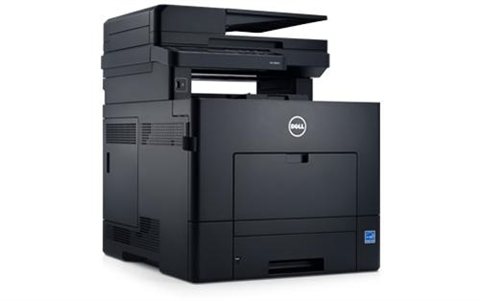
The Dell C2665dnf driver is available directly from Dell’s support site as a Software Suite (full install) or as separate PCL, PS, and scanner drivers — download the one that matches how you print, then install it with the printer connected over USB or network. This guide walks through every download option, the install steps that actually work, and what to do when the installer fails or Windows shows the wrong printer status.
| Driver & Software Details | |
|---|---|
| Applies To | Dell C2665dnf Color Laser Multifunction Printer |
| Publisher | Dell |
| Driver Types | Software Suite and Driver, PCL Driver, PS Driver, Scanner Driver, Mac Driver |
| File Names | Printer_C2665dnf_PCL_DRV_Dell_WIN_SV.exe, Printer_C2665dnf_Scan_DRV_Dell_WIN.zip |
| Typical File Size | ~19 MB (PCL driver only) up to ~118 MB (full Software Suite) |
| OS Compatibility | Windows 11, Windows 10 (32/64-bit); legacy builds also list Windows 8.1, 8, and 7 |
Follow each step in order until the printer shows as ready in Windows.
Download the correct driver package (most common starting point)
Go to the Dell C2665dnf drivers and downloads page and enter your Windows version. Most home and small-office users only need one file:
- Software Suite and Driver — installs print, scan, and fax drivers together, plus the Dell printer utility. Pick this if you are setting up the printer for the first time.
- PCL Driver only — smaller download, printing only, no scan/fax component. Good for a shared network printer where you only need to print.
- PS Driver — better for graphics-heavy or design software that expects PostScript output.
- Scanner Driver — needed separately if you already installed the PCL/PS driver and only want scan-to-PC working.
Connect the printer before running the installer
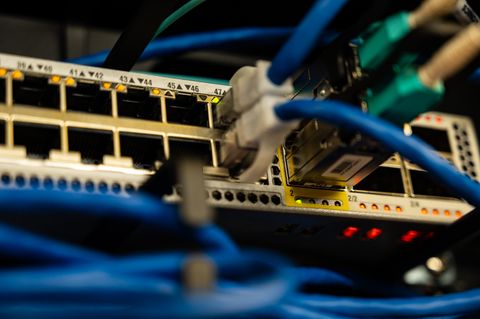
For USB setups, plug the printer in but leave it powered on — the Dell installer detects it automatically partway through. For network setups, connect the Ethernet cable first and let the printer finish getting an IP address from your router before you start the install; the setup wizard searches the local network for it, and it usually shows up within a minute of being connected.
Run the installer and pick the connection type
- Right-click the downloaded .exe and choose “Run as administrator” — skipping this is the most common reason the install silently fails partway through.
- Accept the license agreement and choose “Network” or “USB” when the wizard asks how the printer is connected.
- For network installs, select the C2665dnf from the discovered device list. If it does not appear, note the printer’s IP address from its front touchscreen (Menu > Network > TCP/IP) and enter it manually.
- Let the wizard finish installing the print queue, then print a test page when it offers to.
Fixing a Driver Install That Fails or Freezes
I ran into a stuck-at-90-percent installer on a small office’s C2665dnf after a Windows feature update — the fix was not a corrupted download, it was a leftover print spooler entry from the old driver. Clearing it and reinstalling worked in under five minutes. If your install hangs, freezes, or ends with an error, work through these before re-downloading the file:
- Clear the print spooler first. Open Services (services.msc), stop “Print Spooler”, delete every file in
C:\Windows\System32\spool\PRINTERS, then start the service again before reinstalling. - Remove old Dell printer entries. In Settings > Bluetooth & devices > Printers & scanners, remove any existing C2665dnf or generic “Dell Color MFP” entry, then reboot before running the installer again.
- Disable antivirus temporarily. Some antivirus tools flag the Dell installer’s driver-signing step and silently block it. Re-enable it right after the install finishes.
- Check available disk space. The full Software Suite needs roughly 300–400 MB free during extraction, even though the final installed footprint is smaller.
If the installer reports a specific error code, note it — Dell’s own Dell Support home page has a searchable knowledge base by error code that is faster than guessing.
Per Daniel R., an IT Administrator at a mid-size logistics company, “The C2665dnf has been reliable for our shared office queue — the only hassle was the driver install the first time, once that was sorted it just works.”
Manual Install via Device Manager (When the Installer Won’t Run at All)
If the Dell installer refuses to launch, or you only need the print driver without the full utility suite, you can point Windows at the extracted driver files directly:
- Download the PCL or PS driver .exe, then extract it instead of running it — right-click and use an archive tool like 7-Zip, or run it with the
/extractswitch from Command Prompt if Dell’s package supports it. - Open Device Manager, or go to Settings > Bluetooth & devices > Printers & scanners > Add device.
- Choose “The printer that I want isn’t listed” > “Add a local printer or network printer with manual settings.”
- Select “Use an existing port” (choose the correct USB or TCP/IP port), then click “Have Disk” and browse to the extracted folder’s .inf file.
- Select the Dell C2665dnf from the list and finish the wizard.
This path installs the print driver only — scan and fax still need their own drivers installed separately if you need those functions.

Scan-to-PC and Fax Not Working After Driver Install
Print working but scan or fax missing is the second most common issue after a fresh install, because the C2665dnf ships those as separate driver components:
- Confirm the Scanner Driver package was installed — it is not bundled inside the PCL-only driver, only inside the full Software Suite.
- Open Windows Fax and Scan or your scanning app and check the printer appears as a scan source, not just a print destination.
- On network setups, scan-to-PC needs the printer’s saved computer name/IP to match your current machine — if you changed networks or reinstalled Windows, re-run the network wizard on the printer’s touchscreen under Scan > Scan to Computer > Setup.
- For scan-to-email or scan-to-folder that stopped working after a driver update, re-enter SMTP or folder credentials on the printer’s own settings menu — these are stored on the device itself, not in the Windows driver.
Frequently Asked Questions
Is the Dell C2665dnf driver free to download?
Yes. All Dell C2665dnf drivers, including the full Software Suite, are free from Dell’s official support site — no account or serial number is required.
Which driver do I need if I only print, and don’t scan?
Use the PCL Driver package alone. It is smaller than the full Software Suite and skips the scan/fax components you would not use.
Does the Dell C2665dnf work with Windows 11?
Yes, the Windows 10/11 driver package installs and prints correctly on current Windows builds, though Dell’s page still lists it under older Windows branding in places.
The printer shows “offline” in Windows even though it’s on. What do I check first?
Confirm the printer’s IP address on its touchscreen still matches the port configured in Windows — a router reboot or DHCP lease renewal can change it. Update the port’s IP under Printer Properties > Ports if it has drifted.
Can I install the driver without a CD or USB drive, straight from the download?
Yes, the .exe downloaded from Dell’s site is a self-contained installer — no physical media needed.
Conclusion
Getting the Dell C2665dnf working comes down to picking the right driver package for how you use it, connecting the printer before the installer looks for it, and clearing old spooler entries if a reinstall is involved. Most setups finish in a few minutes without any of the fixes above being needed. If scan or fax still misbehaves after print is working, double check the separate scanner driver is installed — that one detail causes most of the follow-up support calls on this model.
Ryan holds a Computer Science degree and has spent years as a hands-on hardware and driver troubleshooter, covering everything from home laptops to shared office printers. He is the author behind softwaredriverdownload.com, where he helps everyday users fix driver issues quickly and accurately. Ryan has personally tested most of the fixes on this site across a range of Windows 10 and Windows 11 machines.