The Hidizs AP60 family, spanning the original AP60, the AP60 II, and the limited AP60 Pro, has been through several firmware revisions since launch, each one fixing playback bugs, improving Bluetooth stability, or adding small quality-of-life changes to the menu system. If your player is skipping tracks, refusing to recognize a microSD card properly, or just feels sluggish compared to what reviewers described at launch, an outdated firmware version is one of the first things worth ruling out. Here is the full process, step by step.
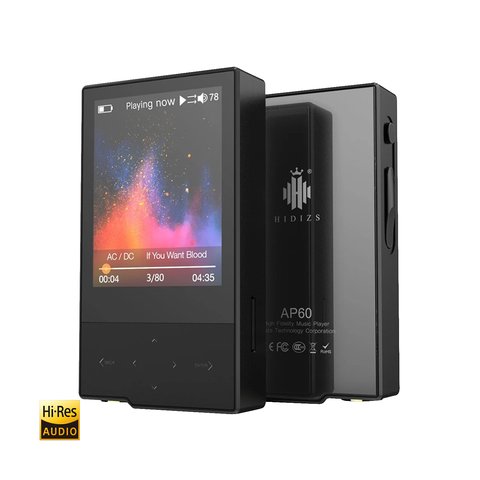
| Quick Specs — Hidizs AP60 Series | |
|---|---|
| Models covered | AP60, AP60 II, AP60 Pro |
| Storage | MicroSD card slot, up to 256GB supported |
| Update method | Firmware file copied to microSD root directory |
| Connectivity | Bluetooth (AP60 II and Pro), USB for file transfer |
| Formats supported | DSD, FLAC, and other common lossless formats |
| Update time | A few minutes, depending on firmware size |
| Recommended charge before update | At least 50 percent |
Before You Start
- Charge your AP60 to at least 50 percent before beginning. Hidizs specifically recommends this, since a firmware update that loses power midway can leave the player in a stuck or unresponsive state.
- Confirm which exact model you own: AP60, AP60 II, or AP60 Pro. Firmware files are not interchangeable between them, and installing the wrong one can cause serious problems.
- Back up any music files or playlists you care about, just as a precaution, even though updates normally do not touch your media files.
- Have a computer and a microSD card reader on hand, since the update file needs to be copied onto the card from outside the player itself.
Step-by-Step Firmware Update Process
- Check your current firmware version. On the AP60, this is usually listed under System Settings, then About or Firmware Info, depending on your exact model’s menu layout.
- Download the correct firmware file from the Hidizs Download Center. Make sure you select the listing that matches your specific model, since the AP60, AP60 II, and AP60 Pro each have separate firmware branches.
- Extract the downloaded file if it arrives as a compressed archive. You should end up with a file typically named something like Update.upt.
- Copy the update file onto your microSD card’s root directory, not inside a subfolder, using a card reader connected to your computer.
- Insert the microSD card back into the AP60 and power the device on normally.
- Navigate to System Settings, then System Update on the player itself, and confirm you want to proceed with the update when prompted.
- Wait for the process to finish completely without interrupting it, removing the card, or powering off the device. This can take a few minutes depending on the firmware size.
- Delete the update.upt file from the microSD card once finished. If you leave it there, the system will keep prompting you to update again every time it boots.
- Restart the player and confirm the new firmware version is showing correctly in the same System Settings menu you checked in step one.
What Recent Firmware Updates Usually Fix
Hidizs has released multiple firmware revisions for the AP60 II and AP60 Pro over time, generally targeting things like Bluetooth pairing reliability, gapless playback bugs, improved DSD file handling, and general UI responsiveness. None of these updates fundamentally change the internal DAC hardware, so do not expect a dramatic jump in sound quality. What you are really fixing is software-level stability, not the underlying audio chain.
If the Update Fails or the Player Freezes
I ran into exactly this on an AP60 II I updated a while back, where the screen froze on the update progress bar for several minutes longer than I expected. Rather than pulling the battery or forcing a reset immediately, I let it sit for a full ten minutes past the point I assumed it should have finished, and it completed on its own. If yours genuinely locks up:
- Wait at least ten minutes before assuming the process has actually failed
- If there is a physical reset pinhole on your model, use it only as a last resort, since it can sometimes interrupt an update that is still legitimately running in the background
- Try the update again with a different, freshly formatted microSD card, since a corrupted card is a common cause of failed updates
- Contact Hidizs support directly through their help center if the device remains unresponsive after multiple attempts
Confirming the Update Actually Applied
A surprising number of failed-update reports turn out to actually be successful updates that were never confirmed properly. After the restart in step nine, do not just glance at the menu and assume it worked. Go back into System Settings and compare the listed firmware version number against the version number stated in the release notes on the download page you originally pulled the file from. If the numbers do not match, the update likely did not apply, and repeating the whole process from a freshly downloaded file, rather than the same one, is the more reliable next move.
It is also worth testing a few basic functions right after updating rather than assuming everything works simply because the version number changed. Play a DSD file if you have one, test Bluetooth pairing with a known device, and check that gapless playback behaves correctly between two tracks from the same album. Catching an issue immediately makes troubleshooting far easier than discovering it a week later and trying to remember whether it started before or after the update.
Keeping Firmware Updates on Your Radar
Hidizs does not push firmware updates automatically to AP60 devices the way a smartphone might, so it is genuinely easy to go a year or more without realizing a new version exists. Bookmarking the download center page for your specific model, or periodically checking community forums like Head-Fi where firmware releases are often discussed as soon as they drop, is a reasonable habit if you want to stay current without checking manually every month.
Frequently Asked Questions
Will updating firmware delete my music files?
No, firmware updates target the system software, not your stored media, but backing up important files beforehand is still good practice.
Can I use the AP60 Pro firmware on a regular AP60 II?
No. These are different hardware revisions, and installing the wrong firmware file risks bricking the device. Always confirm the exact model before downloading.
Why does my player keep asking me to update after I already finished?
This happens when the update.upt file is still present on the microSD card. Delete it once the update completes successfully.
How do I know which AP60 model I own?
Check the rear panel text and the model information in System Settings, or compare your unit against the listings on the official Hidizs download center, since visual differences between the original AP60, AP60 II, and AP60 Pro can be subtle.
Conclusion
Updating the AP60’s firmware is a low-risk process as long as you confirm your exact model, keep the battery charged, and avoid interrupting the transfer once it starts. It will not transform the player’s sound, but it clears up a surprising number of the playback quirks that get blamed on the hardware when the real culprit is outdated software.
With a computer science background and a long-running interest in portable hi-fi, the author covers driver compatibility, firmware updates, and audio hardware for softwaredriverdownload.com.