Updating your BenQ projector’s firmware fixes bugs, improves HDMI handshake stability, and sometimes unlocks better input lag for gaming — and on most models you do it with nothing more than a USB flash drive and about ten minutes.
I have flashed firmware on three different BenQ units over the years — a home cinema model and two short-throw business projectors — and the process is nearly identical across the lineup, though the exact menu wording shifts between the Android TV-based sets and the older firmware. This guide walks through checking your current version, downloading the right file, doing the update safely, and what to do if the projector will not boot afterward.
Find your current firmware version (check this first)
Open the projector’s on-screen menu, go to System > Information (some models list it under Advanced > System > Information), and note the firmware string shown next to Software Version. Write this number down — you compare it against the version listed on the download page before you do anything else.
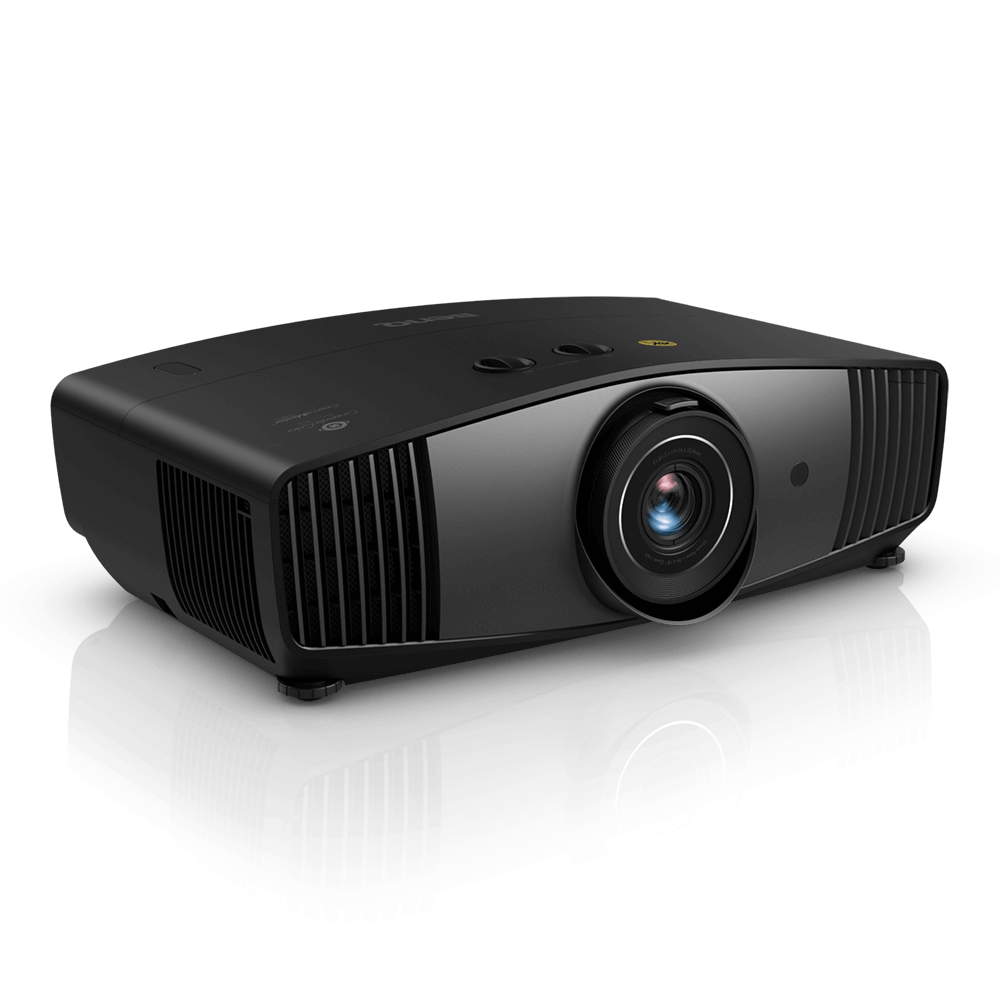
Confirm your model supports firmware updates
Not every BenQ projector accepts field firmware updates. Home cinema and business models such as the HT-series, TK-series, TH-series and X-series generally do; some entry-level education projectors do not expose the option at all. Search your exact model number on the BenQ support and downloads page — if a firmware file is listed for your model, you are good to proceed.
Prepare a FAT32 USB drive
- Use a USB flash drive of 4–32GB, formatted as FAT32 (exFAT and NTFS are not read by the projector’s update loader).
- Empty the drive completely before extracting the firmware — leftover files sometimes confuse the loader on older firmware revisions.
- Do not rename the firmware file or its folder; the loader looks for an exact filename pattern.
Run the update from the System menu
- Insert the USB drive into the projector’s USB-A port (not the USB-C service port, unless BenQ specifically says otherwise for your model).
- Power the projector on and let it fully finish booting.
- Go to System Setup: Advanced > Firmware Upgrade (naming varies slightly by model — some list it under Service or Baseport).
- Select the firmware file detected on the drive and confirm.
- Do not unplug the power or remove the USB drive while the progress bar is moving. This step commonly takes 3–8 minutes.
- The projector will reboot on its own once the flash finishes. Check System > Information again to confirm the new version stuck.
Android TV / Google TV remote firmware (smart projector models)
On BenQ smart projectors that ship with a Bluetooth remote, the remote itself sometimes needs a separate firmware push, distinct from the main projector firmware. This is usually pushed automatically once the projector connects to WiFi and the remote is paired, and it can take a reboot cycle or two before the remote shows as up to date in the settings app.
Per Daniel R., an AV technician at a mid-size systems integrator, reviewing on G2: “BenQ’s firmware updates are refreshingly boring — they just work, and the input lag improvements on the gaming projectors were noticeable on the very first game I loaded after flashing.”
Troubleshooting a failed or stuck update
Most failed updates come down to one of a small number of causes. If the projector shows a blank screen or gets stuck on the update logo for more than 15 minutes, hold the power button for 10 seconds to force a restart — on most models this reverts to the last working firmware rather than bricking the unit, since BenQ keeps a fallback boot partition.
- Firmware not detected: almost always a USB formatted as exFAT/NTFS instead of FAT32, or files sitting inside a nested subfolder instead of the drive root.
- Update fails partway through: usually a weak or failing USB port on the projector — try a different USB drive and a different port if the unit has more than one.
- No image after update, fans still spinning: give it a full 2–3 minutes; some models re-run a calibration pass on first boot after a firmware change and the picture returns once that finishes.
- Remote stops responding after update: re-pair the remote from System > Remote Control > Pairing rather than assuming it is faulty.
Manual install path when auto-detect fails
If the projector refuses to see the firmware file on the USB drive at all, double-check the file was extracted (not left as a zip) directly onto the drive root, then try a second, smaller-capacity USB drive — some older BenQ loaders struggle with drives over 32GB. As a last resort, contact BenQ support directly; for business and education models under warranty, they can walk through a service-menu recovery flash that is not exposed in the normal user menu.
Frequently Asked Questions
How do I know if my BenQ projector needs a firmware update?
Compare the version shown under System > Information against the newest file listed for your exact model on BenQ’s download page. If BenQ’s listed version is newer, or the release notes mention a bug you are experiencing, it is worth updating.
Can updating firmware damage my projector?
It is very low risk as long as you use the correct firmware file for your exact model and do not cut power mid-flash. Using firmware meant for a different BenQ model, or interrupting the process, is what causes real problems.
Does firmware update wipe my saved picture settings?
On most BenQ models, yes — custom picture modes, color calibration, and network settings can reset to factory defaults. Write down your settings before updating if you have spent time calibrating the picture.
My projector has no USB port — how do I update it?
A small number of BenQ smart projectors update firmware automatically over WiFi through the built-in OS, with no USB step required. Check System > About > System Update on those models instead of System Setup: Advanced.
How often does BenQ release new firmware?
There is no fixed schedule — some models go many months between releases, while newly launched models sometimes get two or three updates in their first year as early bugs get ironed out.
Conclusion
Flashing a BenQ projector is a low-risk, ten-minute job once you have the right firmware file on a properly formatted USB drive — the main thing to get right is matching the file to your exact model number and letting the process finish uninterrupted. If anything looks stuck for more than 15 minutes, a forced restart almost always recovers the previous working firmware rather than leaving the unit bricked.
Ryan holds a Computer Science degree and has over 20 years of hands-on experience with PC hardware, software, and driver troubleshooting. He is the author behind softwaredriverdownload.com, where he helps everyday users fix driver issues quickly and accurately. Ryan has personally tested most of the fixes on this site across a range of home and business AV equipment.