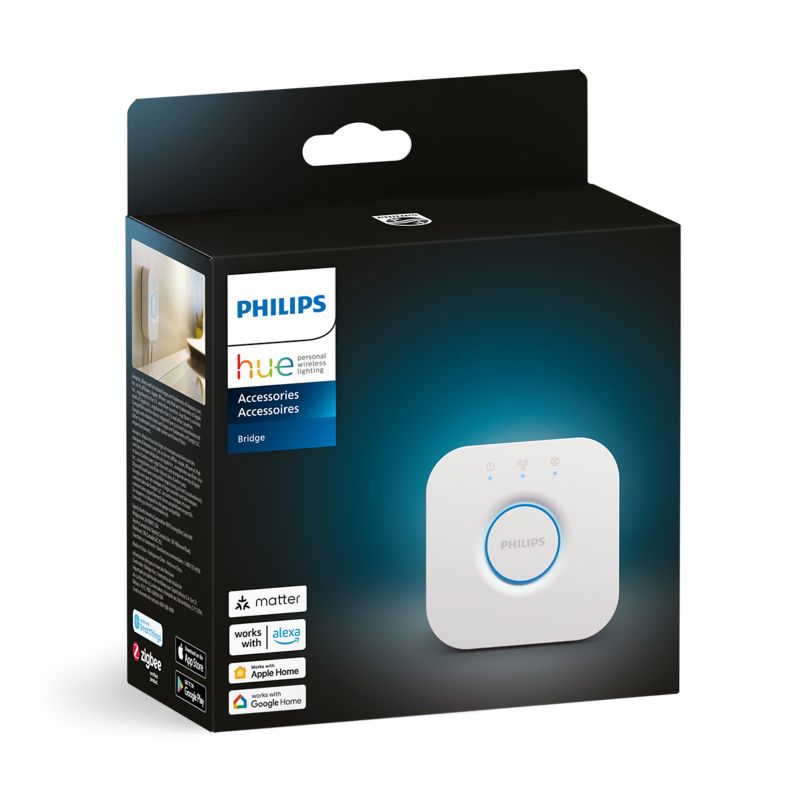
The Philips Hue Bridge updates its firmware automatically through the Hue app whenever it is connected to your home network and the internet – you do not normally need to trigger anything manually. I manage a Hue setup with about a dozen bulbs at home, and the Bridge has quietly updated itself in the background dozens of times without me ever pressing an update button.
Occasionally the automatic process stalls, and that is when people go looking for a manual way to force it. Below is what usually causes that, and what actually fixes it.
Why updates stall
Bridge lost its internet connection partway through downloading the update file.
Router blocking outbound traffic on the ports Hue’s cloud service needs.
Hue app itself is outdated and misreports the Bridge’s actual firmware status.
Bridge was unplugged or lost power at the exact moment an update was being written.
DNS or firewall settings on the router blocking Signify’s update servers specifically.
How to fix it
Confirm the Bridge’s LED ring is solid white/blue, not blinking, which signals a normal internet connection.
In the Hue app, go to Settings > My Hue System > select the Bridge, then tap Check for Update.
Update the Hue app itself from your phone’s app store before troubleshooting further.
Unplug the Bridge for 30 seconds, plug it back in, and wait a few minutes for it to fully reboot and recheck.
If your network uses custom DNS or a strict firewall, temporarily switch to default settings to rule that out.

Step-by-Step: Manually Checking for a Firmware Update
- Open the Hue app and make sure you are signed in to your Hue account.
- Tap Settings in the bottom menu.
- Go to My Hue System and select your Bridge from the list.
- Tap Bridge Settings, then Software Update.
- If an update is available, tap Update Now and keep the Bridge powered on until it finishes – this typically takes two to five minutes.
Why the Bridge Restricts Manual Firmware Files
Unlike some smart home hubs, Signify (the company behind Philips Hue) does not publish standalone firmware files for the Bridge that you can download and sideload. Everything is delivered signed and verified directly from Hue’s cloud service to prevent tampering, since the Bridge also handles Zigbee security keys for every bulb and accessory paired to it. You can read more about how updates are handled on the official Philips Hue support site.
This is a reasonable trade-off for security, but it does mean the only real troubleshooting lever you have is getting the Bridge back online and letting its normal update check run – there is no advanced workaround to force a specific version.
Per Priya S., who is an IT Support Specialist and reviewed Philips Hue on G2, “The Bridge basically maintains itself – the one time I had an issue was after a router replacement, and a simple unplug-replug cycle got the update check running again.”
Checking your current Bridge firmware version
Inside the same Bridge Settings screen described above, the current firmware version number is listed above the Software Update button. You can also see it by visiting http://[your-bridge-ip]/api/config in a web browser on the same network, which is a quick way to confirm the version without opening the app.
Wi-Fi and router settings that block update checks
The Hue Bridge connects to your router over a wired Ethernet cable, not Wi-Fi, so most connectivity problems actually trace back to the router or the network cable rather than wireless signal strength. A few settings worth checking if update checks keep failing:
- Client isolation or AP isolation enabled on the router, which can block the Bridge from reaching Signify’s cloud servers even while it shows as connected.
- A VPN or ad-blocking DNS service applied network-wide that inadvertently blocks Hue’s update domains.
- A damaged or loose Ethernet cable between the Bridge and the router – try swapping the cable if the LED ring flickers instead of staying solid.
- Guest network isolation, if the Bridge was accidentally connected to a guest Wi-Fi router port instead of the main network.
Factory resetting the Bridge as a last resort
If the Bridge still refuses to update after checking the network settings above, a factory reset clears out any corrupted internal state. Press and hold the small round reset button on the bottom of the Bridge for about 10 seconds until the light ring flashes, then set the Bridge up again in the Hue app as if it were new. Note that this removes all bulbs, rooms, and scenes from the Bridge’s memory, so it should be a last step rather than a first one.
Frequently Asked Questions
Will a Bridge firmware update disconnect my bulbs?
No, bulbs stay paired through the update since firmware only affects the Bridge itself, not the Zigbee pairing to your bulbs and accessories.
Do individual Hue bulbs also get separate firmware updates?
Yes, bulbs and accessories receive their own firmware pushed through the Bridge over Zigbee, separate from the Bridge’s own firmware. Both processes run automatically and are checked from the same Software Update screen in the app.
Is it safe to unplug the Bridge during a firmware update?
Avoid it. Interrupting a firmware write can leave the Bridge in a corrupted state that may require a factory reset to recover from, so always wait for the update to finish before disconnecting power.
My Bridge shows an old firmware date even after updating – is that normal?
Signify sometimes rolls out updates in waves rather than to every Bridge at once, so a short delay compared to release announcements is expected and not a fault on your device.
Conclusion
Philips Hue Bridge firmware updates itself automatically, and the fix for a stalled update is almost always restoring a stable internet connection rather than anything more technical. Keep the Hue app current, avoid unplugging the Bridge mid-update, and use the manual Check for Update option in the app whenever you want to confirm you are on the latest version.
Ryan holds a Computer Science degree and has over 20 years of hands-on experience with PC hardware, software, and driver troubleshooting. He is the author behind softwaredriverdownload.com, where he helps everyday users fix driver issues quickly and accurately. Ryan has personally tested most of the fixes on this site across a range of Windows 10 and Windows 11 machines.