The Canon PIXMA TR8620 driver download is available on Canon’s support site as the Full Driver & Software Package, covering print, scan, copy, and fax setup for this compact home-office all-in-one. Here is the complete install process along with fixes for the errors that come up most on this model.
| Field | Detail |
|---|---|
| Applies To | Canon PIXMA TR8620 Wireless Home Office All-in-One |
| Author/Publisher | Canon |
| Driver/Software Date | Varies – check the support page for the newest build |
| Version | Full Driver & Software Package (current release) |
| File Name | tr8620series_x.x.x_win_x.exe (approximate naming) |
| File Size | Approximately 100–180 MB |
| Requirements | Windows 10 or Windows 11, 32-bit and 64-bit supported |
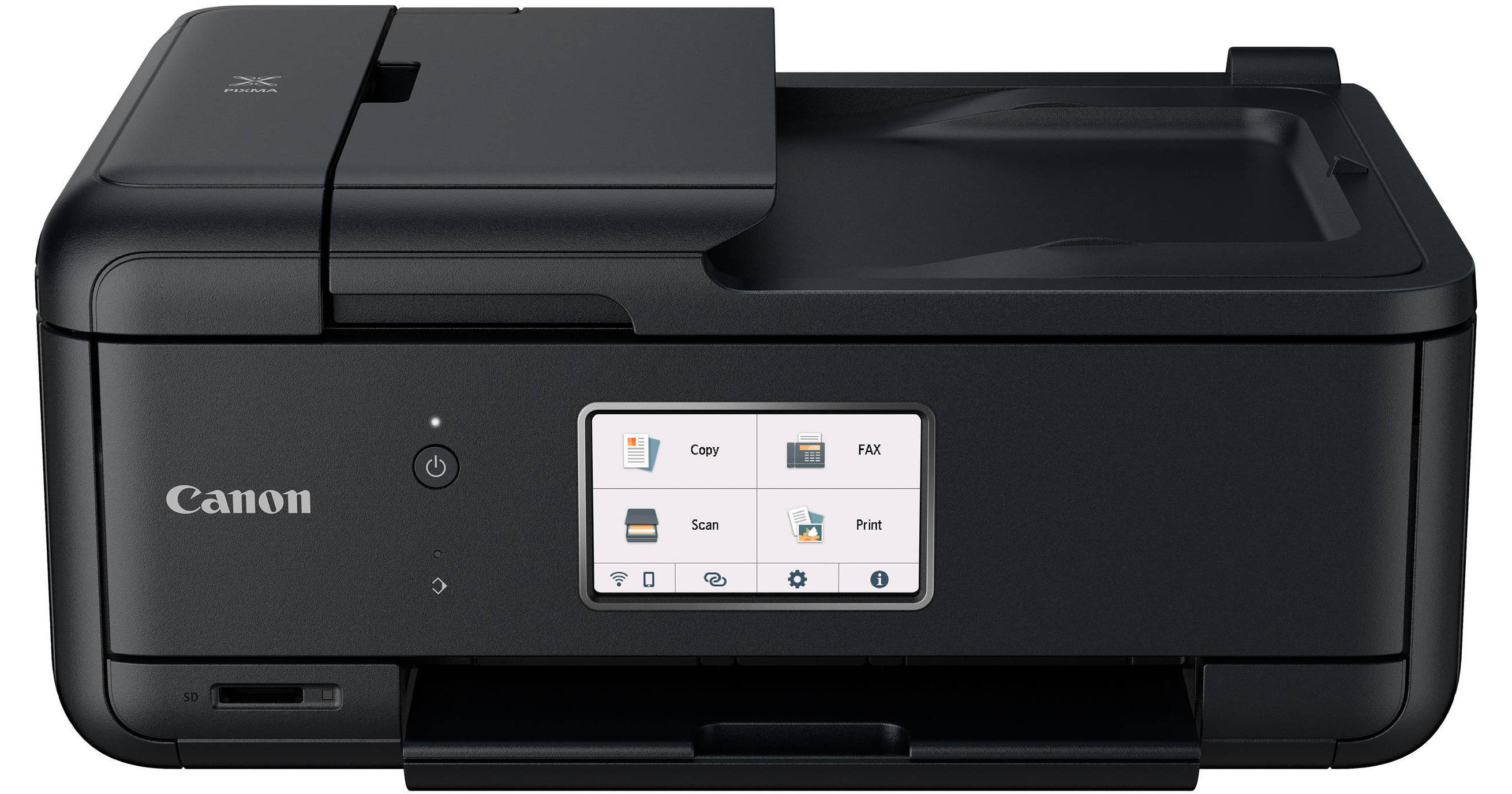
I helped a neighbor set this printer up recently, and the setup went smoothly right up until the wireless step, where the printer kept connecting to a guest Wi-Fi network by mistake. Once we selected the correct main network it worked immediately, which is a mix-up worth checking early.
Downloading and Installing the TR8620 Driver
- Go to the official Canon PIXMA TR8620 support page and select Drivers & Downloads for your Windows version.
- Download the Full Driver & Software Package, not the driver-only file, so scan and fax functions install too.
- Run the installer and choose Wireless LAN Connection when prompted, then select your actual home network, not a guest network.
- Complete the setup wizard and print a test page to confirm the connection works.
Setting Up Wireless and Mobile Printing
The TR8620 uses the 4.3-inch touchscreen for network setup, which is more reliable than doing it purely from the PC installer:
- Tap the Wi-Fi icon on the printer’s home screen, then Wireless Direct or Wireless LAN setup.
- Select your network name from the list and enter your password on the touchscreen keyboard.
- Install the Canon PRINT app on your phone to enable mobile printing and scanning without extra drivers.
- For AirPrint on iPhone or iPad, no app install is needed once the printer is on the same Wi-Fi network.
Fixing Failed Installs and Print Errors
These are the most common TR8620 problems and how to resolve each one:
- Installer stalls at “Searching for printer”: Confirm the printer finished its own wireless setup on the touchscreen first, since the PC installer relies on the printer already being connected to Wi-Fi.
- Print jobs stuck in queue: Restart the Print Spooler service in Windows Services, then clear any stuck jobs from Devices and Printers.
- Scanner not detected even though printing works: Reinstall the Full Driver & Software Package, since a driver-only install skips the scanner (ScanGear) component entirely.
- Error code showing on the touchscreen after ink change: Reseat the ink cartridge fully until it clicks, and check you removed the orange protective tape from a new cartridge.
Manual driver installation via Device Manager
If the installer will not launch or freezes, extract the driver package manually, open Device Manager, locate the printer under Printers or Other Devices, right-click, choose Update Driver, then Browse My Computer for Driver Software, and select the extracted folder.
Per Amanda G., who is a Home Office User, “The five-ink system on the TR8620 makes a real difference for photo prints compared to our old printer. Setup was easy except for the Wi-Fi network mix-up, which was our own fault, not the printer’s.”

Frequently Asked Questions
Why does my TR8620 show “printer not found” during setup?
Check the printer is connected to your main Wi-Fi network, not a guest network, and that your PC is on the same network as well.
Does the TR8620 support double-sided printing automatically?
Yes, it has an automatic duplex unit, which you can enable in the print driver’s settings under two-sided printing.
Can I scan directly to a USB drive without a computer?
Yes, the TR8620 has a front USB port and SD card slot for scanning and printing without a PC connected.
How do I check my ink levels without opening the printer?
Ink levels are shown on the touchscreen under Ink Information, or through the Canon PRINT mobile app.
Can the TR8620 print borderless photos?
Yes, borderless printing is supported up to 8.5×11 inches, selectable in the driver’s Page Setup under Paper Size options for compatible photo paper.
Getting the Best Print Quality From the Five-Ink System
The TR8620 uses a 5-color individual ink system, a dedicated black, cyan, magenta, yellow, and pigment black tank instead of a combined cartridge, which affects both cost and quality if you know how to use it well:
- Because each color is a separate tank, you only replace the color that runs out, not the whole cartridge, which saves money over time.
- For text-heavy documents, the pigment black tank produces sharper, smudge-resistant text compared to the dye-based color inks.
- Run the built-in nozzle check from the touchscreen monthly if the printer sits unused for stretches, since inkjet nozzles can dry out and cause streaky prints.
- Use genuine Canon PGI/CLI ink tanks where possible – third-party ink can trigger inaccurate ink level readings on this model.
My neighbor mostly prints school worksheets and the occasional family photo, and the individual ink tanks meant she was only replacing the black tank most months instead of buying a full new cartridge set, which made a noticeable difference in her ongoing cost per page.
Setting up scan-to-cloud and mobile scanning
The Canon PRINT app also supports scanning directly to cloud services like Google Drive or Dropbox from your phone, bypassing the computer entirely. Open the app, select Scan, choose your cloud destination, and place the document on the flatbed or in the auto document feeder before starting the scan.
Conclusion
The PIXMA TR8620 is a capable home-office all-in-one once the Full Driver & Software Package is installed and the wireless setup is done through the printer’s own touchscreen first. Most connection failures come down to network mismatches rather than a driver problem. Keep the software updated through Canon’s own update tool, use genuine ink tanks for reliable level readings, and it should keep printing, scanning, and faxing reliably.
Ryan T. is a PC hardware enthusiast with over 15 years of experience fixing drivers, and writes for softwaredriverdownload.com, where he helps everyday users fix driver issues quickly and accurately.