xDuoo makes a wide range of portable audio players, dongle DACs, and desktop amps, and nearly all of them share a broadly similar approach to firmware updates: a file copied onto a memory card or drive, then applied through an on-device menu. This guide is intentionally general rather than tied to one specific model, since the steps below apply across most of the current lineup, from the entry-level X-series players to the newer Link and XA dongle DACs. If you own a specific model and want version-by-version change history, check that model’s dedicated page on the manufacturer site first, since exact menu wording varies between products.
| Device Category | Portable DAP, dongle DAC, desktop DAC/amp |
| Update Medium | microSD card or USB drive (model-dependent) |
| Required Format | FAT32, firmware file placed in root directory |
| Update Trigger | On-device system settings or firmware menu |
| Power Requirement | Full charge or kept plugged in during flashing |
| Typical Flash Time | 1 to 5 minutes depending on model |
| Risk if Interrupted | Device can become unresponsive (bricked) without recovery mode |
| Official Source | xDuoo official site or authorized regional distributor |
Why Firmware Updates Matter on These Devices
Unlike a phone, an xDuoo DAP or DAC does not receive automatic background updates. Firmware here typically governs things like USB audio class compatibility, Bluetooth codec support, DSD decoding behavior, and bug fixes for menu glitches or playback stutters reported by early buyers. Skipping updates is usually harmless if the device already works the way you want, but if you are hitting a specific bug, such as a USB DAC mode that will not engage on your particular computer, a firmware update is often the actual fix rather than a settings change.
Before You Start
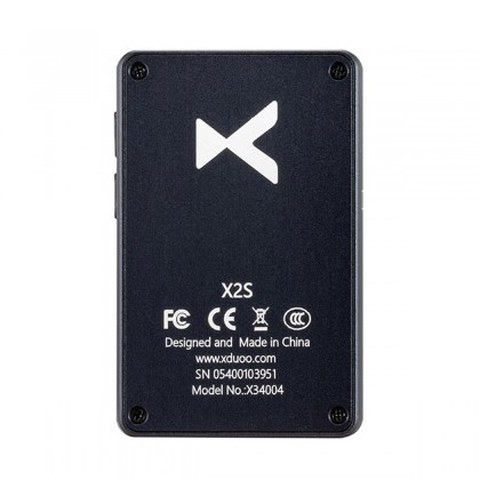
- Confirm the exact model number and hardware revision printed on the back or bottom of the unit
- Charge the device fully, or keep it plugged in throughout the update
- Back up any files stored on the internal memory or SD card, since some update processes can reset storage
- Download firmware only from the official xDuoo site or a listed regional distributor page, never from an unfamiliar forum upload
General Update Process
While exact menu names differ slightly between the X-series players, the Link dongle DACs, and desktop units like the TA-30 or XA-02, the underlying process usually follows this pattern:
- Download the correct firmware file for your exact model from xDuoo’s official resources section.
- Copy the firmware file to the root directory of a microSD card or, for some models, a USB drive; do not place it inside a subfolder.
- Insert the card or drive into the device while it is powered off.
- Power on the unit and navigate to the system settings or firmware update menu.
- Select the update or upgrade option and confirm; the device will read the file and begin flashing automatically.
- Do not remove power or the memory card while the update is in progress, since interrupting this step is the most common cause of a bricked unit.
- Allow the device to restart on its own, then check the system information menu to confirm the new version number is showing.
Troubleshooting a Failed Update
If the device does not detect the firmware file, first double check that it sits in the root directory rather than inside a folder, and that the file was not renamed during download. If the unit restarts but still shows the old version number, try reformatting the card in FAT32 before copying the file again, since some cards formatted in other file systems are not read correctly by these players. If a device becomes unresponsive after a failed flash, most xDuoo players have a recovery mode accessible by holding a specific button combination during power-on; check the manual for your exact model, since this combination is not standardized across the lineup, as shown in community threads on forums like Head-Fi where owners regularly document recovery steps for specific models.
Reading Release Notes Before You Flash
It is worth developing the habit of reading through a firmware’s release notes before installing it, even when the update process itself is quick. Some releases fix a specific bug you may never encounter, while others change default behavior in ways that are not always obvious until after the fact, such as altering how gain or filter settings are remembered between power cycles. A five-minute read through the change log can save you the confusion of wondering why a setting you relied on suddenly behaves differently after an update.
When It Is Better to Leave Firmware Alone
Not every device needs the newest firmware the moment it is released. If your unit already does everything you need it to do without issue, updating purely because a new version exists introduces a small but real risk for no practical benefit. This is especially true for older or discontinued models where a manufacturer’s testing on that update may be less thorough than it once was. A reasonable rule of thumb: update when you are chasing a specific documented fix, and otherwise leave a working device alone.
Keeping Track of Version History Over Time
It helps to jot down the firmware version and date whenever you do update a device, especially if you own several xDuoo products at once. Over months or years it becomes easy to lose track of which unit is running which version, and if you ever need to troubleshoot a specific playback issue with support, being able to state your exact current firmware version speeds up that conversation considerably. A simple note in your phone or a small label inside the original box works just as well as anything more elaborate.
Firmware Differences Between Similar-Looking Models
One mistake worth actively avoiding is assuming two similarly named models share the same firmware file. xDuoo, like most manufacturers in this space, frequently releases variants with small hardware revisions that are not backward or forward compatible at the firmware level, even when the model numbers look nearly identical on a retailer listing. Always cross-check the exact model number and hardware revision printed on your specific unit against the firmware file’s documented compatibility list before flashing anything, since installing a mismatched firmware file is one of the more common ways these updates go wrong.
FAQ
Do I need to update firmware right after buying a new device?
Not necessarily; if the unit works as expected out of the box, there is no requirement to update immediately, though checking for a newer version is a reasonable first step.
Can I downgrade to an older firmware version if I dislike a change?
On most models this is possible by flashing an older firmware file the same way, though always verify the older file is still hosted officially before relying on it.
Will updating firmware erase my music library?
It can on some models, particularly if the update also resets internal storage partitions, which is why backing up files beforehand is worth the extra few minutes.
What happens if the power cuts out mid-update?
This is the scenario most likely to brick a device, which is why keeping the unit plugged in or fully charged before starting is strongly recommended.
Where should I download firmware files from?
Stick to the official xDuoo website or an authorized regional distributor’s support page rather than third-party file-sharing links, since firmware files control low-level device behavior.
I keep a small drawer of SD cards specifically for firmware updates across the various DAPs and dongles I have tested, and this guide reflects the process that has worked reliably across most of them.