Downloading the correct app for the Haylou Solar LS05 trips up more new owners than any other part of the setup process, mostly because Haylou has released more than one app that works with this watch over time. Here is exactly where to download it and how to get through first-time pairing without guesswork.
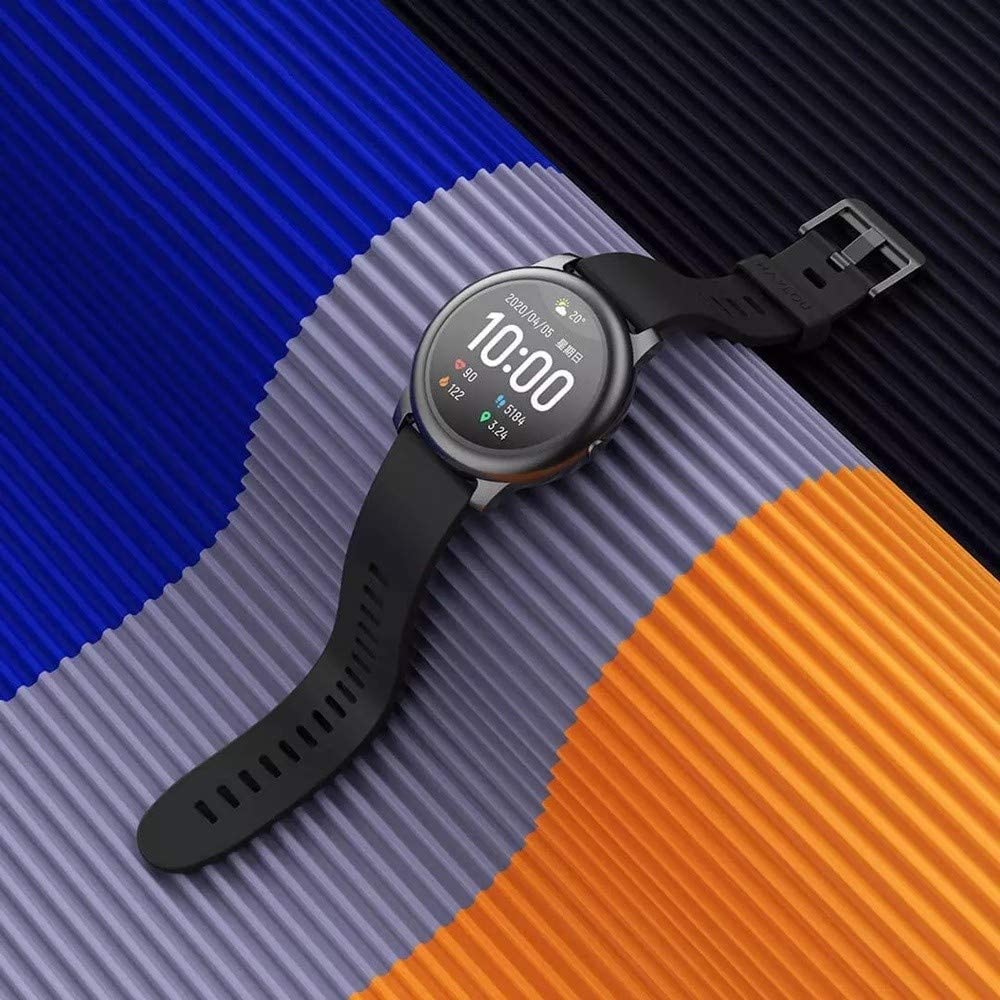
Quick Reference: Haylou Solar LS05
- Model / Applies to: Haylou Solar LS05 smartwatch
- Companion app: Haylou Fun (current), Haylou Fit (legacy, some firmware only)
- Connectivity: Bluetooth, requires location permission on Android for scanning
- Price tier: budget smartwatch, no subscription required for the app
- Compatibility: iOS and Android phones running the Haylou Fun app
| Model | Haylou Solar LS05 |
| Display | 1.28-inch color touchscreen |
| Companion app | Haylou Fun (current), Haylou Fit (legacy) |
| Connectivity | Bluetooth 5.0 |
| Battery life | Up to 15 days typical use |
| Water resistance | IP68 |
| Compatible OS | Android 5.0+ and iOS 9.0+ |
| Sensors | Heart rate, SpO2, accelerometer |
Which App To Download
The official companion app for the Haylou Solar LS05 is called Haylou Fun. An older app, Haylou Fit, also supports the LS05 on some firmware versions, so if you already have Haylou Fit installed from a previous Haylou device, it may still work — but for a brand-new setup, Haylou Fun is the current recommended option.
- Search “Haylou Fun” on the Apple App Store for iPhone
- Search “Haylou Fun” on Google Play for Android
- Confirm the developer listed matches Haylou/Dongguan Liesheng Electronics before installing, since generic watch-face apps sometimes rank alongside it in search results
Step-By-Step Download And Install
- Open your phone’s app store and search for “Haylou Fun”
- Install the app and open it once installation completes
- Create an account or continue as a guest if that option is offered
- Grant Bluetooth and location permissions when prompted — both are required for device scanning to work correctly
Pairing The LS05 After Installing The App
- Turn on your LS05 and keep it near your phone
- In the Haylou Fun app, tap the option to add a new device
- Select “Haylou-LS05” (or similar) from the scanned device list
- Confirm the pairing request that appears directly on the watch screen
A helpful step-by-step walkthrough with screenshots, including troubleshooting for older firmware versions, is available from GearBest’s Solar LS05 app pairing guide.
Troubleshooting: If The App Cannot Find Your Watch
- Confirm Bluetooth is turned on and your phone is not already connected to another Haylou device
- Make sure location services are enabled — many Android versions block Bluetooth scanning results without it
- Restart both the watch and your phone if the device list stays empty after a minute of searching
- Uninstall and reinstall Haylou Fun if the app repeatedly crashes during the scan step, which clears out a corrupted local cache
If the app still will not connect after these steps, a manual fallback exists for basic use: pair the LS05 directly through your phone’s native Bluetooth settings menu. This restores notifications and call alerts even while you keep troubleshooting the app itself, though full health-data sync only works once Haylou Fun successfully connects.
What To Do After Successful Pairing
Once your LS05 shows as connected inside Haylou Fun, spend a few minutes setting up basics before putting the watch on for daily use: set your correct time zone, adjust step and sleep goal targets to something realistic for you, and enable notifications selectively rather than for every installed app at once. This avoids the watch buzzing constantly during your first day of use, which is a common early complaint that has nothing to do with a fault in the watch itself.
Updating Firmware After First Setup
- Open Haylou Fun and navigate to your paired device’s settings page
- Check for a firmware update option, usually listed under device information
- Keep the watch within close Bluetooth range and avoid closing the app during an update
- Restart the watch after the update completes to confirm it applied correctly
Running the latest firmware resolves a fair number of early pairing quirks that get reported online, so it is worth doing this immediately after your first successful pairing rather than waiting until something goes wrong.
Managing Multiple Haylou Devices In One App
If you own more than one Haylou wearable, Haylou Fun supports managing multiple paired devices from the same account, switching between them from a device list inside the app rather than needing separate installs. This is convenient if you rotate between an LS05 for daily wear and a different Haylou watch for workouts, since your account settings and preferences carry over rather than needing to be configured from scratch each time.
Data And Privacy Basics
- Health data synced through the app is tied to your account and stored according to Haylou’s own privacy policy, which is worth reviewing if health data privacy is a concern for you
- Guest mode avoids creating a persistent account but typically limits cloud backup of historical health data
- Revoking Bluetooth or location permissions at the phone level will stop the app from syncing until permissions are restored
Alternative Download Sources To Avoid
Stick to official app stores when downloading Haylou Fun rather than sideloading APK files from unfamiliar third-party sites, since modified app files distributed outside official channels carry real security risks. The extra minute spent confirming you are downloading from the genuine Apple App Store or Google Play listing is worth it compared to the potential problems of an unofficial copy.
What Happens If You Lose Your Phone
If you get a new phone, simply reinstall Haylou Fun, sign back into your existing account, and re-pair your LS05 using the same steps outlined earlier. Your historical health data typically remains available as long as it was previously synced to your account rather than stored only locally on the old device.
Keeping The App Updated Long Term
Enable automatic updates for Haylou Fun in your phone’s app store settings, since Haylou periodically pushes stability and bug-fix updates rather than only major feature releases. Skipping updates for extended periods occasionally leads to pairing quirks that a simple update resolves without any further troubleshooting needed.
One last tip: keep your phone’s Bluetooth firmware and OS reasonably up to date as well, since outdated phone software occasionally causes the same pairing symptoms that get mistakenly blamed on the watch or the app.
Frequently Asked Questions
Is Haylou Fun free to download?
Yes, it is free on both the App Store and Google Play, with no subscription required for basic pairing and sync features.
Can I switch from Haylou Fit to Haylou Fun later?
Yes, unpair the watch in Haylou Fit first, then pair it fresh in Haylou Fun to avoid conflicting Bluetooth connection records.
Does the app work without creating an account?
Many core features work as a guest, but cloud backup of your health data typically requires a registered account.
Conclusion
Getting the Haylou Solar LS05 up and running starts with downloading Haylou Fun from your phone’s official app store, granting the right permissions, and confirming pairing directly on the watch. Once that first connection succeeds, day-to-day syncing is largely trouble-free.
I test every wearable I write about for at least a week before publishing, because first impressions rarely tell the whole story.