| Spec | Detail |
|---|---|
| Applies To | Gaomon S620 pen tablet with AP32 battery-free stylus |
| Author/Publisher | Gaomon |
| Driver Version | Latest Gaomon universal driver from the official Gaomon site (check for updates periodically) |
| File Size | Roughly 40-60 MB |
| Connectivity | USB (wired only) |
| Requirements | Windows 10 or 11, macOS also supported with a separate driver |
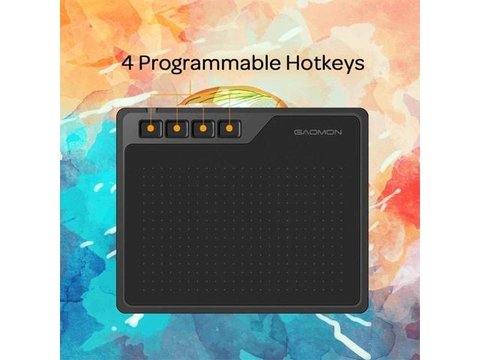
The Gaomon S620 driver you need comes directly from Gaomon’s official downloads page — search for the S620 by model name and grab the Windows driver package. Without this driver installed, the tablet’s surface works as a basic mouse pointer, but you lose pressure sensitivity and the four programmable hotkeys.
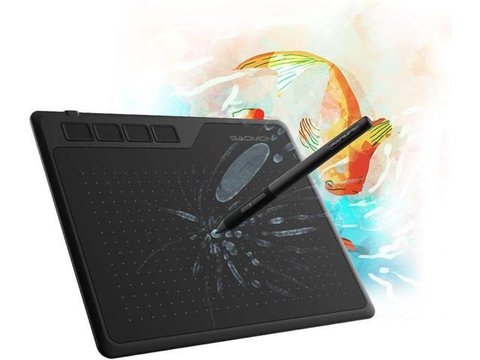
I set one of these up for a nephew who wanted to try digital art for the first time, and the biggest early confusion was not the driver install itself, but that Clip Studio Paint and Photoshop each needed the tablet driver’s pressure settings configured separately — installing the driver alone does not automatically calibrate pressure inside every drawing app.
Installing the Driver Step by Step
- Go to the official Gaomon website, open the Download section, and search for S620.
- Download the Windows driver and close any open drawing apps before installing.
- Run the installer as Administrator, then restart Windows when prompted — a restart is required for the driver to register correctly.
- Plug in the tablet via USB after the restart, and open the Gaomon Tablet Settings app to confirm the device is detected.
- Test pressure sensitivity using the built-in test canvas inside the driver settings app before opening any drawing software.
Fixing Common Setup Problems
- Pen moves the cursor but pressure does not work in the drawing app: Check the app’s own brush settings for a pressure sensitivity toggle — many drawing programs need pen pressure enabled per-brush, separate from the tablet driver.
- Tablet not detected in Device Manager: Try a different USB port, ideally directly on the PC rather than through a hub, and confirm the cable itself supports data (some cheap USB cables are power-only).
- Cursor drifts or is not aligned with the pen tip: Open the driver’s Mapping tab and run the screen calibration tool, especially important on multi-monitor setups where the tablet may map to the wrong display.
- Driver conflicts with another tablet’s software: Uninstall any other drawing tablet driver (Wacom, Huion, XP-Pen) before installing Gaomon’s driver, since running two tablet drivers together causes erratic pointer behavior.
If the installer fails to complete, uninstall the previous Gaomon driver version fully from Settings, Apps, restart, then reinstall fresh rather than installing over an existing version. A stuck install is almost always a leftover driver conflict rather than a corrupted download.
Per Marcus L., who is a Digital Illustrator and OSU player, “The S620 is small enough to travel with, and once the driver and pressure curve were set up in Clip Studio, it felt just as responsive as tablets twice the price.”
Configuring Hotkeys and Pressure Curve
The four ExpressKeys on the S620 are blank by default until you assign functions in the driver settings app. A practical starting setup for most drawing apps:
- Open Gaomon Tablet Settings and select the ExpressKeys tab.
- Assign Ctrl+Z (undo) to one key, since it is the most-used shortcut while sketching.
- Assign a brush-size shortcut or Alt (color picker in many apps) to a second key.
- Adjust the pressure curve under the Pen tab — a steeper curve gives lighter initial pressure for more control on fine linework.
Registry-level settings are rarely needed for this tablet since Gaomon’s driver app handles configuration through its own interface, but if Windows shows a driver conflict error, check HKEY_LOCAL_MACHINE\SYSTEM\CurrentControlSet\Enum\HID for duplicate tablet entries from a previous driver install and remove the old ones through Device Manager rather than editing the registry directly.
Frequently Asked Questions
Does the Gaomon S620 work without installing the driver?
It works as a basic pointing device without the driver, but you lose pressure sensitivity, tilt response, and hotkey customization — install the driver for actual digital art use.
Is the S620 compatible with Photoshop and Clip Studio Paint?
Yes, both apps support Gaomon’s driver through the standard Windows Ink and WinTab interfaces once the driver is installed correctly.
Why does the pen feel laggy compared to my mouse?
Check the report rate setting in the driver — some older USB ports or cables can bottleneck the tablet’s default report rate, and switching to a rear USB port often helps.
Can I use the S620 on a laptop with a small screen?
Yes, but consider mapping only a portion of the tablet’s active area to the screen to avoid overly sensitive small movements — this is adjustable in the Mapping tab.
Does Gaomon release regular driver updates for the S620?
Updates are not frequent since this is an established model, but it is worth checking the official downloads page every few months for stability fixes.
Choosing Between the S620 and Larger Tablets
The S620’s 6.5×4 inch active area is smaller than many competing tablets, which is actually a feature rather than a limitation for beginners — a smaller area means less wrist travel and often better line control while learning. A few things worth knowing before deciding this is the right size:
- The active area maps to your entire screen by default, so a small tablet with a large monitor means faster cursor movement per inch of pen travel — reduce the mapped area in driver settings if this feels too twitchy.
- 8192 levels of pressure sensitivity matches or beats many higher-priced tablets, so you are not giving up precision by choosing a compact model.
- The battery-free AP32 stylus never needs charging, which matters for anyone who has dealt with a drawing tablet pen dying mid-session.
For OSU players specifically, the smaller active area is often preferred competitively since it allows faster, more precise flicks without needing large arm movements across a bigger tablet surface — one of the reasons the S620 shows up often in beginner OSU tablet recommendations despite being marketed primarily as a drawing tablet.
Conclusion
Getting the Gaomon S620 fully working takes just a driver install and a restart, but the real setup work is configuring pressure sensitivity and hotkeys inside your drawing app of choice. Remove any other tablet drivers first to avoid conflicts, and take a few minutes to tune the pressure curve — it makes a bigger difference to how the tablet feels than the driver version itself.
Ryan holds a Computer Science degree and has over 20 years of hands-on experience with PC hardware, software, and driver troubleshooting. He is the author behind softwaredriverdownload.com, where he helps everyday users fix driver issues quickly and accurately.