The Logitech MX Master 3S connects and works immediately over Bluetooth or the included Logi Bolt USB receiver, but installing Logi Options+ from Logitech’s official support site is what unlocks gesture customization, app-specific button profiles, and the quiet-click adjustment this mouse is known for. Here is the full setup process and fixes for common software issues.
The MX Master 3S is Logitech’s flagship productivity mouse, built around an 8K DPI sensor, MagSpeed electromagnetic scrolling, and quieter clicks than the original MX Master 3. It pairs with up to three devices and switches between them with one button, which makes the software setup worth doing properly from the start.
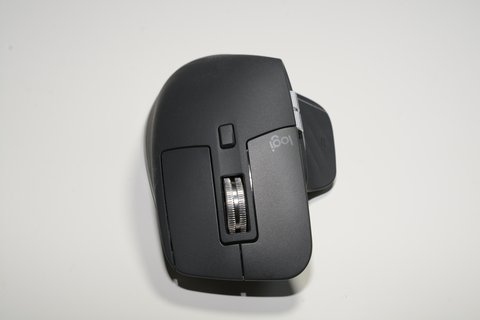
| Field | Detail |
|---|---|
| Applies To | Logitech MX Master 3S wireless mouse |
| Publisher | Logitech |
| Software | Logi Options+ (replaces the discontinued Logitech Options) |
| File Size | Options+ installer roughly 150-200 MB |
| OS Compatibility | Windows 11, Windows 10 (32-bit and 64-bit); macOS also supported |
Do You Need Software to Use It?
The MX Master 3S works as a plug-and-play mouse the moment you pair it, whether over Bluetooth or the bundled Logi Bolt receiver. You only need Logi Options+ if you want to:
- Reassign the thumb buttons and gesture button to app-specific actions
- Switch the scroll wheel between free-spin (MagSpeed) and ratchet click modes
- Adjust pointer speed and DPI beyond the default setting
- Manage the three-device Easy-Switch pairing and rename each connection
I switched to an MX Master 3S for daily editing work, and the single biggest software win was mapping the thumb wheel to horizontal scroll in spreadsheet software specifically, since Options+ lets you set per-application button behavior rather than one global mapping.
Downloading and Installing Logi Options+
- Go to Logitech’s official Logi Options+ download page and download the Windows installer.
- Run the installer and restart if prompted.
- Pair the mouse via Bluetooth, or plug in the included Logi Bolt receiver.
- Open Logi Options+ — it should detect the MX Master 3S automatically.
- Customize buttons, scrolling, and gestures from the mouse’s settings tile.
Fixing Common Software Problems
Options+ Does Not Detect the Mouse
- Confirm Bluetooth is turned on and the mouse shows as connected in Windows Bluetooth settings
- If using the Bolt receiver, try a different USB port, ideally directly on the motherboard
- Restart the Logi Options+ background service from Task Manager’s Services tab
Scroll Wheel Mode Switch Not Working
The MX Master 3S normally switches scroll modes automatically based on scroll speed, but if it gets stuck in one mode, open Options+, go to the scroll wheel settings, and toggle SmartShift off and back on to reset the behavior.
Manual Recovery When Options+ Will Not Install
If the installer refuses to run or the mouse is not recognized at all:
- Uninstall any old Logitech Options (non-Plus) or SetPoint software completely first.
- Delete leftover folders in %ProgramData%\LogiOptionsPlus if they exist.
- Reboot, then reinstall Logi Options+ fresh as administrator.
Setting Up Multi-Device Switching
One of the MX Master 3S’s best features is Easy-Switch, letting it pair with up to three devices and jump between them with a button press on the underside. Set this up properly by naming each connection in Options+ (like “Work Laptop” or “Home PC”) so switching is intuitive rather than guessing which slot is which.
- Press and hold the Easy-Switch button until the LED for an empty slot blinks, then pair a new device
- Rename each paired device inside Options+ for clarity when switching between them
- Enable Logi Flow if you use multiple PCs, which lets the cursor move between machines and even copy-paste across them
Per Elena V., who is a freelance graphic designer, “The MagSpeed scroll wheel alone made switching from my old mouse worth it, and once I set up per-app gestures in Options+ I stopped reaching for the keyboard as often during editing.”
Battery and Charging Tips
The MX Master 3S charges over USB-C and lasts roughly 70 days on a full charge with typical use, though heavy gesture and RGB-adjacent app usage can shorten that. A quick one-minute charge provides several hours of use if the battery runs out unexpectedly during work.
Cleaning and Maintenance
The MX Master 3S sees heavy daily use for most owners, and the MagSpeed scroll wheel benefits from occasional care to keep its smooth, near-silent spin over time. Dust and finger oils build up around the wheel and thumb rest faster than on a basic mouse.
- Wipe the shell weekly with a slightly damp microfiber cloth, avoiding the scroll wheel gap
- Use compressed air around the scroll wheel housing monthly to clear dust before it affects the free-spin action
- Check the mouse feet periodically and replace them once glide starts feeling inconsistent on your desk surface
After about a year of daily use, my own MX Master 3S developed a faint scratchy sound during free-spin scrolling, and a short blast of compressed air into the wheel housing resolved it without needing to open the shell.
Frequently Asked Questions
Do I need Logi Options+ for the mouse to work?
No, it pairs and works immediately without software, but you lose button customization, gesture control, and Easy-Switch device naming.
Can I use the old Logitech Options app instead?
Logitech Options has reached end of support. Logi Options+ is the only actively maintained software for the MX Master 3S now.
Why did my paired device disappear from Easy-Switch?
This can happen after a Bluetooth driver update on the paired PC. Re-pair that device to the same Easy-Switch slot to restore the connection.
Is the MX Master 3S compatible with Windows 11?
Yes, Logi Options+ and the mouse itself are both fully supported on Windows 11.
Conclusion
The MX Master 3S works fine out of the box, but Logi Options+ is what turns it into the productivity tool it is designed to be, especially with per-application gestures and multi-device switching. If the software ever loses track of the mouse, a clean reinstall after removing leftover LogiOptionsPlus folders resolves nearly every detection issue.
Ryan T.
PC hardware enthusiast · 15+ years fixing drivers
Ryan T. has spent years testing drivers and hardware setups on real machines, and writes for softwaredriverdownload.com, helping everyday users get their devices working correctly.