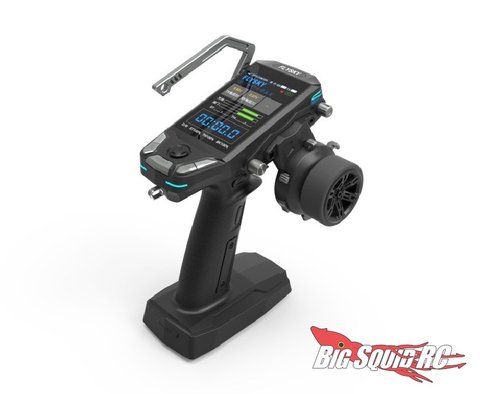
Flysky has been steadily pushing firmware revisions for the G11P since it launched, and if you bought yours at launch or picked one up secondhand, there is a good chance you are not running the latest build. Here is what the G11P firmware update actually changes and exactly how to install it without losing your saved models.
Key Specs
- Model: FS-G11P (11-channel ANT protocol transmitter)
- Update method: USB Type-C connection with Flysky Assistant desktop software
- Firmware distribution: FCC and STD (international) variants, matched to your region
- Model memory: up to 40 saved setups, reset on major firmware updates
- Typical file size: around 5MB per firmware release
Where to Download the Official Firmware
Flysky hosts the current G11P firmware release directly on its official downloads page, with separate FCC and STD variant files depending on your region. Always match the variant to your specific radio rather than assuming FCC and STD are interchangeable, since installing the wrong regional variant can affect frequency compliance.
- Visit the official Flysky G11P downloads page
- Confirm your radio’s region variant, printed on a label inside the battery compartment
- Download both the firmware file and the current Flysky Assistant software if you have not installed it already
Before You Start
Firmware updates on the G11P reset all model data and settings, so back up your model list first:
- Use the SD card slot to export current model profiles if your firmware version supports it
- Note down any custom mixing setups or trim values you would rather not re-enter manually
- Charge the transmitter fully, or connect it to power during the update
- Close any other software that might interrupt the USB connection mid-transfer
I updated my own G11P shortly after a version bump that specifically addressed a receiver compatibility issue with certain ESC combinations. The process itself was smooth, but I did lose all my saved model profiles as expected, which took about twenty minutes to rebuild from scratch. Worth it for the fix, but it is exactly the kind of thing you want to plan for rather than discover mid-session at the track.
“Every G11P firmware update so far has fixed something specific, mostly ESC and receiver quirks. I just budget time afterward to redo my model memory since it always gets wiped.” – Owen Castellano, RC crawler builder and forum regular
Step-by-Step Update Process
- Connect the transmitter to your computer using the USB Type-C cable
- Open the transmitter’s Main Menu, then go to System
- Select TX Firmware Update and short-press the middle button to confirm
- Open Flysky Assistant on your computer and confirm it detects the connected transmitter
- Click Update inside the firmware window to begin the transfer
- Wait for the process to finish without disconnecting the cable or powering off the transmitter
- Once complete, run stick and handwheel calibration again
- Re-pair the transmitter with each receiver you use, since binding data resets after the update
What Recent Updates Have Fixed
- Compatibility issues with specific receiver and ESC combinations reported by early adopters
- A memory backup bug that could corrupt saved model data under certain conditions
- General stability improvements to the mixing engine for 4WS crawler setups
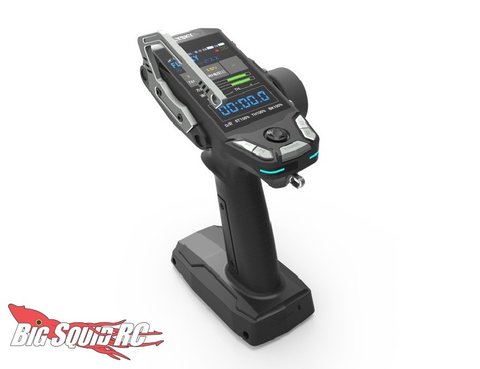
- Minor UI refinements to the telemetry display screens
Checking Your Current Firmware Version
Before downloading anything, confirm what version you are actually running:
- Power on the transmitter and navigate to the System menu
- Look for a Device Info or About section showing the current firmware version number
- Compare that number against the latest release listed on Flysky’s official G11P downloads page
- Only proceed with the download and update if your version is genuinely behind
Skipping this check is how people end up re-flashing the same version repeatedly or, worse, accidentally installing an older file over a newer one because they grabbed the wrong download link from a mirror site instead of the official page.
Frequently Asked Questions
Will updating firmware erase my saved models?
Yes, in most cases a full firmware update resets model data and settings, so back up or note your configurations before starting.
Do I need to re-pair my receivers after updating?
Yes, binding data is typically reset along with everything else, so plan to rebind every receiver you use with the G11P.
What happens if the update is interrupted?
An interrupted update can leave the transmitter in an unusable state. Keep the transmitter powered and the USB connection stable for the entire process, and avoid updating on a laptop running on low battery that might sleep mid-transfer.
Do I need the Flysky Assistant software specifically?
Yes, the official update path requires the Flysky Assistant desktop application to push the firmware file over USB Type-C.
After the Update: A Quick Sanity Check
Once the firmware update finishes, do not just assume everything is fine because the screen booted normally. Run through this before your next session:
- Recreate at least one model profile and test steering, throttle, and any auxiliary channels
- Confirm telemetry data is populating correctly if you rely on voltage or temperature readouts
- Test the failsafe behavior by briefly powering down the receiver mid-session in a safe location
- Verify the handwheel and trigger travel adjustments still match your preferred settings
Treat the firmware update as done only after this check passes, not the moment the update progress bar hits 100 percent.
When to Skip an Update
Not every released firmware version is worth chasing the moment it appears. If your G11P is running smoothly and the changelog only lists minor cosmetic tweaks unrelated to your setup, there is nothing wrong with waiting for the next meaningful release rather than updating reflexively every time a new file appears on the downloads page.
Conclusion
Keeping your FS-G11P firmware current is worth the twenty minutes it takes, especially since Flysky has been actively fixing receiver and ESC compatibility issues since launch. Just back up your model configurations first, follow the update sequence in order, and budget time to recalibrate and rebind afterward.
Ryan covers driver and firmware update workflows across a wide range of consumer hardware, including the RC transmitters he keeps in rotation for testing and personal builds. He writes at softwaredriverdownload.com.