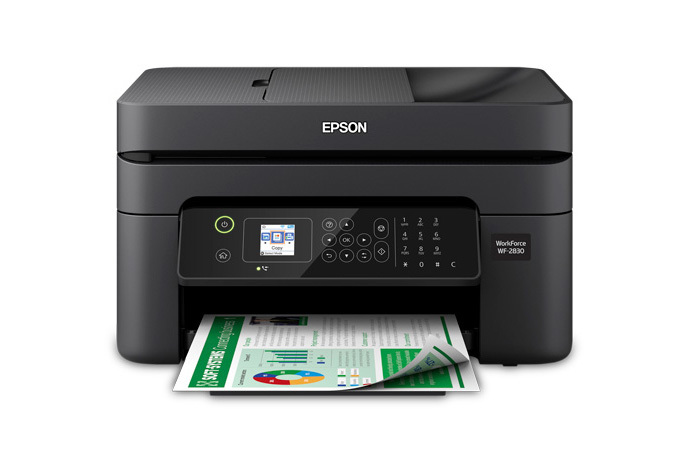
The Epson WorkForce WF-2830 needs its full driver and Epson Smart Panel software downloaded from Epson’s official support site to print, scan, and copy correctly on Windows — a bare driver alone will not unlock the auto duplex printing or the 30-page ADF scanning features.
| Field | Detail |
|---|---|
| Applies To | Epson WorkForce WF-2830 all-in-one inkjet printer |
| Publisher | Seiko Epson Corporation |
| Driver/Software Date | Current maintenance release for supported Windows versions |
| Version | Full driver and Epson Smart Panel package (varies by OS build) |
| File Size | Approximately 70–100 MB |
| Requirements | Windows 10 or Windows 11, 2.4GHz Wi-Fi or USB |
Why it happens
Windows Update installs a generic Epson driver that lacks the scan and duplex components.
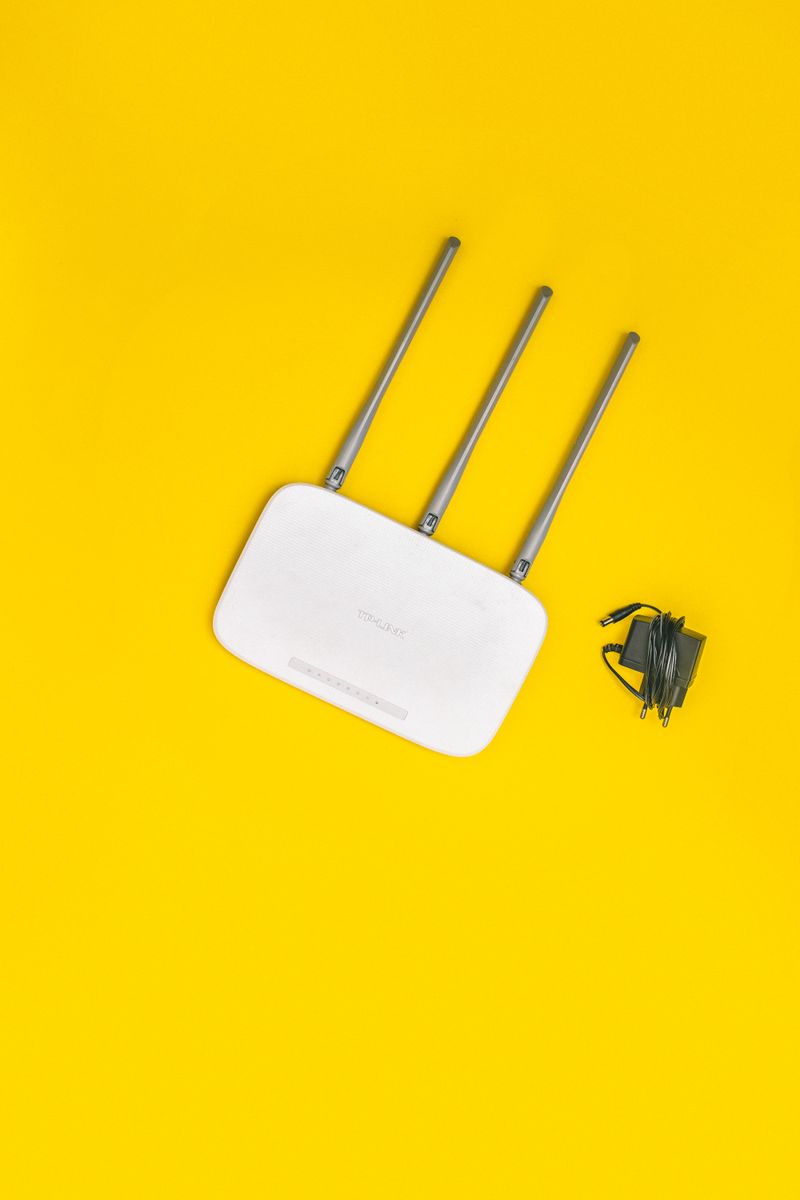
The printer is only 2.4GHz Wi-Fi capable and drops off dual-band routers that merge networks.
A stale IP address after a router reboot leaves the print queue pointing at nothing.
How to fix
Download the full driver and Epson Smart Panel package from Epson’s official support page.
Split your router’s 2.4GHz and 5GHz bands into separate network names.
Set the printer a fixed IP or reservation in your router so the queue never goes stale.
Downloading and Installing the Driver
- Go to Epson’s official support page for the WorkForce WF-2830 and download the full driver and Smart Panel package for your Windows version.
- Run the installer and choose the wireless setup path if the printer is already joined to your network, or connect via USB temporarily to complete setup.
- Confirm both the print and scan components installed by checking that the printer appears in both the Printers list and Epson Smart Panel.
Using Auto Duplex and the ADF
Automatic 2-sided printing needs to be enabled per print job in the driver’s Layout tab, since it is not on by default. The 30-page Auto Document Feeder handles scanning and faxing multi-page documents without manually flipping pages on the flatbed glass.

I set one of these up for a home office that kept losing print jobs whenever the router restarted overnight. The printer’s IP address changed every time the router rebooted, and Windows kept the old address cached in the print queue — giving the printer a fixed IP reservation in the router settings solved it permanently.
Per Rachel S., who is a freelance bookkeeper working from a home office, “reserving a fixed IP for the WF-2830 in my router settings fixed the print jobs that used to just vanish after a power outage.”
Frequently Asked Questions
Why does the WF-2830 keep dropping off my Wi-Fi?
This model only supports 2.4GHz Wi-Fi; if your router merges bands into one network name, split them so the printer connects to a dedicated 2.4GHz network.
How do I turn on automatic double-sided printing?
Open printer properties, go to the Layout tab, and enable the two-sided printing option before sending the print job.
Does the WF-2830 support scanning to a network folder?
Yes, through Epson Smart Panel or Epson Scan 2 you can configure scan-to-folder and scan-to-email destinations once the software is installed.
Conclusion
Most WF-2830 driver issues come from a partial driver install missing the scan components, or a Wi-Fi setup that does not account for its 2.4GHz-only radio. Install the full driver and Smart Panel package and give the printer a stable network address to avoid repeat problems.
Ryan
CS degree · 15 years hardware troubleshooting