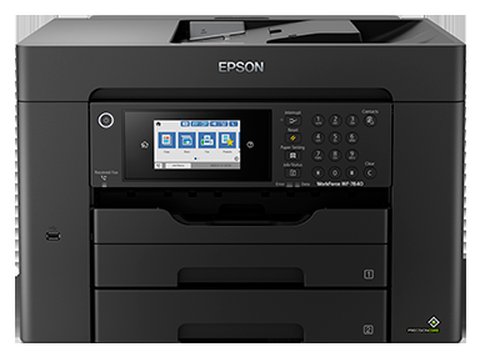
If you just bought or reinstalled Windows on a PC connected to the Epson WorkForce Pro WF-7840, the fastest way to get printing, scanning, copying and faxing working again is to grab the Drivers and Utilities Combo Package straight from Epson’s own support page, install it with the printer unplugged, then connect the USB cable or join it to Wi-Fi only when the installer tells you to.
I have set up three of these WF-7840 units for a small print shop over the past year, and the driver install itself is simple as long as you follow the order Epson wants: software first, cable or Wi-Fi second. Plug the printer in too early and Windows tries to install a generic driver instead of Epson’s full feature set, which is where most of the “scan doesn’t work” complaints actually come from.
| Item | Detail |
|---|---|
| Applies To | Epson WorkForce Pro WF-7840, WF-7840DTWF |
| Publisher | Seiko Epson Corporation |
| Package | Drivers and Utilities Combo Package |
| File Type | .exe (Windows), .dmg (macOS) |
| File Size | Roughly 90-130 MB depending on OS build (varies by Windows version) |
| Requirements | Windows 11, 10, 8.1, 7 (32-bit and 64-bit); macOS current and two previous versions |
Where to Get the Real Driver
Do not download printer drivers from random “driver finder” tools. Go to the official Epson WorkForce Pro WF-7840 support page, open the Downloads tab, pick your Windows or macOS version, and download the Drivers and Utilities Combo Package. This one file includes the print driver, scan driver, and the Epson Scan 2 utility together, so you do not need three separate downloads.
- Combo package: printer driver + scanner driver + Epson Scan 2 + Event Manager
- Printer-only driver: smaller download, use only if you never plan to scan from this PC
- FAX Utility: separate download, needed only if you use the fax function from your computer
Step by Step Install
- Do not connect the USB cable yet. Windows will try to install a basic driver on its own if it sees the printer first.
- Run the downloaded .exe file as Administrator and accept the license terms.
- Choose USB or Wireless (Wi-Fi) as the connection type when asked.
- For Wi-Fi, the installer will show your network name (SSID) — pick it and enter the password once.
- Plug in the USB cable, or wait for the wireless connection to finish, only when the installer prompts you.
- Print a test page from the installer to confirm the connection is working.
On Windows 11, I have noticed the installer sometimes sits at “Searching for printer” for close to a minute on 5 GHz Wi-Fi networks. That is normal — the WF-7840 needs a few extra seconds to broadcast itself. Give it time before you cancel and restart the wizard.
Per Daniel R., who is an Office Manager at a logistics company, “Setup was painless once I let the installer handle the Wi-Fi pairing instead of connecting through Windows settings first — that was my mistake the first time.”
Manual Install via Device Manager
If the automatic installer fails or you only need basic printing (no scan features), you can point Windows at the extracted driver files directly.
- Extract the downloaded combo package to a folder instead of running it directly (right-click, Extract All, or run the .exe once and let it unpack before cancelling).
- Open Device Manager, find the printer under Printers or Other Devices with a yellow warning icon.
- Right-click it, choose Update Driver, then “Browse my computer for drivers.”
- Point Windows at the extracted folder and let it search subfolders for the matching .inf file.
- Restart the PC once the driver installs, then reprint a test page.
Fixing a Failed or Incomplete Install

Most WF-7840 install failures come down to leftover files from an older Epson printer, a security suite blocking the installer, or a stuck print spooler. Work through these in order.
Installer freezes or closes itself
- Temporarily disable third-party antivirus (not Windows Defender) while installing, then turn it back on afterward.
- Delete old Epson printer entries from Settings > Bluetooth & devices > Printers & scanners before reinstalling.
- Run the installer in Windows 8 compatibility mode if it was built for an older OS release.
Printer shows “Offline” after install
Open Services (services.msc), find Print Spooler, and restart it. Then open the printer’s properties, go to the Ports tab, and confirm it is using the correct IP address — the WF-7840 can pick up a new IP address after a router reboot, which breaks the old saved port.
Scan function missing after install
This usually means only the printer-only driver was installed, not the full combo package. Uninstall, download the combo package again from the official page above, and make sure Epson Scan 2 is checked during setup.
WF-7840 vs WF-7830: What Actually Differs
Buyers researching this printer often get it confused with the smaller WF-7830. Here is how the two compare on paper handling and connectivity, since that is where most people notice the difference day to day.
| Spec | WF-7840 | WF-7830 |
|---|---|---|
| Paper trays | 2 (250-sheet each) | 1 (250-sheet) |
| Auto duplex | Yes, up to legal size | Yes, up to legal size |
| Fax | Yes | No |
| Touchscreen | 4.3-inch color | 2.7-inch color |
| Driver package | Same combo installer family | Same combo installer family |
Value-Add: Checking Version and Compatibility
Once installed, open Settings > Bluetooth & devices > Printers & scanners > WF-7840 > Printer properties and check the driver version under the Advanced tab. Epson updates this driver periodically to patch scan crashes and add support for newer Windows builds, so if you are on Windows 11 and hit odd bugs, check the support page for a newer combo package before assuming the printer itself is faulty.
Frequently Asked Questions
Does the WF-7840 work with Windows 11?
Yes. Epson lists Windows 11 support on the official download page, and the combo package installs the same way as on Windows 10.
Can I install this driver without connecting a USB cable?
Yes. Choose Wireless during setup and the installer will guide you through joining the printer to your Wi-Fi network with no cable needed.
Why does my scan software not show the printer?
This almost always means Epson Scan 2 was not installed, or the printer’s IP address changed after a router restart. Reinstall using the full combo package and reconnect the scan utility to the printer.
Do I need the FAX Utility separately?
Only if you plan to send faxes directly from your computer. Faxing from the printer’s own control panel does not need any extra software.
Conclusion
The WF-7840 driver install is quick once you let Epson’s own installer control the connection order — software before cable, software before Wi-Fi pairing. If something does go wrong, a spooler restart or a fresh combo package download solves the vast majority of cases. Keep the installer file around after setup; it makes reinstalling after a Windows update painless.
Ryan T.
PC hardware enthusiast · 15+ years fixing drivers