The Epson TM-T88VI is one of the most common thermal receipt printers behind retail counters, and getting it talking to a Windows POS system depends on installing Epson’s Advanced Printer Driver (APD) rather than assuming Windows will pick the right one automatically. This guide covers the official download, the manual install path, and the fixes for the connection issues that come up most.
I set up a TM-T88VI for a small cafe’s new POS terminal, and the printer worked fine for a basic Windows test page but would not print receipts through the actual POS software until the Epson APD driver — not the generic Windows print driver — was installed and selected inside the POS app’s printer settings.
Quick Spec Reference
| Field | Detail |
|---|---|
| Applies To | Epson TM-T88VI / OmniLink TM-T88VI thermal receipt printer |
| Publisher | Seiko Epson Corporation |
| Driver Package | Advanced Printer Driver (APD) for Windows |
| Version | Latest APD release listed on Epson’s POS support page |
| File Size | Approximately 30–50 MB |
| Requirements | Windows 11, Windows 10, Windows Server editions; USB, Ethernet, Bluetooth, or Wi-Fi depending on model configuration |
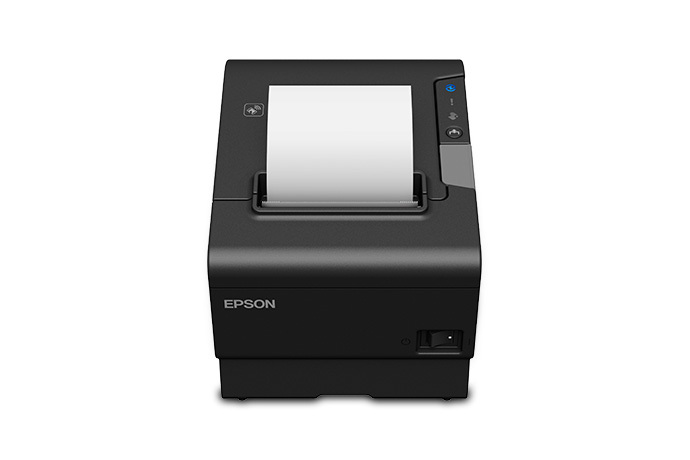
Downloading the Epson TM-T88VI Driver
- Go to the official Epson TM-T88 series support page and confirm you are on the TM-T88VI section specifically.
- Download the Advanced Printer Driver (APD) for Windows — this is the correct driver for POS software, not the standard consumer print driver.
- Run the installer and select the TM-T88VI from the model list.
- Choose your connection type: USB, Ethernet, Bluetooth, or serial, matching how your printer is actually wired.
- After installation, open Devices and Printers and print a Windows test page to confirm basic connectivity before opening your POS software.
Most POS applications (Square, Toast, generic OPOS-based systems) expect the APD driver to be installed first, then reference it by name in their own printer setup screen — installing the driver alone is not enough if the POS software still points at the wrong printer entry.
Manual Driver Install via Device Manager
- Download and extract the APD package instead of only running the installer.
- Connect the TM-T88VI over USB and power it on.
- Open Device Manager, locate the printer under “Printers” or “Other devices,”
- Right-click, choose Update driver, then Browse my computer for drivers, and select the extracted APD folder.

Fixing Common Epson TM-T88VI Problems
Printer Prints Test Page but Not Receipts from POS Software
- Open your POS software’s printer settings and confirm it is pointing to the APD driver entry, not a generic or duplicate Windows print queue.
- Check that the paper width setting in the POS software matches your loaded roll (typically 80mm for the TM-T88VI).
- Restart the POS software after installing or changing the driver — most POS apps only detect printer changes on launch.
Printer Not Detected Over Ethernet
- Print a self-test receipt (hold the feed button while powering on) to see the printer’s current IP address.
- Confirm that address is on the same subnet as the POS computer.
- Assign a static IP to the printer through Epson’s TM-Utility or your router’s DHCP reservation settings so the address does not change after a power cycle.
Receipts Print Faded or with Gaps
- Check the paper roll is loaded thermal-side up — thermal paper only prints on one coated side, and it is easy to load backwards.
- Clean the print head with an isopropyl alcohol swab; grease and dust buildup is the most common cause of faded receipts.
- Confirm you are using genuine or comparable-quality 80mm thermal paper — low-quality paper can cause inconsistent contrast.
Per Renaldo F., who is a Restaurant Owner using a Windows-based POS system, “The T88VI is basically the industry standard for a reason — once the APD driver is set up correctly in the POS software, we’ve never had a print failure during service.”
Reinstalling After a Failed Setup
- Uninstall the existing Epson APD driver from Settings > Apps.
- Remove any duplicate or offline printer entries from Devices and Printers.
- Restart the computer.
- Reinstall the APD driver fresh, then reselect it inside your POS software’s printer configuration screen.
TM-T88VI vs TM-T88V
Epson’s T88 line has been through several generations, and the T88VI added faster connectivity options over the T88V, which is worth checking if you are buying replacement hardware for an existing setup.
| Spec | TM-T88V | TM-T88VI |
|---|---|---|
| Print Speed | 300 mm/sec | 350 mm/sec (with PS-180 power supply) |
| Built-in Interfaces | USB, Serial, optional Ethernet | USB and Ethernet built in by default |
| Cloud/ePOS Support | Limited | Full ePOS-Print and remote firmware update support |
| NFC Pairing | No | Yes, for Bluetooth tablet pairing |
If you are replacing an older T88V with a T88VI, reinstall the driver rather than reusing the old one — the APD packages are not always interchangeable between generations even though the printers look nearly identical.
Frequently Asked Questions
Do I need the Advanced Printer Driver, or will the generic Windows driver work?
For most POS software, you need the Advanced Printer Driver (APD) specifically — the generic Windows driver handles basic test prints but is often not recognized by dedicated POS applications.
Can the TM-T88VI connect over Wi-Fi?
Yes, with the appropriate wireless interface board installed. Check your specific unit’s interface configuration, since not every TM-T88VI ships with Wi-Fi enabled by default.
Why does my printer cut the paper but skip the last line of text?
This is usually a paper-cut timing setting in the POS software rather than a driver fault — check the cut margin or feed-before-cut setting in your POS printer configuration.
Is the TM-T88VI compatible with Square or Toast POS?
Yes, both are commonly used with the TM-T88VI, though each platform has its own setup steps for linking the Epson driver to the software’s printer settings.
How do I know if my printer needs a firmware update?
Epson’s TM-Utility software can check and report the current firmware version, and Epson’s support site lists whether a newer version is recommended for your model.
Conclusion
The Epson TM-T88VI is dependable hardware, and the vast majority of setup problems come down to using the Advanced Printer Driver correctly rather than relying on a generic Windows print driver that basic POS software will not recognize.
If receipts print fine from a Windows test page but not from your actual POS software, go back into the POS app’s own printer settings first — that mismatch is the most common cause once the driver itself is confirmed working.
Ryan is a Computer Science graduate and long-time hands-on troubleshooter who runs softwaredriverdownload.com. He focuses on clear, practical driver and hardware guides that skip the jargon and get straight to what works.