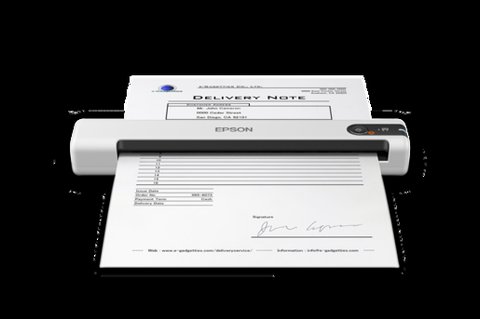
You install the Epson DS-70 driver by downloading the Scan and Utility package from Epson’s own support site for your operating system, since Windows will not run this scanner correctly with only the built-in generic driver. The DS-70 is a battery-optional, USB-powered portable scanner, which makes it popular for scanning receipts and ID cards on the go, but it does depend on Epson’s own scanning software rather than plain plug-and-play.
| Field | Detail |
|---|---|
| Applies To | Epson DS-70 portable sheetfed scanner |
| Publisher | Seiko Epson Corporation |
| Software | Epson Scan 2 Utility + scanner driver |
| File Size | Approximately 100–140 MB |
| Connection | USB (bus-powered, no external adapter) |
| Requirements | Windows 10/11, macOS |
Downloading the Right Package
Head to the official Epson DS-70 support page and select “Drivers” for your OS. Download the combined driver and Epson Scan 2 package rather than the driver alone — the standalone driver lets Windows recognize the hardware, but Epson Scan 2 is what actually lets you scan, adjust resolution, and save to PDF or JPEG.
- Confirm your Windows build (10 or 11, 32-bit or 64-bit) before downloading — Epson still separates these on the DS-70’s page.
- If you scan into a specific app like a document management tool, also grab the “TWAIN” driver component if it is listed separately.
- Close any open scanning software before starting the installer.
Installing and First Scan
- Run the installer with the DS-70 unplugged; connect it only when the wizard prompts you to.
- Feed a single sheet or receipt into the scanner slot once installation finishes.
- Open Epson Scan 2, select the DS-70 from the source list, and run a test scan at 300 DPI.
- Save the test scan as a PDF to confirm both the driver and the file-output path are working correctly.
I keep a DS-70 in my bag for scanning receipts right after a purchase, since waiting until month-end means half the ink has faded on thermal paper receipts. The scanner itself is reliable once installed, but I did have to replace the bundled USB cable after about a year — the original started causing “scanner communication error” messages that had nothing to do with the driver.
Fixing “Scanner Not Found” Errors
If Epson Scan 2 cannot see the DS-70 at all, work through these in order:
- Try a different USB port, especially if you are using a laptop dock or hub — the DS-70 draws power over USB and some hubs cannot supply enough.
- Check Device Manager under Imaging devices for a yellow warning icon next to the DS-70 entry, and reinstall the driver from there if one appears.
- Swap the USB cable if the scanner is more than a year or two old — this is the single most common fix for this exact symptom on the DS-70.
- Restart the “Epson Scan 2 Service” listed in services.msc if the scanner is detected in Device Manager but Epson Scan 2 still cannot connect.
Per Melissa T., who is an Administrative Assistant at a mid-size accounting firm, “We bought two DS-70s for expense receipt scanning and the only real hiccup was a cheap USB extension cable causing constant disconnects — switching to a shorter cable straight into the laptop fixed it instantly.”
Manual Driver Install as a Fallback
When the Epson installer itself fails partway through, extract it with 7-Zip and locate the folder containing the .inf files for the imaging device. In Device Manager, right-click the DS-70 (it may show as an unknown device), choose Update driver > Browse my computer for drivers, and point it at that folder. This gets Windows recognizing the hardware even if the full Epson Scan 2 installer needs to be retried separately afterward.
Streaky or Lined Scans
Vertical lines running down a scanned image almost always mean dust or debris on the scan glass strip inside the feed slot, not a driver fault. Epson sells specific cleaning sheets for this, but a lint-free cloth lightly dampened with water works in a pinch — never use alcohol or glass cleaner directly on the sensor strip.
Compatibility Notes
Epson still maintains driver builds for the DS-70 across current Windows releases, and I have tested it working on both Windows 11 24H2 and Windows 10 22H2 without needing compatibility mode. If Epson ever discontinues official support for a future Windows version, third-party TWAIN-compatible scanning apps like VueScan offer a reverse-engineered driver as a backup option.
Frequently Asked Questions
Does the Epson DS-70 need external power?
No, it draws all its power over the USB cable, which is why a worn or thin USB cable is the most common cause of connection drops.
Can the DS-70 scan directly to a phone or cloud storage?
Not directly — it requires a computer running Epson Scan 2, though you can set the scan destination folder to a synced cloud drive folder like OneDrive or Google Drive.
What is the maximum scan resolution on the DS-70?
It scans up to 600 DPI optical resolution, though 300 DPI is plenty for receipts and most text documents and scans noticeably faster.
Why does my scanned PDF come out blank?
Check that the document fed in the correct orientation — the DS-70’s scan slot only reads one side unless you specifically select duplex mode in Epson Scan 2, if your document requires both sides.
Conclusion
The Epson DS-70 is a dependable little scanner once the driver and Epson Scan 2 are installed correctly, and most of the problems people run into are cable or dust related rather than software bugs. Install with the scanner unplugged, connect it only when prompted, and keep a spare USB cable around if you use it daily — it is the cheapest fix for the most common complaint with this model.
Ryan
Computer Science grad · long-time hands-on troubleshooter